How to Add Motion Blur in CapCut for Smoother Action Shots (2026)
If you have ever filmed something fast — a skateboard trick, a dancer’s spin, a car whipping past — you have probably watched the playback and thought: “Why does that look so choppy?” The camera captured everything just fine, but without any motion blur the movement looks stiff, almost like a flip-book with missing pages.
The fix is one of the simplest tricks in video editing, and CapCut has it built right in. In this guide, I will show you exactly how to add motion blur in CapCut on mobile, desktop, and the online editor, what each setting actually does, and how to keep the effect looking cinematic instead of muddy.
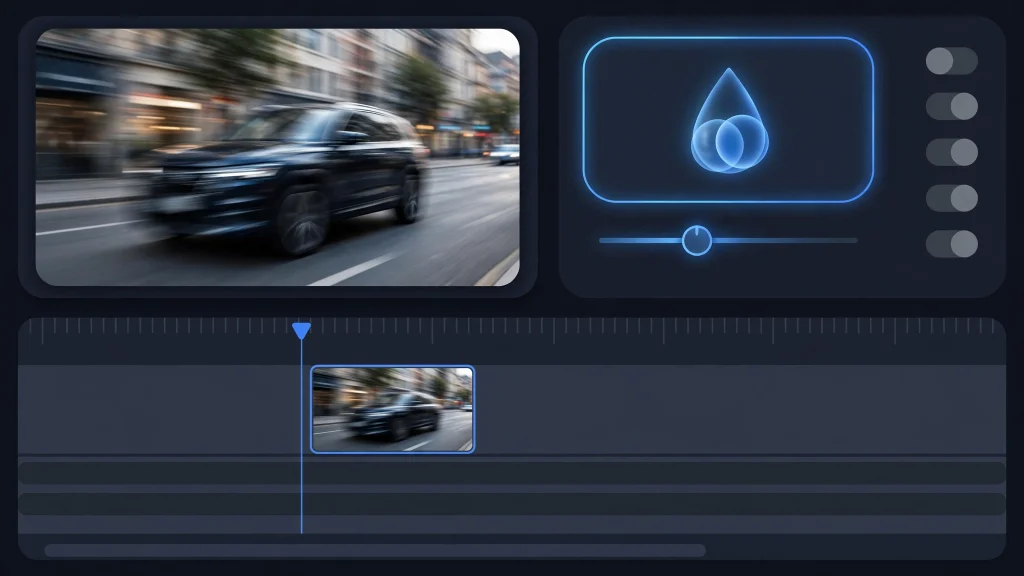
Here is the good news before we dive in: you do not need any third-party plugin or a hacked version of the app. As of 2026, CapCut ships with not one but two built-in ways to add motion blur — a direct per-clip panel and a drag-and-drop video effect. Let us walk through both.
What Motion Blur Actually Does (And Why You Want It)
Real cameras blur moving objects slightly because the shutter stays open for a fraction of a second. Our eyes expect that. When a video has zero blur on fast movement, the brain reads it as “unnatural,” which is why some action footage looks jittery even when it is technically sharp.
Use it well and your action shots instantly feel smoother, faster, and more cinematic. Overdo it and everything looks like it was filmed through a foggy window, so the settings matter. We will get to those next.
Method 1: The Built-In Motion Blur Panel (Mobile and Desktop)
This is the quickest route. The Motion blur panel applies directly to a selected clip, and it is available on both the mobile app and the desktop app.
On the CapCut Mobile App
Here is the step-by-step process:
- Open your project. Launch CapCut, tap New project, pick your video, and tap Add.
- Select the clip. Tap the clip on the timeline so it is highlighted.
- Find Motion blur. Swipe left through the bottom toolbar until you see Motion blur, then tap it. A settings pop-up will appear.
- Adjust the settings. You will see four controls — Blur, Blend, Direction, and Times. We will explain exactly what each one does in the settings section below.
- Apply it. Tap the checkmark (✓) to confirm. The effect needs a moment to process, so give it a few seconds before previewing.
Tip: start with Direction set to both and Times at 4x — that combination gives a natural look on most action clips without going overboard.
On the CapCut Desktop App
The desktop flow is just as simple:
- Import your video and drag it onto the timeline.
- Click the clip to select it.
- In the right-side editing panel, open the Video tab.
- Enable Motion blur.
- Adjust the same four settings — Blur, Blend, Direction (forward / backward / both), and Speed (once / twice / 4 times / 6 times).
One honest caveat: sources disagree on whether the desktop version of motion blur sits behind CapCut Pro. Filmora’s guide reports the desktop effect requires a Pro subscription, while other guides list it as free. CapCut has moved many effects behind Pro over the past couple of years, so if you see a Pro badge on the option in your version, that is why. The basic panel-based route (select clip → Video → Motion blur) is the one most users can access without paying.
Method 2: The Motion Blur Video Effect (Effects Panel)
The second built-in option is the Motion blur video effect in CapCut’s Effects panel. The exact effect name is “Motion blur” (sometimes shown as “Motion Blur”). This method gives you one big advantage over the panel: you control exactly where on the timeline the effect applies, because the effect lives on its own strip above your video.
Adding the Effect on Desktop
- Open the Effects tab (top-right of the editing screen).
- Open Video effects and search for motion blur. You will also find it under the Lens category.
- Drag the effect onto the timeline track above your video clip.
- Click the effect strip to reveal the adjustment sliders — Horizontal and Strength/Intensity.
Want the blur to cover only the fast part of the shot? Drag the left and right edges of the effect strip so it spans only that segment. Extend it across the whole video if you want the effect everywhere. That trim-to-fit control is the main reason many editors prefer this method.
Adding the Effect in the Online Editor
If you edit in CapCut’s browser-based online editor, the path is similar:
- Upload your video at the CapCut online editor and add it to the timeline.
- In the left pane, open Effects and search for motion blur.
- Drag the effect onto your clip.
- Adjust Horizontal and Intensity in the Basic panel, then Export and download your video.
Motion Blur Settings Explained: Blur, Blend, Direction, and Times
The settings are where good-looking motion blur actually happens. Here is what each control does in plain English, so you are not just guessing.
Blur: How Strong the Effect Is
This is the intensity slider — the master dial for the whole effect. A low Blur value adds a subtle smoothing that most viewers will feel more than see. Crank it high and the movement turns into visible streaks.
Start Low and Preview
My rule of thumb: set Blur lower than you think you need, play the clip, and nudge it up. It is much easier to add blur than to fix a shot that has been smeared into mush. High values also destroy fine detail, so subtle is your friend.
Match Blur to Speed
Faster movement can handle more Blur; slow, gentle movement only needs a touch. If the subject barely moves, even a modest Blur setting can look like ghosting — the double-image smear that screams “cheap filter.”
Blend: How the Blur Mixes With Your Footage
Blend controls how the blurred frames combine with the original frame underneath. Think of it like the opacity of the smear. A balanced Blend keeps the subject recognizable while the trail smooths out around it; push it too far and the subject dissolves into the trail.
The Middle Ground Wins
For most action shots, a mid-range Blend gives that cinematic motion feel without turning your skater or dancer into a phantom. If your subject starts looking transparent, dial Blend back before touching anything else.
Blend and Blur Work as a Pair
These two sliders interact: high Blur with low Blend looks gritty, while low Blur with high Blend looks soft and dreamy. Tweak one, preview, then tweak the other.
Direction: Forward, Backward, or Both
Direction tells the blur which way the motion trails. Forward smears along the direction of movement, Backward trails behind it, and Both spreads the blur on either side.
Why “Both” Looks Most Natural
Real camera motion blur spreads both ways around the moving object, which is why both is the safest default. Picking the wrong single direction is one of the most common reasons motion blur looks off — movement suddenly appears to flow in reverse, and your brain flags it instantly.
When to Try a Single Direction
Forward or Backward can be a deliberate stylistic choice — a backward trail can exaggerate speed in a chase scene, for example. Just make sure it matches the actual motion direction on screen, or the shot will feel wrong.
Times (Speed): Once, Twice, 4 Times, or 6 Times
This setting controls how many blended frames the effect uses — on desktop it is labeled Speed, on mobile Times. The options are once, twice, 4 times, and 6 times. More times means a smoother, creamier blur… but also a heavier, more washed-out one.
4x Is the Sweet Spot for Most Clips
For everyday action shots, 4x delivers that smooth cinematic glide without turning everything to soup. Reserve 6x for moments where you really want to sell speed — and be ready for longer render times.
Higher Times Means Heavier Rendering
Every extra “time” multiplies the processing work. Expect noticeably longer exports at 6x, especially in 4K or on an older phone. If your export is crawling, dropping from 6x to 4x is the single easiest fix.
Applying Motion Blur to Only Part of a Clip
Full-video motion blur is rarely what you want. A 20-second vlog with a blurry 2-second skate trick in the middle should only blur the trick. CapCut gives you two clean ways to do partial application.
Trim the Effect Strip (Desktop and Online Editor)
If you used Method 2 — the Effects-panel effect — simply drag the edges of the effect strip on the timeline so it covers only the segment you want. Everything outside the strip stays untouched. This is the fastest and most precise approach.
Split the Clip and Apply to One Piece (Mobile)
On mobile, the direct Motion blur panel applies to a whole clip, so the trick is to make the action its own clip:
- Find the action moment on the timeline.
- Use the Split tool to cut the clip at the start and end of that moment.
- Select just the action segment, open Motion blur from the toolbar, and apply your settings to that piece only.
Advanced users can go one step further with keyframes: ramp the blur intensity up as the move starts and fade it back down when it ends. If keyframes are new to you, our beginner’s guide to keyframes in CapCut walks through the whole process step by step.
Pairing Motion Blur With Speed Ramping for Maximum Impact
Motion blur is good on its own, but the combo that really sells speed is speed ramping + motion blur. Use CapCut’s speed curve to ramp the playback speed up on the action moment — a trick or a sprint — then layer the Motion blur effect over that same segment.
The speed ramp creates the energy; the blur makes it feel real instead of jumpy. If you have never built a speed ramp before, our step-by-step velocity edits guide covers CapCut’s speed curve in detail.
Other Alternatives Worth Knowing
When the built-in motion blur is not quite the look you want, CapCut has a few neighbors worth trying:
- Directional and styled blur: the Effects > Lens category includes other blur effects (horizontal-style looks) that simulate directional motion for camera-pan shots.
- Templates: CapCut’s template library has pre-built motion-blur and “halo blur” slow-motion templates — some free, some Pro — where you just drop in your clip instead of building the effect manually.
- Frame freezing: CapCut’s own guidance suggests combining subtle motion blur with a freeze-frame on slow-motion segments to keep the subject sharp while the motion smears.
When Motion Blur Looks Bad: Common Mistakes and Limitations
Motion blur is powerful, but it is not a “slap it on everything” effect. Here are the situations where it backfires, so you can steer around them.
Static or Slow Scenes
On footage where nothing much moves, motion blur has nothing to work with — it just creates ghosting and double images, and the whole frame looks muddy. If the scene is calm, skip the effect entirely.
Too-High Intensity
The single most common mistake. Cranking Blur and Times to the max turns sharp footage into an abstract smear and destroys detail. Always preview on your phone or full screen before exporting, and remember: viewers notice bad blur instantly but never notice well-calibrated blur at all.
Wrong Direction Setting
Using Forward when the motion goes backward (or vice versa) makes movement look reversed and unnatural. If something looks “off” but you cannot place it, check Direction first — then try “both” and see if the problem disappears.
It Blurs the Whole Frame, Not One Object
One more expectation to set: the Motion blur effect applies to the whole clip or frame area. It does not automatically isolate one moving object or blur just the background beyond its AI detection. If you need to blur one part of the frame — a face, a license plate — use a regular Blur effect with a Mask instead (the export, reimport, and mask workflow).
Render Time and Performance
Motion blur is computationally expensive. Expect longer export times, especially at 4K, at 6x Times settings, or on an older phone. Shortening the clip or applying the effect to only the needed segment keeps render time down. If exports feel sluggish, trimming the effect range is the quickest relief.
Frequently Asked Questions
Where is motion blur in the CapCut mobile app?
Open a project, tap the clip on the timeline, then swipe through the bottom toolbar — Motion blur is one of the options there. Tap it and a settings pop-up with Blur, Blend, Direction, and Times appears. Adjust your values and tap the checkmark to apply.
Is CapCut’s motion blur free or does it need Pro?
It is a built-in feature on mobile, desktop, and the online editor — but sources genuinely disagree on the paywall status. One well-known third-party guide reports the desktop effect requires CapCut Pro, while other guides list it as free. Treat it as version-dependent: if you see a Pro badge on the effect in your app, that is the reason.
Can I add motion blur to only part of a video?
Yes, and you should. With the Effects-panel method, trim the effect strip on the timeline so it covers only the segment you want. On mobile, split the action part into its own clip with the Split tool and apply Motion blur to that clip only. You can also use keyframes to ramp the intensity up at the start of a move and fade it down at the end.
Why does my motion blur look ghosty or fake?
The three usual suspects: intensity set too high, using it on a slow or static scene (which creates double images), or the wrong Direction for the movement. Lower the Blur slider, set Direction to “both,” and always preview before exporting.
Does motion blur slow down exporting?
Yes. The effect requires extra processing, so exports take longer — noticeably so at 4K, at 6x Times settings, or on older phones. Shorten the clip, drop from 6x to 4x, or apply the effect to only the needed segment to keep render times manageable.
Conclusion
Motion blur is one of those small edits that quietly separates amateur footage from footage that feels professional. You now know both built-in methods — the quick per-clip panel on mobile and desktop, and the trimmable effect strip in the Effects panel — plus exactly what Blur, Blend, Direction, and Times do.
Start on an action clip you already have, keep the settings subtle, and preview before you export. Happy editing!