Video editing has become an important part of creating content for social media, YouTube, business promotion, online education, and personal projects. Whether you want to produce YouTube videos, edit TikTok clips, create Instagram Reels, or prepare professional-looking presentations, having a reliable video editing application can make the process much easier.
One popular option is CapCut, a video editing application known for its user-friendly interface and wide selection of creative tools. Although many people use CapCut on their smartphones, you can also use it on a compatible PC or laptop.
Editing videos on a computer can be particularly convenient when you are working with longer recordings, multiple video clips, detailed captions, or projects that require more precise adjustments. A larger screen and keyboard can also make certain editing tasks more comfortable.
However, if you have never installed CapCut on a computer before, you might wonder where to download it, whether it works on Windows and Mac, and what to do if the installation fails.
The good news is that installing CapCut on a PC or laptop is generally straightforward when you follow the correct steps.
In this guide, we will explain how to download and install CapCut on your computer, how to check system requirements, how to troubleshoot common problems, and how to start editing your first video.
What Is CapCut for PC?
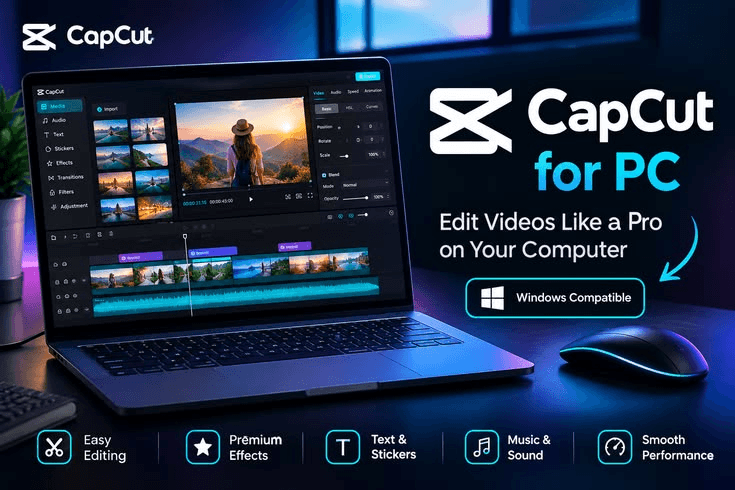
CapCut for PC is the desktop version of CapCut, a video editing application developed by ByteDance. It allows users to create, edit, and improve videos using various editing tools and creative features.
The desktop application is designed for people who prefer working on a computer rather than editing everything on a smartphone.
With CapCut on a PC or laptop, you can combine video clips, trim unwanted footage, add music, insert captions, apply filters, use transitions, and adjust the appearance of your videos. Depending on the version and your account eligibility, you may also have access to AI-assisted editing features and other advanced tools.
For example, imagine that you recorded a tutorial using your phone and want to turn it into a polished YouTube video. You can transfer the recordings to your computer, import them into CapCut, remove mistakes, add titles, adjust the audio, and export the finished video.
CapCut can also be useful for students preparing school projects, businesses creating promotional videos, and content creators who publish videos regularly.
Some features are available without a paid subscription, while others may require payment. The tools available to you can vary according to your region, software version, account, and subscription status.
What Are the System Requirements for CapCut on a PC or Laptop?
Before downloading CapCut, it is important to check whether your computer can run the application properly.
A computer that meets the software’s minimum requirements may be able to launch the application, but demanding projects can require more processing power, memory, and storage.
The exact requirements can change between versions, so you should check the current requirements listed on CapCut’s official website before installing it.
Windows Requirements
If you use a Windows computer, check the following areas before installation:
- Operating system: Make sure your Windows version is supported by the current CapCut desktop release.
- Processor: A reasonably capable processor helps with video playback, editing, effects, and exporting.
- RAM: More memory can improve performance when working with several video tracks or large files.
- Storage: You need enough free space for the application, temporary editing files, source footage, and finished videos.
- Graphics hardware: Some effects and demanding editing functions benefit from a compatible graphics processor.
- Internet connection: An internet connection may be needed for downloading the application, signing in, accessing online resources, and using certain features.
If you are using an older laptop, do not assume that CapCut will run smoothly simply because the application installs successfully.
Mac Requirements
CapCut also offers desktop software for supported Mac computers.
Before installing it, check your macOS version, available storage, processor compatibility, and the requirements of the particular release.
Some older Mac computers may not support newer versions of the application. If your computer is incompatible, check the official website for supported alternatives.
How to Check Your Computer Specifications
On Windows, you can check basic system information by following these steps:
- Open the Start menu.
- Select Settings.
- Click System.
- Select About.
- Review your Windows edition, processor, and installed RAM.
You can also check available storage by opening File Explorer and selecting This PC.
On a Mac, open the Apple menu and select About This Mac to review your computer’s specifications.
Checking these details before installation can save time and help you understand whether your computer is suitable for your editing needs.
How to Download CapCut on a Windows PC or Laptop
The easiest way to install CapCut on Windows is to obtain the desktop application through an official distribution channel.
Here is how to do it.
Step 1: Open Your Web Browser
Start by opening a browser such as Microsoft Edge, Google Chrome, or another browser you trust.
In the address bar, enter the official CapCut website:
Make sure you are visiting the legitimate website rather than an unfamiliar download page that imitates the original.
Step 2: Find the Desktop Download Option
Once the website loads, look for the download option for CapCut on desktop.
The wording and layout may change over time, so the button may not appear exactly as described in every version of the website.
Choose the Windows version if it is offered and compatible with your computer.
Depending on your location and the current distribution options, the official website may also direct you to an approved app store or another supported download method.
Step 3: Download the Installer
After selecting the appropriate download option, wait for the installer to finish downloading.
The downloaded file will usually appear in your browser’s Downloads folder unless you selected another location.
Do not close the browser before the download finishes.
If the download fails, check your internet connection and available storage, then try again through the official source.
Step 4: Open the Installer
Navigate to the Downloads folder and locate the CapCut installer.
Double-click the downloaded file to start the installation process.
Windows may display a security prompt asking whether you want to allow the application to make changes to your device. Before approving it, verify that the file came from the legitimate CapCut website or another trusted distribution channel.
If the source looks suspicious, do not continue.
Step 5: Follow the Installation Instructions
Once the installer opens, follow the instructions displayed on your screen.
Depending on the installer version, you may need to accept the relevant terms, select an installation location, or confirm the installation.
Wait while the required files are installed.
The installation time depends on your computer’s performance, the installer, and your available storage.
Step 6: Launch CapCut
After installation is complete, open CapCut using the desktop shortcut or the Start menu.
The application may display an introductory screen, sign-in options, or a project creation interface.
Follow the available instructions to finish the initial setup.
You can now begin editing videos on your PC or laptop.
How to Install CapCut on a MacBook or Mac Computer
If you use a MacBook, iMac, or another supported Mac computer, you can follow a similar process.
However, make sure you download the macOS version rather than the Windows installer.
Step 1: Visit the Official CapCut Website
Open Safari or another browser and visit the official CapCut website.
Find the desktop download section and look for the version intended for Mac.
Check that the software supports your Mac’s operating system and processor before downloading it.
Step 2: Download the Mac Version
Select the appropriate download option and wait for the file to finish downloading.
Depending on the distribution method, the download may be a disk image or another installer format used by macOS.
Step 3: Open the Downloaded File
Open your Downloads folder and locate the file you obtained.
Follow the installation instructions provided for that file type. For example, if the download is a disk image containing the application, the instructions may ask you to move the app into your Applications folder.
The exact process depends on the installer supplied.
Step 4: Complete Any Security Prompts
macOS may check the application before allowing it to open.
If you receive a warning, verify that the software came from the official CapCut website or another authorized source. Do not bypass security protections simply because an unfamiliar website tells you to do so.
Step 5: Open CapCut
After installation, open CapCut from your Applications folder or Launchpad, depending on your macOS version.
Complete any initial setup instructions and begin a new editing project.
If your Mac cannot run the available desktop version, check the official website for compatible alternatives rather than downloading an unverified installer.
Can You Install CapCut on a PC Without Downloading an APK?
Yes. In fact, the desktop version is generally the more appropriate choice when you want to edit videos directly on a Windows computer.
An APK is an Android application package. It is intended for installing Android applications, not for direct installation as a native Windows or macOS program.
If you download an Android CapCut APK onto your PC, you generally cannot open it like a normal Windows application.
Some people use Android emulators to run Android applications on a computer, but this adds another layer of software and may introduce performance or compatibility problems. It is not usually necessary when a compatible desktop version is available.
For most computer users, downloading the official CapCut desktop application is the simpler approach.
It can also provide a more convenient workflow for editing projects with multiple clips, detailed timelines, and larger media files.
How to Install CapCut Using the Microsoft Store
Depending on your region and current availability, CapCut may also be offered through the Microsoft Store.
If you prefer installing applications through the Windows app store, you can check whether the official CapCut desktop application is listed.
Follow these steps:
- Open the Microsoft Store from your Windows Start menu.
- Search for CapCut.
- Check the developer and application details to confirm that the listing is legitimate.
- Select the available installation option.
- Wait for the application to download and install.
- Open CapCut from the Start menu when the installation is complete.
The Microsoft Store may not display CapCut in every region or on every computer. If you cannot find a legitimate listing, check the official CapCut website for supported installation options.
Avoid installing unrelated applications that use similar names or logos.
How to Start Editing Videos After Installing CapCut
Once CapCut is installed, you can begin learning how its editing tools work.
You do not need to master every feature immediately. Start with a small project and gradually explore the more advanced options.
1. Create a New Project
Open CapCut and look for the option to create a new project.
Choose the video files or photographs you want to edit.
You can use footage recorded on your phone, a camera, or another device, provided the files are supported.
If your media is stored on your phone, transfer it to your computer using a suitable USB cable, cloud service, or other trusted transfer method.
2. Arrange Your Clips on the Timeline
The timeline is where you organize the elements of your video.
You can place clips in sequence, shorten them, split them into smaller sections, and remove unnecessary footage.
For example, if you are editing a product review, you might start with an introduction, show the product, demonstrate its features, and finish with your conclusion.
Arranging your footage logically makes the final video easier to follow.
3. Add Music and Sound Effects
Audio can make a video more interesting and help establish its mood.
You may add background music, sound effects, voice recordings, or other supported audio files.
Be careful with volume levels. If you are speaking in the video, your voice should remain clear and easy to understand.
Also check the licensing terms of the music you use, particularly if you plan to monetize your videos or promote a business.
4. Add Text and Captions
Text can help viewers understand your message.
You might add an opening title, section headings, subtitles, or short labels that highlight important information.
Some versions of CapCut offer automatic captioning tools. These can save time, but it is important to check the generated text for spelling mistakes and incorrect transcriptions.
Use readable fonts and avoid covering important parts of the video with captions or graphics.
5. Apply Transitions and Effects
Transitions help connect one scene to another, while visual effects can change the appearance of your footage.
You can experiment with these tools to create a style that suits your content.
However, more effects do not necessarily make a video better. Simple editing, well-timed cuts, and clear audio often produce a more polished result than excessive animations.
6. Export the Finished Video
When you have finished editing, preview the entire project before exporting it.
Check that the clips appear in the correct order, the audio is balanced, the captions are accurate, and there are no unwanted blank sections.
Choose the available resolution and frame rate that best suit your footage and intended platform.
Higher resolutions may provide more detail, but they also create larger files and can take longer to export.
After exporting, locate the finished video on your computer and play it to confirm that everything looks and sounds correct.
What Should You Do if CapCut Will Not Install on Your PC?
Sometimes the installation process does not go as expected. The good news is that many common installation problems have straightforward explanations.
CapCut Is Not Downloading
If the download does not start or stops unexpectedly, check your internet connection first.
Make sure your computer has enough free storage and try downloading the installer again from the official website.
If you are using a browser with strict download protection, review its warning carefully rather than automatically disabling security settings.
CapCut Says Your Computer Is Not Compatible
This message may indicate that your operating system or hardware does not meet the application’s current requirements.
Check your Windows or macOS version and compare it with the requirements listed by the official distributor.
If your operating system is outdated, see whether a supported update is available for your computer.
However, some older computers cannot run newer software releases. In that case, you may need to consider another compatible editing application or an officially supported web-based option.
The Installer Opens but Nothing Happens
This problem can be caused by a damaged download, a software conflict, insufficient permissions, or a temporary system issue.
Try restarting your computer and downloading a fresh copy of the installer from the official source.
Check whether your computer has sufficient free storage and whether Windows or macOS is displaying a security warning.
Avoid downloading additional installer files from unknown websites as a troubleshooting shortcut.
CapCut Installs but Keeps Crashing
If CapCut installs successfully but closes unexpectedly, your computer may lack the resources needed for your project, or the application may have encountered a software problem.
Restart the computer, close unnecessary applications, and make sure your operating system and CapCut installation are up to date.
If crashes occur only with a particular project, the project may contain a problematic media file or an effect that your system struggles to process.
Try opening a simple project to determine whether the problem affects the entire application or only one project.
CapCut Is Running Slowly
Video editing can place significant demands on a computer, particularly when working with high-resolution footage, several layers, and advanced effects.
To improve performance, close unnecessary applications, free up storage, and avoid running several demanding programs at the same time.
You can also reduce the complexity of your editing timeline or use lower preview settings if the application provides them.
If your laptop has limited RAM or an older processor, performance may remain restricted even after troubleshooting.
Is CapCut for PC Free?
CapCut offers some features that users can access without paying for a subscription. However, not every feature is necessarily free.
Certain effects, templates, AI tools, cloud services, and advanced editing options may require a paid plan or separate payment.
The exact arrangement can change over time and may differ by region or account.
Before subscribing, review the current pricing and feature information displayed through CapCut’s official channels. Make sure you understand which tools are included in the plan and whether any usage limits apply.
You do not necessarily need a paid subscription to begin learning video editing. Basic skills such as trimming clips, arranging scenes, adding text, and adjusting audio can help you create useful videos with the features available to you.
Is CapCut Safe to Install on a Computer?
CapCut is best obtained through its official website or another recognized distribution channel.
Unofficial download sites may distribute altered installers that contain malware, unwanted applications, or software that compromises your privacy.
Be particularly careful with modified desktop versions advertised as providing all paid features for free. These versions may be unreliable, unsafe, or unsupported.
To reduce the risk:
- Download the application from an official or trusted source.
- Check the developer and installer information before running the file.
- Keep your operating system and security software updated.
- Do not ignore security warnings from Windows or macOS without understanding them.
- Avoid installers that ask you to install unrelated software.
- Review the permissions and privacy practices associated with the application.
- Keep backups of important video projects and source files.
You should also think carefully about the videos you upload to online services or process with cloud-based features, especially if they contain confidential information.
CapCut Desktop vs. CapCut Mobile: Which Is Better?
Both versions can be useful, but the best choice depends on how you prefer to work.
CapCut mobile is convenient when you record videos on your phone and want to edit them immediately. It is especially useful for short clips, quick adjustments, and content you intend to publish directly from your device.
CapCut desktop is often more comfortable for longer editing sessions, larger projects, and workflows that involve many clips or more precise timeline adjustments.
A computer also provides a larger screen and the convenience of a keyboard and mouse.
However, desktop editing does not automatically make every video better. Your results depend on the quality of your footage, your editing decisions, and your familiarity with the available tools.
If you create short videos while travelling, mobile editing may be sufficient. If you regularly produce tutorials, product reviews, or longer YouTube videos, a desktop workflow may suit you better.
Frequently Asked Questions
Can I install CapCut on a Windows 10 or Windows 11 laptop?
Compatibility depends on the current CapCut desktop requirements and your computer’s configuration. Check the official download page to confirm whether your Windows version is supported before installing the application.
Can I install CapCut on a laptop with 4GB of RAM?
It depends on the software version and the rest of your computer’s specifications. A laptop with 4GB of RAM may struggle with demanding projects, multiple video tracks, and advanced effects. Check the current requirements and expect performance limitations on low-memory systems.
Can I use CapCut on my PC without an internet connection?
Some editing tasks may work offline after installation, particularly when the necessary media files are stored locally. However, downloading resources, signing in, using certain AI features, and accessing cloud services may require an internet connection.
Can I use the same CapCut account on my phone and computer?
CapCut provides account-based features, but the availability of project synchronization and cloud services depends on your account, region, version, and subscription. Do not assume that every local project will automatically appear on every device. Check the application’s synchronization options and keep backups of important work.
Is CapCut better than other video editing applications?
That depends on your needs. CapCut can be a convenient choice for social media content, short videos, and creators who want accessible editing tools. Other applications may be more suitable for specialized professional workflows, advanced color grading, or particular production requirements.
Can I install CapCut on a PC using an Android APK?
Not directly as a native Windows application. An APK is designed for Android. For computer editing, use the official CapCut desktop version if it supports your operating system.