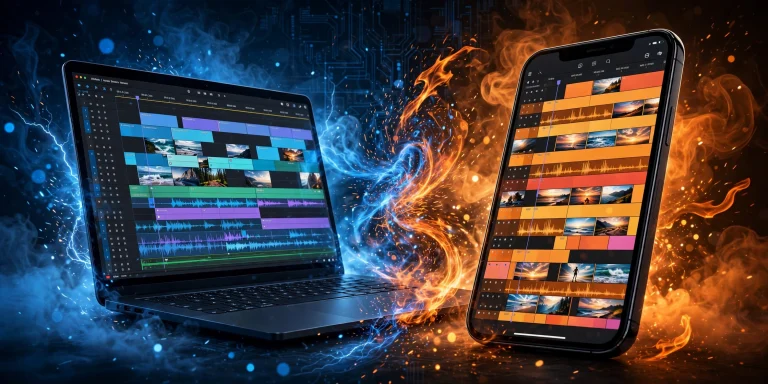
CapCut vs DaVinci Resolve: Which Video Editor Is Better in 2026?
Choosing between CapCut and DaVinci Resolve in 2026 is like choosing between a sharp pocket knife and a full chef’s kitchen. Both cut, both work — but they were built for very different cooks. CapCut is the king of speed: the app millions of TikTok, Reels, and Shorts creators open daily to turn raw clips into polished vertical videos in minutes, right from their phone. DaVinci Resolve is the heavyweight that Hollywood colorists and serious filmmakers trust when every frame has to be perfect.
So which one is actually better? The honest answer: it depends on what kind of videos you make, what hardware you own, and where you see yourself as a creator. This guide breaks down CapCut vs DaVinci Resolve feature by feature — price, ease of use, color, audio, effects, mobile vs desktop, and performance — so you can pick the right tool without wasting weeks learning the wrong one.
The Quick Verdict: Speed vs Power
If you’re in a hurry, here’s the short version. CapCut is the best video editor for fast social clips — TikToks, Reels, YouTube Shorts, quick vlogs, and anything you need to publish today. It opens fast, the templates do half the work for you, and you can learn it in an afternoon.
DaVinci Resolve is better for color grading, long-form video, and career-level skills. Its color page is genuinely industry-standard — the same toolkit used on feature films — and its one-time $295 Studio price means you own it forever instead of renting it every month.
Here’s the comparison at a glance:
- Free tier: CapCut gives you the core editor with roughly 1080p export; DaVinci Resolve’s free version is nearly the whole app, with exports up to 4K at 60fps.
- Paid: CapCut Pro runs roughly $7.99–$9.99/month or $74.99–$89.99/year (varies by region and platform); Resolve Studio is $295 one-time with lifetime updates.
- Learning time: CapCut takes hours to days; Resolve takes weeks to months.
- Mobile: CapCut is mobile-first; Resolve has an iPad app only — no Android version.
- Color: CapCut offers basic filters and LUTs; Resolve has a Hollywood-grade color page.
- Audio: CapCut has basic mixing and ducking; Resolve ships a full Fairlight digital audio workstation.
- Hardware: CapCut runs fine on modest PCs; Resolve really wants a dedicated GPU.
- Best output: CapCut shines for fast social clips; Resolve for films and graded long-form.
Price Comparison: Subscription vs One-Time Payment
This is where the two editors diverge the most, and it’s worth doing the math before you commit. Pricing structures tell you a lot about who each tool is really built for.
CapCut Pricing: Free, Plus a Recurring Pro Subscription
CapCut’s free tier is generous enough to get real work done. You get the core editor, basic effects, transitions, text tools, and export in up to around 1080p according to most comparison guides. For casual creators, that may be all you ever need.
CapCut Pro unlocks higher-resolution exports (including 4K), the full asset library, cloud storage, and pro-only AI features. Pro costs roughly $7.99–$9.99 per month or $74.99–$89.99 per year — but pricing varies by region and platform, so always check your app store or the official site for the current price in your country. One thing to know: assets marked with a Pro badge will export with a watermark unless you’re subscribed.
The subscription math matters over time. Two years of CapCut Pro at the annual rate lands somewhere around $150–$180 — money you spend every single year you keep it.
CapCut Pricing: What You Get on the Free Tier
Free users get the core timeline editor, basic effects, transitions, keyframes, auto captions, and ~1080p exports. Pro assets are watermarked on export. It’s enough for most social posts.
CapCut Pricing: What Pro Adds
Pro unlocks 4K exports, the full effect and template library, cloud sync across devices, extra storage, and advanced AI tools. Note that some AI features (like Auto Lyrics) remain mobile-only per CapCut’s official help pages as of early 2026.
CapCut Pricing: The Long-Term Cost
Pro is a rental: the moment you stop paying, the Pro features stop too. If you edit for years, the total eventually exceeds DaVinci Resolve Studio’s single payment — something to weigh if you plan to edit long-term.
DaVinci Resolve Pricing: A Free Powerhouse and a $295 One-Time Studio
Here’s the thing most people get wrong about DaVinci Resolve: the free version is not a trial. It’s a complete, professional editor with the Edit page, the legendary Color page, Fairlight audio, basic Fusion effects, and exports up to 4K UHD at 60fps. Hollywood productions have graded on this engine. It’s free.
DaVinci Resolve Studio costs $295 as a one-time payment, and it includes lifetime updates. That unlocks the Neural Engine AI tools (Magic Mask, voice isolation, scene cut detection, auto multicam), noise reduction, HDR grading tools, and exports above 4K or at 120fps and beyond.
Do the comparison: CapCut Pro’s yearly cost, multiplied over several years, quickly overtakes $295 — and with Resolve Studio you never pay again. If you know you’ll still be editing in five years, Resolve’s pricing is hard to beat.
Ease of Use: Hours to Learn vs Months to Master
CapCut is genuinely one of the easiest editors ever made. Most beginners are cutting, adding text, and exporting a finished video within one to three days of first opening it — many within hours. The interface speaks plain language, trending effects are one tap away, and templates let you produce something that looks great before you understand what a keyframe is.
DaVinci Resolve asks more of you. It has six different “pages” — Cut, Edit, Fusion, Color, Fairlight, and Deliver — each essentially a full application. Expect weeks to get comfortable and months to feel fluent, especially in Color and Fusion. That’s not a flaw; it’s the price of professional depth. But if your goal is posting daily content, that learning curve has a real cost in time.
Learning Curve Comparison
With CapCut, the path from “never edited” to “published my first video” can be a single evening. With Resolve, plan on a structured week or two just to learn the Edit page basics, then months of deliberate practice for color grading and Fusion. Choose the curve that matches your patience and your publishing schedule.
Features Compared: Editing, Color, Audio, and Effects
Both editors handle the fundamentals — trimming, splitting, transitions, text, and speed changes. The gap opens when you move into the craft areas: color, audio, and visual effects. This is where each tool’s true identity shows.
Video Editing Tools
For everyday cutting, both are more than capable. CapCut’s timeline is simple and forgiving, with great touch-friendly controls on mobile and handy creator tools on desktop — including auto captions, background removal, and script-to-video generation. Multicam support exists but is basic, with limited angles.
Resolve’s Edit page is a true professional NLE: magnetic trimming, dozens of multicam angles with waveform or timecode sync, and a dedicated Cut page optimized for fast rough assembly. Its Deliver page adds a render queue and pro formats like ProRes, DNxHD, DPX, and even DCP for cinema. If you edit interviews, podcasts, or anything multicam, Resolve is in another league.
Color Grading
This is the biggest skill gap between the two. CapCut offers basic sliders, filters, and LUT presets — fine for making a clip look decent quickly. But try matching colors across shots from two different cameras, and you’ll feel the ceiling fast.
DaVinci Resolve’s Color page is the industry standard. Nodes, color wheels, curves, HDR grading, log workflows, and object trackers — this is the same toolkit colorists use on Hollywood films. If color is part of your creative identity (weddings, films, brand work), nothing else at this price touches it.
Audio Editing
CapCut gives you volume curves, basic audio ducking, and some AI sound effects. It’s perfectly fine for voiceover and trending sounds in short-form content.
Resolve includes Fairlight, a full digital audio workstation: multitrack mixing, EQ, compression, a dialogue leveler, and AI voice isolation (Studio). Podcasters and filmmakers who mix dialogue, music, and effects will feel the difference immediately.
Effects and VFX
CapCut wins on trend speed — body effects, auto velocity, background removal, and thousands of templates that mirror what’s viral right now. It also has basic blend modes for simple compositing.
Resolve counters with Fusion, a node-based compositor approaching After Effects class. It’s slower to learn and wildly more powerful: motion tracking, particle systems, 3D compositing. For cinematic VFX, Fusion is the real deal; for viral effects, CapCut ships them first.
Mobile vs Desktop: Where Each Editor Lives
CapCut is mobile-first. The phone app is the main app for millions of creators — it launches fast, edits with touch, and pushes straight to TikTok, Reels, and Shorts. It also runs on Windows, macOS, and the web, with cross-device sync on Pro. Just note that a few AI features, like Auto Lyrics, are mobile-only per CapCut’s official help (January 2026). If you’re still deciding which screen to edit on, see our guide to CapCut desktop vs mobile for a detailed breakdown.
DaVinci Resolve is a desktop animal: Windows, macOS, and Linux, plus an iPad app. There is no Android app, and the iPad version really wants an M-series chip. Resolve is also GPU-bound — a realistic floor is something like an M1 Pro Mac or an RTX 3060-class Windows machine. CapCut, by contrast, runs happily on modest laptops and integrated graphics. Your hardware often decides this matchup before you do.
AI Features: Auto Everything vs Pro-Grade Assist
CapCut’s AI is built for creators: auto captions, AI avatars, script generation, auto background removal, and template effects that ride trends. It removes friction at every step of short-form production.
Resolve’s AI lives in the Neural Engine — Magic Mask, voice isolation, scene cut detection, and automatic multicam syncing. These are mostly Studio features, and they’re aimed at saving professionals hours of tedious work rather than generating content. Both are impressive; they just serve different masters.
Export and Delivery: One-Click Social vs Cinema Pipeline
CapCut’s exports are built for the feed: one-click presets for TikTok, Reels, Shorts, and YouTube, with 4K+ on Pro. Resolve’s Deliver page is a full finishing pipeline — render queue, ProRes and DNxHD intermediates, DPX sequences, DCP packages for cinemas, and custom color space management. If you deliver to clients or festivals, this is the tool built for it.
Who Should Pick CapCut, and Who Should Pick DaVinci Resolve?
By now the pattern is clear: CapCut is best for fast social clips; DaVinci Resolve is better for color, long-form, and career skills. Match yourself to the right side and you can’t go wrong.
Pick CapCut If You…
- Make TikToks, Reels, or Shorts and publish often
- Are a beginner who wants results today, not next month
- Edit mostly on your phone or a modest laptop
- Run a small business and need quick promo videos
- Want trendy effects and templates without learning compositing
Pick DaVinci Resolve If You…
- Grade color seriously — weddings, films, client work
- Edit long-form YouTube, documentaries, or multicam interviews and podcasts
- Want a professional skill set that transfers to studio jobs
- Own (or plan to buy) a computer with a real GPU
- Prefer paying once ($295) over a subscription that never ends
And honestly? Many creators use both — CapCut for drafts and shorts, Resolve for hero content. If you’re comparing CapCut against other editors too, our CapCut vs Premiere Pro guide for beginners covers another popular matchup.
Frequently Asked Questions
Which is better for a beginner in 2026?
CapCut. You’ll be productive within hours, and it runs on the phone or laptop you already own. DaVinci Resolve takes weeks of learning and expects decent desktop hardware, so start there only if you’re committed to a longer journey.
Is DaVinci Resolve really free?
Yes. The free version is a complete editor — Edit, Color, Fairlight, and basic Fusion — with exports up to 4K at 60fps. The $295 one-time Studio upgrade adds AI tools, noise reduction, HDR grading, and 4K+ exports with lifetime updates.
Can CapCut replace DaVinci Resolve for YouTube?
For Shorts and simple vlogs, yes — CapCut is faster and easier. For color-graded, multicam, or long-form content, no. That’s Resolve’s domain, and the gap in color and audio tools is significant.
Does CapCut work on desktop?
Yes. CapCut runs on Windows, macOS, and the web, with cross-device sync on Pro. It’s mobile-first, though, and a few AI features like Auto Lyrics remain mobile-only per CapCut’s official help.
Which one do professionals use?
Resolve dominates professional color and film work; CapCut dominates social-creator speed. The smart move for many creators is using both: CapCut for quick drafts and shorts, Resolve for polished hero content.
Final Verdict: Which Video Editor Is Better in 2026?
The simplest test: what did you make last week? If the answer is vertical clips, pick CapCut. If the answer is something you want graded, mixed, and delivered like a film, pick DaVinci Resolve. Choose the tool that matches the work, and you’ll never look back.