How to Create a Picture-in-Picture Effect in CapCut Using Overlay (2026 Guide)
Picture-in-picture instantly makes a video look professional — a gamer’s facecam in the corner of gameplay, a teacher’s face over a screen recording. And you do not need expensive software: CapCut’s Overlay feature makes it easy, even for complete beginners.
In this guide, you will learn how to create a picture-in-picture effect in CapCut on your phone: adding an overlay, resizing and styling the small window, and animating it — plus the mistakes beginners make most, so you can skip the frustration.
What Is Picture-in-Picture in CapCut?
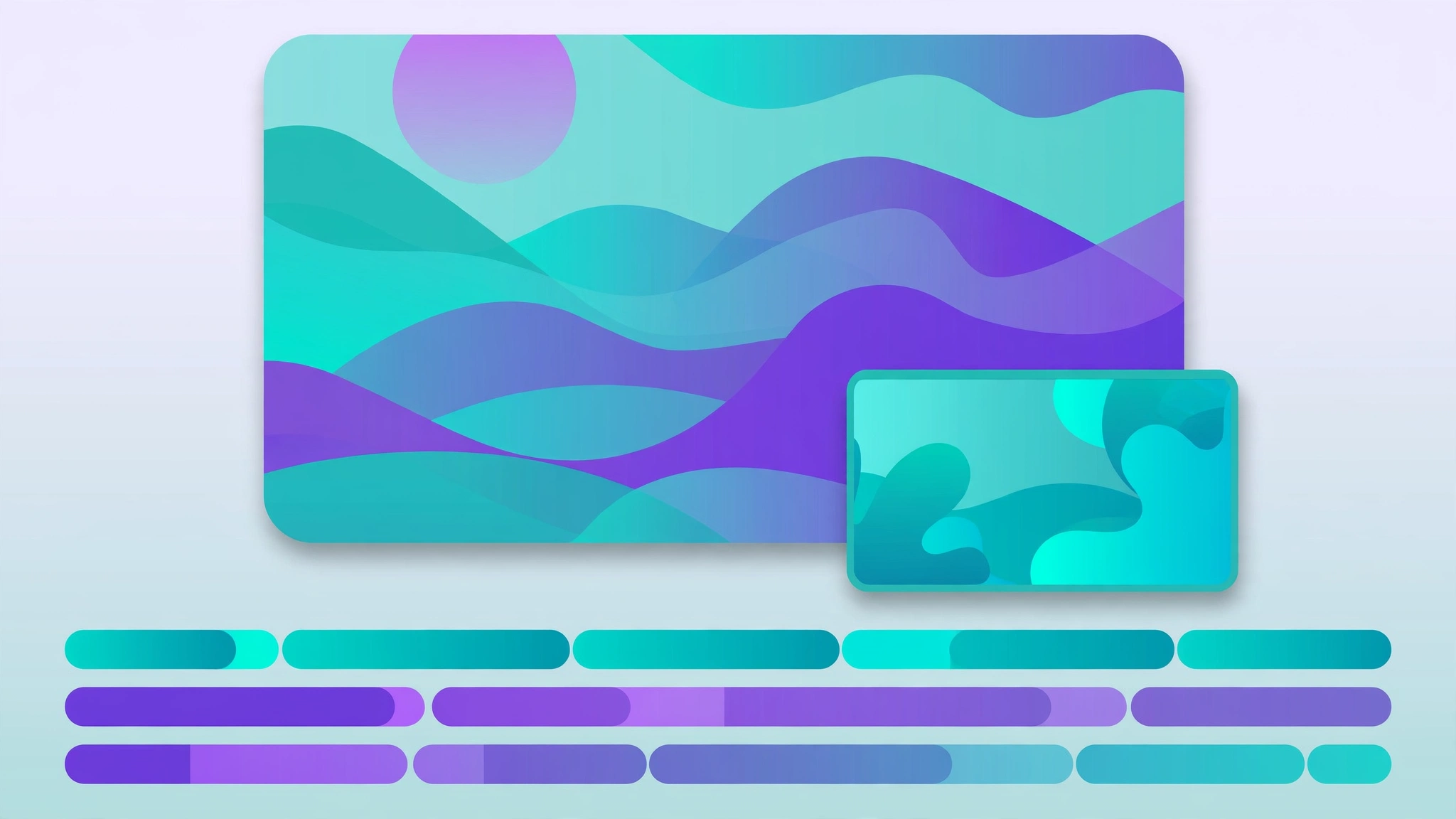
Picture-in-picture (PiP) simply means showing two videos on screen at once. The main video fills the screen, while a second, smaller video plays in a window layered on top — like a cooking show where the recipe plays in the background and the chef’s face appears in a small corner window.
In CapCut, this is done with the Overlay tool: any extra layer — a video, photo, or sticker — placed on its own track above your main clip, so you can move, resize, and restyle it freely.
How to Add a Picture-in-Picture Overlay in CapCut (Step by Step)
Grab your phone, open CapCut, and follow along.
Step 1: Start a New Project and Add Your Main Clip
Tap New Project, choose the video that will fill the background — your gameplay footage or screen recording — and tap Add to load it onto the main timeline track.
Step 2: Add Your Second Clip as an Overlay
Tap Overlay in the bottom toolbar, then Add Overlay. Pick the video or photo for the small floating window — your facecam or a reaction clip — and tap Add. It lands on the overlay track above your main clip.
Step 3: Resize and Reposition the Overlay Window
Tap the overlay clip to select it. Pinch with two fingers on the preview to shrink it to about one-fifth of the screen, then drag it into a corner. The preview updates in real time, so experiment until it feels right.
Step 4: Set the Overlay’s Timing
On the timeline, drag the edges of the overlay bar to control when the window appears and disappears. If the overlay has sound, balance its volume against the main clip.
Step 5: Preview and Export
Hit play and check the window never covers anything important, then tap the export arrow in the top-right, pick your resolution, and save.
How to Style Your Picture-in-Picture Window
A plain rectangle works, but a little styling is what separates amateur edits from polished ones.
Round the Corners With the Mask Tool
Select the overlay clip, tap Mask, and choose the rectangle shape. Use the sliders to round the corners and add a slight feather so the edges blend softly into the scene.
Add a Clean Border or Frame
A thin border helps the window stand out from a busy background. Try this trick: place a solid-color image as an overlay behind your video overlay, scaled slightly larger. The sliver of color peeking out becomes a neat frame — white, black, or your brand color all work.
Soften the Look With Opacity
If the overlay shows extra information rather than a face, lowering its opacity slightly creates a subtle, semi-transparent effect. For the classic look, though, full opacity with feathered edges is usually best.
Animate the Window With Keyframes
Want the window to slide in or drift across the screen? Select the overlay clip and tap the diamond-shaped keyframe icon. Set a keyframe at the starting position, move the playhead forward, drag the window to its new spot, and CapCut animates between the two points. Our beginner’s guide to keyframes in CapCut covers this in detail.
Creative Ways to Use Picture-in-Picture in CapCut
Reaction Videos and Gameplay Commentary
The classic use case: gameplay or the video you are reacting to as the main clip, your facecam as the corner window. Viewers get the content and your personality at once.
Tutorials and Screen Recordings
Record your screen as the main clip and add yourself explaining the steps as the overlay. A real face builds trust and keeps viewers engaged through longer lessons.
Interviews and Green Screen Combos
Show two speakers at once for remote interviews, or run before-and-after comparisons. If your overlay has a solid-color background, you can remove it entirely — see how to remove a green screen background with the chroma key tool to go further.
Common Mistakes Beginners Make (and How to Fix Them)
Your Overlay Is Not Showing Up
It is usually on the wrong layer or its timing misses the main clip. Keep it on the overlay track above the main video, with its timeline bar overlapping the section you are previewing.
The Overlay Looks Blurry or Pixelated
Use high-resolution media for the overlay — 1080p or higher scaled down stays sharp — and export at 1080p or above so the small window keeps its detail.
The Window Covers Something Important
Preview the full video for moments where the window blocks subtitles or faces. Reposition it, or use keyframes to glide it to a quieter corner during those moments.
The Overlay Just Sits There, Lifeless
Add an animation preset (fade, slide, or zoom) so the window enters and exits gracefully. Even a small entrance animation makes the edit feel intentional.
FAQs
Can I add more than one overlay in CapCut?
Yes — you can stack multiple overlays and run several picture-in-picture windows at once. Just keep the frame uncluttered and give each window a clear purpose.
How do I remove the background behind my overlay video?
For a green or blue background, use the Chroma Key tool on the overlay clip. Otherwise, the Mask tool with a circle or custom shape crops down to just the part you want.
How do I delete an overlay I added by mistake?
Tap the overlay clip to select it, then tap the trash or delete icon. The undo arrow at the top brings it back if you change your mind.
Can I use picture-in-picture on CapCut desktop too?
Yes. Drag your main video to the main timeline track and the second clip onto the overlay track above it, then resize and reposition it in the preview window — the mobile workflow translates almost one-to-one.
Conclusion
Picture-in-picture in CapCut takes minutes to learn: add your main clip, layer a second clip on top with the Overlay tool, pinch it down, drag it into place, and trim its timing. Rounded corners, borders, and keyframes are the polish that makes your videos look like a much bigger production.