How to Use Keyframes in CapCut for Smooth Animations: A Beginner’s Guide (2026)
What Are Keyframes in CapCut?
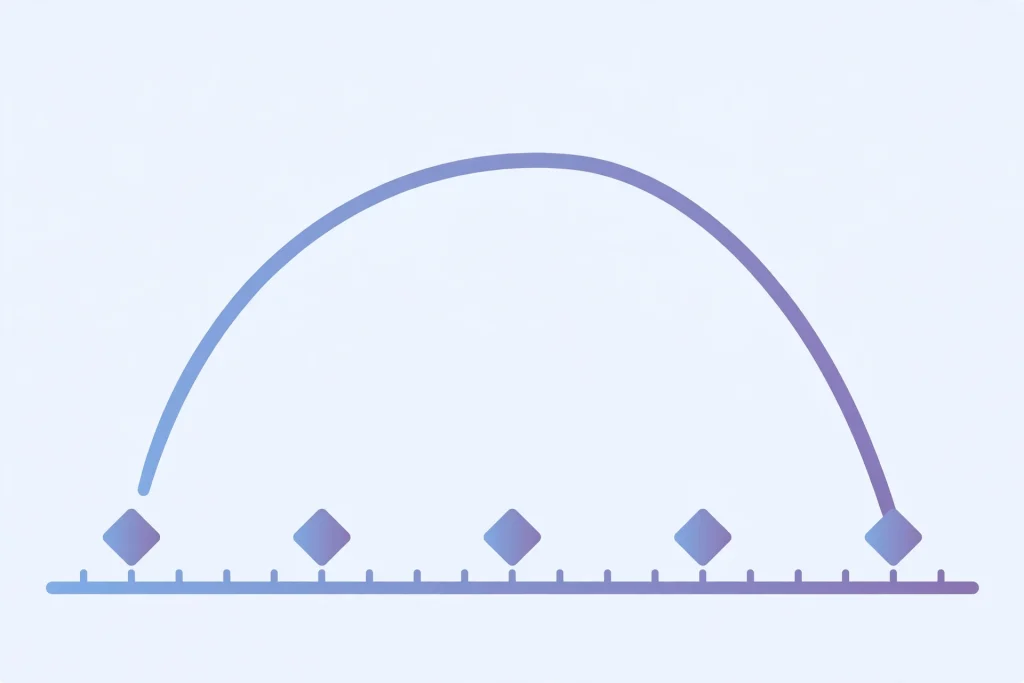
If you have ever watched a video where the camera seems to smoothly zoom into a face, or text glides across the screen, you have seen keyframes at work. In simple terms, a keyframe is a marker on your timeline that tells CapCut what a clip should look like at that exact moment — its position, size, rotation, or opacity.
When you set two or more keyframes with different values, CapCut automatically animates the change between them. That is how you get buttery-smooth zooms, pans, and motion graphics without any fancy equipment.
Why Learn Keyframes?
Keyframes are what separate basic edits from professional-looking ones. Here is what they unlock:
- Zoom effects: Slowly zoom into important moments to add drama.
- Text animation: Make titles slide, fade, or pop onto the screen.
- Smooth pans: Move across a still image to create the popular Ken Burns effect.
- Object follow: Attach effects or stickers that move with your subject.
- Creative transitions: Build custom transitions between clips.
How to Add Keyframes in CapCut (Mobile)
Adding keyframes on the CapCut mobile app is easy once you know where the button is. Follow these steps:
Step 1: Select Your Clip
Open your project and tap the video clip or image you want to animate on the timeline. The editing toolbar will appear at the bottom.
Step 2: Open the Animation Menu
Look for the small diamond-shaped icon in the toolbar. That is the keyframe button. On some versions, you may need to tap “Animation” or find the diamond icon next to transform options like scale and position.
Step 3: Set Your First Keyframe
Position the Playhead
Move the playhead to the point where you want the animation to start.
Tap the Diamond Icon
Tap the diamond icon — it will turn solid, which means a keyframe is now set at that position with the clip’s current settings.
Step 4: Set Your Second Keyframe
Move the Playhead to the End
Drag the playhead to where you want the animation to end.
Change the Property
Now change the clip’s property — pinch to zoom in, drag to move it, or rotate it. CapCut will automatically create a second keyframe capturing those new values.
Step 5: Preview and Adjust
Play your video back. You should see a smooth animation between the two keyframes. If it moves too fast, drag the keyframes further apart on the timeline. If it is too slow, bring them closer together.
How to Add Keyframes in CapCut (Desktop)
On CapCut Desktop, the process is similar but the interface is a bit more spacious:
- Select the clip on the timeline.
- Open the properties panel on the right side.
- Next to each property (Scale, Position, Rotation, Opacity), you will see a small diamond icon.
- Move the playhead, click the diamond to set a keyframe, then change the value.
- Repeat for as many keyframes as you need.
Keyframe Properties You Can Animate
CapCut lets you animate several properties with keyframes. Here is a quick overview:
- Scale: Zoom in and out of a clip.
- Position: Move the clip across the screen.
- Rotation: Tilt or spin the clip.
- Opacity: Fade a clip in or out.
- Volume: On audio clips, animate volume changes over time.
Pro Tips for Smooth Keyframe Animations
Use More Keyframes for Complex Motion
Two keyframes give you a straight-line animation. Add three or four to create curved or multi-stage movements, like zooming in, holding, then zooming out again.
Adjust Keyframe Spacing for Speed
The distance between keyframes controls speed. Close together means fast movement; far apart means slow, cinematic movement. Experiment to find the right feel.
Delete Keyframes Easily
Made a mistake? Select the clip, move the playhead to the keyframe, and tap the diamond icon again — it will remove that keyframe while keeping the others.
Combine Keyframes with Speed Ramping
For advanced edits, combine keyframe animations with CapCut’s speed curve feature. A slow-motion clip with a simultaneous zoom-in looks incredibly professional.
Common Keyframe Mistakes to Avoid
- Too many keyframes too close together: This creates jittery, unnatural motion. Keep it simple.
- Forgetting to set the first keyframe: If you change a property before setting a keyframe, you change the whole clip instead of animating it.
- Overusing zoom effects: One or two zooms per video feel intentional. Ten feels chaotic.
Frequently Asked Questions
Can I use keyframes on text in CapCut?
Yes. Select your text layer, tap the keyframe diamond, and animate its position, scale, rotation, or opacity just like a video clip. This is how creators make animated titles.
Do keyframes work on CapCut Web?
CapCut Web supports basic keyframe animation for position and scale, but the mobile and desktop apps offer more properties and finer control.
Why is my keyframe animation jumpy?
Jumpy motion usually happens when keyframes are spaced too closely together or when values change too drastically between them. Spread the keyframes further apart and use smaller value changes.
Can I copy keyframes from one clip to another?
CapCut does not offer direct keyframe copying, but you can duplicate the clip with its keyframes intact, then swap the footage — a handy workaround.
Are keyframes free in CapCut?
Yes, keyframe animation is completely free in CapCut on both mobile and desktop.
Conclusion
Keyframes might look technical at first, but they are really just two points: “look like this here, look like that there.” Once you practice with a simple zoom-in on a photo or a sliding title, you will start seeing animation opportunities in every edit. Start small, keep your movements smooth, and your videos will instantly look more polished. Happy editing!