How to Do Green Screen (Chroma Key) in CapCut: A Step-by-Step Guide (2026)
What Is Green Screen (Chroma Key) in CapCut?
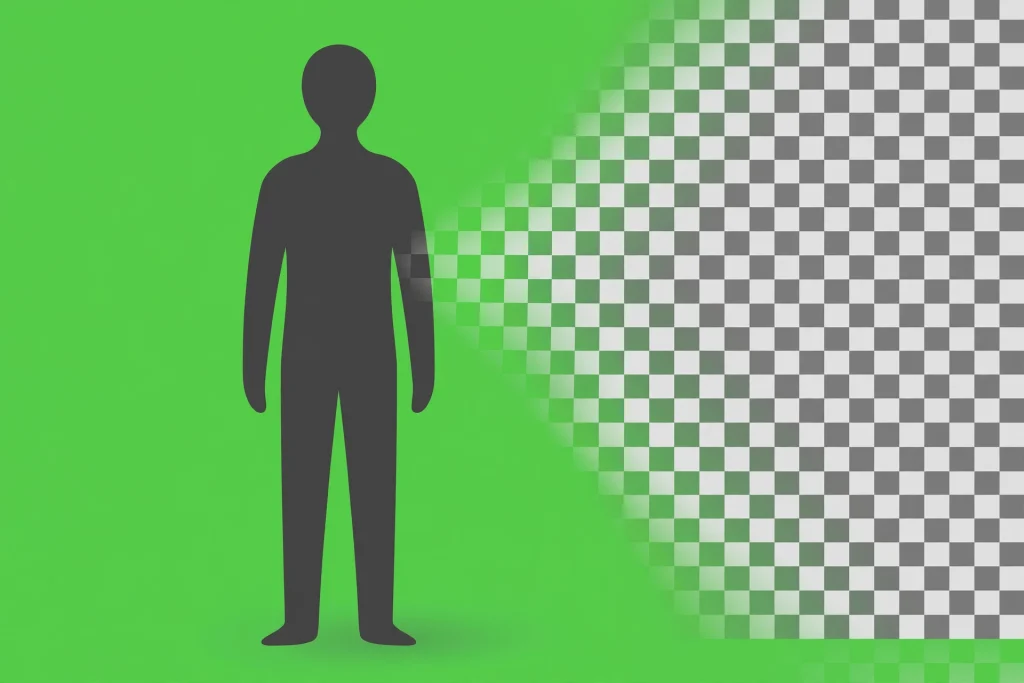
Green screen — technically called chroma key — is the trick behind weather reports, movie scenes, and those viral reaction videos. You film yourself in front of a solid green (or blue) background, and editing software removes that color so you can place any background behind you.
CapCut has a built-in chroma key tool that makes this effect surprisingly easy, even on a phone. In this guide, you will learn how to set up your shot and key out the green screen step by step.
What You Need Before You Start
- A green (or solid-color) background: A green bedsheet, a painted wall, or an affordable green screen cloth all work. The more evenly lit, the better.
- Good lighting: Light your background separately from yourself if possible. Shadows and wrinkles are the biggest cause of bad keys.
- Your foreground footage: Film yourself or your subject in front of the green screen.
- A background clip or image: This is what will appear behind you — a city street, a game screen, a sunset, anything you like.
How to Use Chroma Key in CapCut (Mobile)
Step 1: Add Your Background First
Start a new project in CapCut and add your background clip or photo to the timeline. This layer will sit at the bottom and fill the screen behind you.
Step 2: Add Your Green Screen Clip as an Overlay
Tap Overlay in the toolbar, then Add overlay. Choose your green screen footage. It will appear on a second track above your background.
Step 3: Open the Chroma Key Tool
Select the overlay clip, then scroll the bottom toolbar and tap Cutout. Choose Chroma Key from the options.
Step 4: Pick the Green Color
Use the Color Picker
Tap the color picker and then tap on the green part of your video.
Check the Result
CapCut will sample that color and remove it. Your background layer should now show through.
Step 5: Fine-Tune with Intensity and Shadow
Adjust the Intensity
You will see two sliders: Intensity and Shadow. Increase intensity until the green is fully gone but your subject still looks clean.
Soften the Edges
Adjust the shadow slider to clean up edges and remove any green glow around your hair or clothes.
Step 6: Preview and Export
Play through the whole clip and look for flickering edges or leftover green patches. When it looks clean, export your video.
How to Use Chroma Key in CapCut (Desktop)
- Place your background on the main timeline track (V1).
- Drag your green screen clip onto the track above (V2).
- Select the green screen clip and open the Video panel on the right.
- Scroll to Cutout and enable Chroma Key.
- Use the eyedropper to select the green color in the preview.
- Adjust Strength and Shadow sliders until the key is clean.
Tips for a Clean Green Screen Key
Light the Background Evenly
Wrinkles and shadows create different shades of green, which are harder to remove. Smooth out your green screen and light it as evenly as you can.
Keep Distance from the Screen
Stand a meter or two away from the green screen. This prevents green light from spilling onto your clothes and skin, which causes that ugly green edge.
Avoid Wearing Green
This sounds obvious, but it catches people out: anything green on you — a shirt, jewelry, even green eyeshadow — will become transparent too.
Use a High-Quality Recording
Chroma key works much better on sharp, well-lit footage. Film in the highest resolution your phone supports.
Common Green Screen Problems and Fixes
- Green edges around hair: Increase the shadow/feather slider slightly to soften edges.
- Flickering background: Your green screen lighting is uneven. Try raising intensity a touch, or re-shoot with better lighting.
- Parts of the subject disappearing: The subject’s clothing is too close to the green shade. Change clothes or pick a different key color (CapCut also supports blue screens).
- Grainy or noisy key: Low-light footage keys poorly. Add more light or use CapCut’s noise reduction first.
Creative Ways to Use Green Screen
- Reaction videos: Place yourself in the corner of gameplay or viral clips.
- Virtual backgrounds: Fake a fancy office or a beach for talking-head videos.
- Product demos: Show your product floating over animated backgrounds.
- Skits with multiple characters: Film yourself twice and composite both versions into one scene.
Frequently Asked Questions
Is chroma key free in CapCut?
Yes, the chroma key tool is completely free in CapCut on mobile, desktop, and web.
Can I use a blue screen instead of green?
Absolutely. CapCut’s color picker lets you sample any color, so blue screens work just as well — blue is actually better if your subject has green eyes or green clothing.
Do I need a real green screen, or can I use a wall?
Any flat, evenly lit solid-color surface works. A painted wall is fine as long as it is one consistent color without shadows.
Why does my green screen look bad even after keying?
Nine times out of ten, the problem is lighting, not the software. Even lighting on the background and good separation between you and the screen solve most issues.
Can I combine chroma key with auto background removal?
Yes. Some creators key out most of the green first, then use Cutout’s auto background removal on a duplicate layer to clean up tricky edges. Experiment to see what works for your footage.
Conclusion
Green screen in CapCut is one of those effects that looks complicated but takes less than five minutes once you know the steps: background on the bottom track, green screen clip as an overlay, pick the color, fine-tune the sliders. The real secret is not in the app at all — it is in your lighting. Get that right, and your keys will look clean every single time.