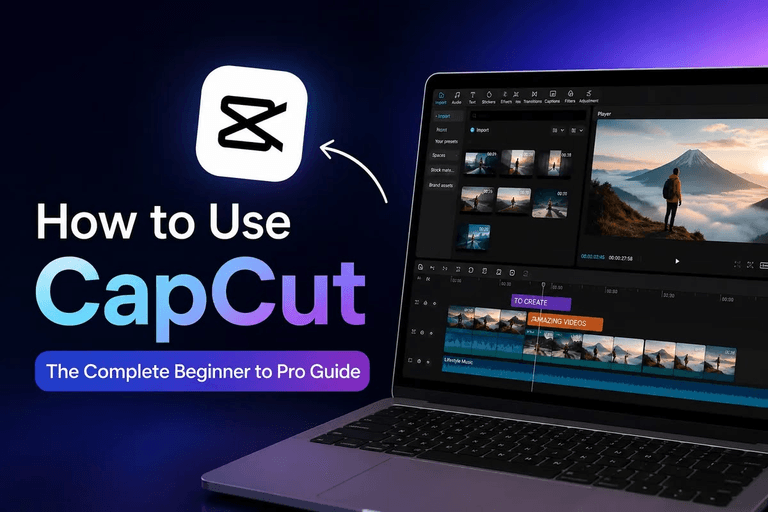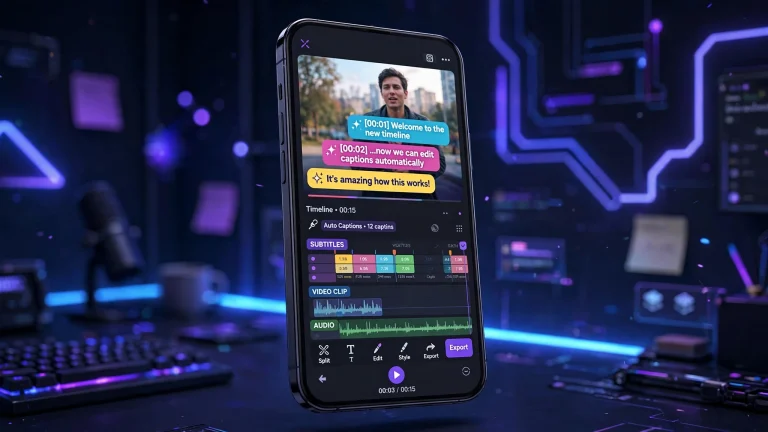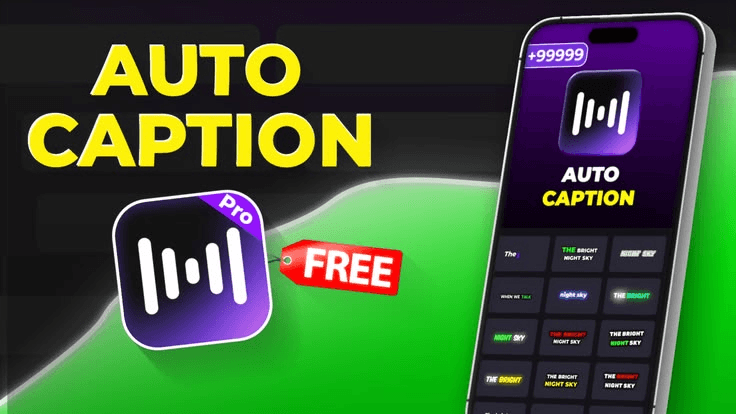
Adding automatic captions in CapCut is one of the easiest ways to make your videos more engaging, accessible, and professional. Whether you create TikTok videos, YouTube Shorts, Instagram Reels, Facebook videos, or longer YouTube content, captions help viewers understand what you are saying without relying entirely on audio.
Many people watch videos with their sound turned off, especially when scrolling through social media in public places. Others may have difficulty hearing the audio clearly or simply prefer reading along while watching. By adding captions, you can make your content easier to follow and give viewers another reason to keep watching.
The good news is that CapCut includes an automatic caption feature that can recognize spoken words and turn them into on-screen text. Instead of typing every sentence manually, you can let the app generate captions and then edit them to match your video.
In this guide, you will learn how to add automatic captions in CapCut on Android, iPhone, and PC, how to customize their appearance, and how to fix common problems when captions do not work correctly.
What Are Automatic Captions in CapCut?
Automatic captions are text generated from the speech or dialogue in a video. CapCut uses speech recognition technology to identify spoken words and convert them into text that appears on the screen at the appropriate times.
For example, imagine recording a video explaining how to edit a photo. Instead of manually typing everything you say, you can select the automatic captions feature and allow CapCut to process the audio. The app then creates text segments that generally follow your speech.
After generating the captions, you can review the words, correct mistakes, adjust the timing, and change the text style.
Automatic captions are particularly useful for:
- TikTok videos and Instagram Reels.
- YouTube Shorts and longer YouTube videos.
- Educational and tutorial videos.
- Interviews and podcasts.
- Product reviews and demonstrations.
- Marketing videos and advertisements.
- Talking-head videos and personal vlogs.
However, automatic captions are not always perfect. Background noise, unclear pronunciation, fast speech, and unfamiliar names can cause errors. It is always a good idea to check the generated text before publishing your video.
How to Add Automatic Captions in CapCut on Android
If you use an Android phone, you can usually generate automatic captions directly from the CapCut mobile app. The exact button names and menu positions may vary depending on your app version and region, but the general process is straightforward.
Step 1: Open CapCut
First, open CapCut on your Android phone. If you have not installed the app, download it from an official or trusted source that is available in your region.
Once the app opens, look for the option to create a new project.
Step 2: Import Your Video
Tap New project and select the video you want to edit from your phone’s gallery.
After selecting the video, tap the button to add it to your editing timeline. Your video should now appear in the main editing workspace.
If your video contains several clips, make sure they are arranged in the correct order before generating captions. This helps you review the finished captions more easily.
Step 3: Find the Automatic Captions Feature
Look through the editing toolbar for the Captions, Text, or Auto captions option. Depending on your version, automatic captions may appear directly in the toolbar or inside a text-related menu.
Select Auto captions to begin setting up the captions for your video.
Step 4: Choose the Caption Source and Language
CapCut may offer options for selecting the audio source and spoken language.
If your voice is part of the original video, choose the original audio or the corresponding video audio option. If your narration is in a separate audio track, select that track when the app provides the option.
Next, select the language spoken in the video. Choosing the correct language is important because the speech recognition system needs to understand the words being spoken.
For example, if you are speaking English, select English rather than another language. If your video contains multiple languages, automatic recognition may be less accurate.
Step 5: Generate the Captions
After selecting the appropriate settings, tap the button to generate captions. It may be labeled Generate, Start, or something similar.
Wait while CapCut analyzes your audio. Processing time depends on the length of the video, your device, and the app’s current processing requirements.
Once processing is complete, the captions should appear as text segments on your editing timeline. You can play the video to see how the text follows your speech.
Step 6: Review and Correct the Text
This is one of the most important steps.
Play the video from beginning to end and read the captions carefully. If CapCut misunderstands a word, select the relevant caption segment and edit the text.
Pay special attention to:
- Names of people and places.
- Technical terms.
- Numbers and prices.
- Brand names.
- Words spoken quickly.
- Sentences containing slang or local expressions.
For example, if you say, “Today, I will show you how to edit videos,” but CapCut generates an incorrect word, correct that segment before moving on.
Taking a few minutes to proofread the captions can make your video look much more professional.
Step 7: Customize the Caption Style
After correcting the words, you can customize how the captions appear.
Depending on the features available in your version of CapCut, you may be able to change the font, size, color, background, alignment, outline, and animation.
Choose a style that is easy to read on a small screen. White text with a dark outline or background is often a practical choice because it remains visible over many types of footage.
Avoid using too many colors, decorative fonts, or distracting animations. Your captions should help viewers understand the video rather than compete with the content.
Step 8: Adjust Caption Position and Timing
Captions should appear close to the spoken words without covering important parts of the video.
Move the caption text to a suitable position, usually around the lower portion of the screen while leaving enough space for platform controls and other interface elements.
Check that each caption appears at the correct time and disappears when appropriate. If a caption appears too early or remains on the screen too long, adjust its timing on the timeline if the app provides that control.
Step 9: Export Your Video
Once you are satisfied with the captions, preview the entire video one more time.
Tap Export and choose your preferred resolution and frame rate from the available settings. For many social media videos, 1080p is a practical option when the original footage supports it.
Wait for the export to finish, then play the saved video to make sure the captions appear correctly.
Your video is now ready to upload or share.
How to Add Automatic Captions in CapCut on an iPhone
The process on an iPhone is very similar to the Android method.
- Open CapCut on your iPhone.
- Start a new project and import your video.
- Open the editing toolbar.
- Find the automatic captions feature, usually under Captions or a related text menu.
- Choose the appropriate audio source and spoken language.
- Start generating the captions.
- Review and correct the text.
- Customize the font, color, size, and position.
- Preview the video and adjust any caption timing problems.
- Export the finished video.
The most important difference is that menu placement and available options can vary between versions of the app. If you cannot find the feature where you expect it, check the other editing menus and make sure you are using a version that supports automatic captions.
You should also ensure that CapCut has the necessary permissions to access the video you want to edit.
How to Add Automatic Captions in CapCut on a PC
You can also add automatic captions using CapCut on a desktop or laptop. This can be especially useful when editing longer videos, interviews, tutorials, or content intended for YouTube.
Step 1: Launch CapCut Desktop
Open CapCut on your computer and create a new project.
If you do not have the desktop application installed, obtain it through an official CapCut download source or the appropriate official app store for your system.
Step 2: Import Your Video
Import your video file into the project. You can generally do this through the import panel or by dragging a supported video file into the media area.
Place the video on the timeline so you can edit it.
Step 3: Open the Captions or Text Tools
Look for the captions or text tools in the desktop editing interface. Depending on the version, automatic caption generation may be available through a Captions menu or a related speech-to-text option.
Select the automatic caption feature.
Step 4: Select the Language and Audio Source
Choose the spoken language and the audio source if those options are available.
If the video contains voice-over narration on a separate track, confirm that CapCut is processing the correct audio. Selecting the wrong audio source may produce incomplete or inaccurate captions.
Step 5: Generate Captions
Start the caption generation process and allow CapCut to analyze the audio.
When processing is complete, caption segments should appear on the timeline. Select individual segments to correct the wording or adjust their timing.
Step 6: Edit the Captions
Desktop editing gives you more room to inspect the timeline and review longer sections of dialogue.
Check the spelling, punctuation, sentence breaks, and timing. You can also change the caption appearance using the styling controls available in your version.
For a long video, work through the captions in sections rather than trying to check everything at once. This makes mistakes easier to identify.
Step 7: Export the Finished Video
Preview the video and confirm that the captions are synchronized with the speech. Then choose your export settings and save the video.
Remember that captions visible in the exported video are different from a separate subtitle file. If you need a standalone subtitle file, check whether your version of CapCut supports exporting captions in a format such as SRT. Availability can vary.
How to Customize Automatic Captions in CapCut
Generating captions is only the first part of the process. The way those captions look can affect how professional your video feels.
Here are several ways to improve their appearance.
Choose a Readable Font
Use a clear font that viewers can read quickly. Simple fonts are usually better than highly decorative ones, especially when the video is viewed on a phone.
Your audience should be able to understand each caption without pausing the video.
Use the Right Text Size
Captions should be large enough to read on a small screen but not so large that they cover the entire video.
A useful approach is to preview the video at a size similar to how people will watch it on their phones.
Pick Contrasting Colors
Text must stand out from the background. White text with a dark outline, shadow, or background can work well over changing footage.
If you choose colored captions, make sure the colors remain readable throughout the video.
Position Captions Carefully
Avoid placing captions over a speaker’s face, important product details, or essential on-screen instructions.
For vertical videos, leave some room around the edges because social media interfaces may cover parts of the screen.
Use Animations Sparingly
Some CapCut versions offer animated caption styles that highlight individual words or make the text appear dynamically.
These effects can work well for short, energetic videos. However, excessive animation can make captions difficult to follow. Choose a style that fits your content and keeps the words readable.
Keep Caption Segments Short
Long blocks of text are difficult to read while watching a moving video.
Whenever possible, divide lengthy sentences into manageable phrases. Make sure the text still follows the speaker’s meaning and timing.
How to Fix Automatic Captions Not Working in CapCut
Sometimes, CapCut may fail to generate captions or produce results that are incomplete. The cause could be related to the audio, language settings, app version, or processing requirements.
Here are some common problems and their possible solutions.
1. Automatic Captions Are Missing
If you cannot find the automatic captions feature, check whether your CapCut version supports it and whether the option appears under another editing menu.
Try updating the app through an official source. If you are using the desktop version, check for available updates there as well.
Feature availability and menu placement can differ by device, region, and version.
2. CapCut Cannot Recognize the Speech
If the app produces no text or recognizes only a few words, check the audio quality.
Very low volume, background music, wind, traffic, and overlapping voices can make speech recognition difficult.
Try using a clearer recording, reducing competing background noise, or increasing the voice volume where appropriate. You can also check that you selected the correct spoken language.
3. The Captions Contain Too Many Mistakes
Automatic captioning is not perfect. Even when the audio is clear, the app may misunderstand names, accents, slang, or specialized vocabulary.
Review the text manually and correct the errors. If the recording is difficult to understand, improving the audio before generating captions may help.
Do not assume that every generated word is correct simply because it appears automatically.
4. Caption Generation Gets Stuck
If caption generation does not finish, check your internet connection if your version requires online processing. Some features may depend on remote processing, so requirements can differ.
You can also close and reopen CapCut, restart your device, or try generating captions again.
Make sure your device has enough available storage and that the app is up to date. If the issue continues, try a shorter test clip to determine whether the problem is related to the project length or a particular audio segment.
5. Captions Are Out of Sync
Captions may not match the dialogue if the audio or video has been edited after caption generation.
Review the affected sections and adjust the caption timing. If you have significantly changed the video’s audio, generating the captions again may produce a better result.
Always check synchronization after trimming clips, moving audio tracks, or making major timeline changes.
6. Captions Are Difficult to Read
If the text blends into the background, change the font color, add an outline or background, or move the captions to a clearer area.
If captions disappear behind platform buttons, adjust their position to leave more space around the screen edges.
A simple, consistent style is usually more effective than a complicated design.
7. Automatic Captions Are Not Available in Your Region
Some CapCut features may vary by region, app version, or account availability.
If the feature is missing, check the official version of the app available to you and look for any relevant updates or feature notices. Avoid downloading modified applications from unfamiliar websites just to unlock a captioning feature, as they can introduce security risks.
Tips for Getting More Accurate Automatic Captions
If you want better results, it helps to prepare your video before generating the captions.
Speak clearly. Pronounce words naturally and avoid rushing through important explanations.
Record in a quiet place. Background noise can interfere with speech recognition, so reduce unnecessary noise whenever possible.
Keep your voice audible. If your voice is too quiet compared with background music, the app may struggle to identify your words.
Choose the correct language. Always check the language setting before starting the process.
Review names and technical terms. Names, product models, abbreviations, and specialized vocabulary often need manual correction.
Edit before your final export. If you plan to make major changes to the audio, finish those edits before generating captions whenever possible.
Proofread the entire video. Even a short caption error can change the meaning of a sentence, particularly in tutorials or product demonstrations.
Keep your style consistent. Use a consistent font, color, and placement throughout the video unless there is a clear reason to change them.
These simple habits can save time and help you produce captions that look polished and accurate.
Are Automatic Captions in CapCut Free?
CapCut has offered automatic captioning in various versions of its editing tools, but the exact availability and restrictions can change. Some features may be free, while other caption-related tools, styles, or advanced options may depend on the version, region, or subscription.
The best way to confirm what is available to you is to open the app and check the automatic captions menu.
You should not assume that every caption feature requires CapCut Pro, nor should you assume that every feature is available without restrictions. Review the options shown in your own version before deciding whether an upgrade is necessary.
Can You Add Automatic Captions to Any Video?
You can generally generate automatic captions for videos that contain recognizable speech, provided the feature supports the language and audio source.
However, the results may be limited when a video contains only music, sound effects, very quiet dialogue, or speech that is difficult to distinguish from background noise.
Automatic captions are designed to recognize spoken words, not to describe every sound in a video. If you want to display information that is not spoken aloud, such as a product name, price, or instruction, you may need to add that text manually.
For videos with multiple speakers, review the captions carefully because the app may not always identify who is speaking. You may need to organize the dialogue or add speaker labels yourself.
Why Automatic Captions Are Important for Content Creators
Automatic captions offer more than convenience. They can make your content easier to follow and improve the viewing experience for different audiences.
First, captions help viewers understand a video when they cannot turn on the sound. This is particularly useful for people browsing social media in public or quiet environments.
Second, captions can improve accessibility for people who are deaf or hard of hearing. Accurate captions allow them to follow spoken information more easily.
Third, captions can help viewers understand speakers with unfamiliar accents or fast speech. They provide a visual reference when a word is difficult to hear.
Finally, captions can make tutorials and educational videos easier to follow. Viewers can read important instructions while watching the corresponding actions on screen.
However, captions alone do not guarantee more views, higher rankings, or increased engagement. The overall quality of your video, its usefulness, presentation, and relevance to your audience still matter.