How to Stabilize Shaky Video in CapCut (2026)
Why Stabilization Matters
Shaky footage is one of the fastest ways to make a video look amateur. Whether you filmed while walking, from a moving car, or just have unsteady hands, CapCut’s built-in stabilization tool can smooth out the wobbles and make your clips look like they were shot on a gimbal.
In this guide, you will learn how to stabilize shaky video in CapCut on both mobile and desktop, plus tips to get the best results.
How Stabilization Works (Simply Explained)
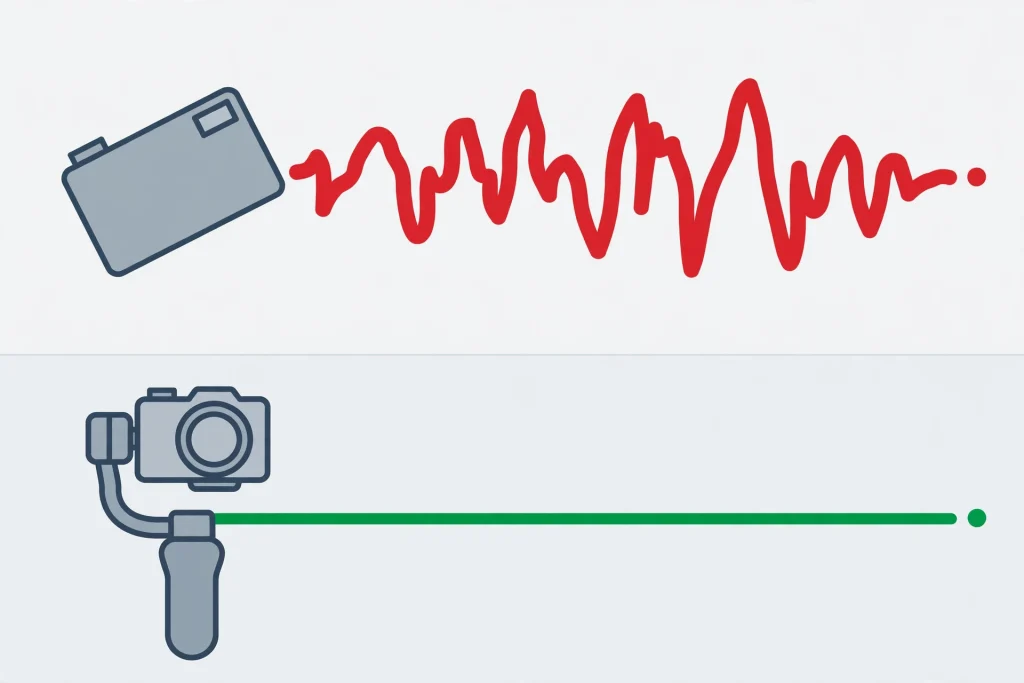
When you stabilize a clip, CapCut analyzes the motion frame by frame and shifts each frame slightly to cancel out the shake. To do this, it crops a small amount from the edges of your video — that is why stabilized footage is slightly zoomed in. The stronger the stabilization, the more it crops.
How to Stabilize Video in CapCut (Mobile)
Step 1: Select Your Clip
Open your project and tap the shaky clip on the timeline to select it.
Step 2: Find the Stabilize Option
Scroll through the bottom toolbar and tap Stabilize. On some versions, you may find it under Video quality or the Edit menu — the icon usually looks like a small camera with motion lines.
Step 3: Choose a Stabilization Level
CapCut typically offers levels like Minimum, Recommended, and Most stable (names may vary slightly by version). Start with the middle option — it fixes most shake without cropping too aggressively.
Step 4: Let It Process and Preview
CapCut will analyze your clip, which can take a few seconds depending on its length. Play the result back and compare it with the original. If it still shakes, try a stronger level.
How to Stabilize Video in CapCut (Desktop)
- Select the clip on the timeline.
- Open the Video panel on the right side.
- Scroll down to Stabilization and toggle it on.
- Choose your stabilization strength.
- Wait for the analysis to finish, then preview the result.
Which Stabilization Level Should You Use?
- Light / Minimum: Best for minor hand shake. Keeps the most of your frame with minimal cropping.
- Medium / Recommended: The sweet spot for walking footage and general shakiness. Good balance of smoothness and image quality.
- Strong / Most stable: For very shaky footage like running or vehicle shots. Crops the most, so check that important details are not cut off.
Tips for Better Stabilization Results
Film in Higher Resolution Than You Need
Since stabilization crops the edges, filming in 4K and exporting in 1080p gives CapCut room to crop without losing visible quality.
Stabilize Before Adding Effects
Stabilize the Raw Clip First
Always stabilize your raw clip first, then add text, overlays, and effects.
Why Order Matters
Stabilizing after effects can make those layers shift oddly.
Avoid Stabilizing Intentional Camera Moves
Stabilization vs Intentional Motion
If you deliberately panned or zoomed while filming, stabilization can fight against that motion and create weird warping.
When to Skip Stabilization
Only stabilize genuinely shaky clips.
Combine with Slow Motion
Slightly slowing down a stabilized clip (even to 90% speed) can make the result feel even smoother — a trick many travel vloggers use.
When Stabilization Cannot Save Your Footage
Stabilization is powerful, but it has limits. Be realistic about these situations:
- Extreme shake: Violent bouncing may still look warped after stabilization.
- Motion blur: Stabilization cannot remove blur caused by fast movement — it only fixes position.
- Rolling shutter wobble: The jelly-like wobble from phone cameras is hard to fully fix in software.
In these cases, your best bet is to re-shoot — or embrace the raw, energetic feel of the footage in your edit.
Fixing Over-Stabilized Footage
Sometimes stabilization goes too far and your video looks unnaturally floaty, like the camera is gliding on ice. If that happens, do not panic — you have options. First, try dropping down one stabilization level and re-processing. Often the medium setting gives you 90% of the smoothness with none of the weird floating effect.
Another trick is to stabilize only the shakiest portion of the clip. Split the clip into segments, apply stabilization only to the bad parts, and leave the steady parts untouched. This keeps the natural feel of your footage while fixing the moments that actually need help. Finally, if a clip still looks strange after stabilization, try exporting it and re-importing the export — a second, lighter stabilization pass on the already-smoothed footage sometimes cleans up leftover jitter.
Frequently Asked Questions
Does stabilization reduce video quality?
Slightly. CapCut crops the edges and stretches the remaining image, which can soften details. Filming at a higher resolution than your export minimizes this.
Is the stabilize tool free in CapCut?
Yes, video stabilization is free on both the mobile app and CapCut Desktop.
Can I stabilize only part of a clip?
Yes. Use the split tool to cut out the shaky section first, then apply stabilization to just that segment.
Why does my stabilized video look wavy or distorted?
That warping happens when the stabilization is too strong for the footage. Drop down one level, or split the clip and stabilize only the worst parts.
Does CapCut have horizon leveling?
CapCut’s stabilization mainly corrects shake. For a tilted horizon, use the rotate and crop tools to straighten your shot manually.
Conclusion
CapCut’s stabilization turns shaky, hard-to-watch clips into smooth footage in just a few taps: select the clip, hit Stabilize, pick a level, and preview. For the best results, film in a higher resolution than you plan to export and stabilize before adding effects. It will not fix every disaster shot, but for everyday walking footage and handheld clips, it is genuinely impressive.