How to Turn a Script into a Video with CapCut’s Script to Video AI (2026)
Picture this: you have a script sitting in your notes app — a story you wrote, a lesson you want to teach, a product pitch you’re excited about — and within minutes, it becomes a finished video with visuals, narration, and captions. That is exactly what CapCut’s Script to Video tool promises, and for short-form creators, it can genuinely change how much content you can put out in a week.
But here’s the catch: CapCut actually has several features that turn words into video, and they are not the same thing. Pick the wrong one and you’ll spend an hour staring at menus that don’t match any tutorial. In this guide, I’ll walk you through the real Script to Video workflow as it exists in 2026 — where to find it, how to use it step by step, what it costs, and the limitations nobody mentions in the marketing copy.

What CapCut’s Script to Video Actually Does
Script to Video takes a complete written script and assembles it into a multi-scene first draft. That means it matches footage to each part of your script (either stock clips from CapCut’s library or your own photos and videos), generates an AI voiceover that reads your words aloud, adds auto captions, and can layer in music. You get a watchable rough cut you then refine in the normal editor.
The most important thing to understand is that it produces an editable first draft, not a finished video. Every output benefits from a human review pass: checking that each scene’s footage actually fits what the narration says, fixing caption errors, and tightening the audio mix before you export.
Script to Video vs Text to Video: Don’t Mix Them Up
Inside CapCut there are three different text-to-video style routes, and tutorials online mix them up constantly. “AI media → Text to video” turns one short prompt into one short generated clip — it’s for single shots, not full videos. “Video Studio” or the “AI video maker” works from a broader creative brief and builds a storyboard. “Script to Video” is the one that accepts your complete script and builds a multi-scene narrated video from it. If your workflow doesn’t involve a full script, you’re probably in the wrong tool.
What the Output Looks Like
A typical result is a short social video: scene-by-scene visuals synced to an AI narrator reading your script, word-by-word or phrase-by-phrase captions, and background music. It’s built for TikTok, Reels, and Shorts-style content — quick, narrated, captioned videos. Think faceless storytelling channels, explainer clips, motivational videos, and tutorial narration rather than cinematic vlogs.
How to Find Script to Video in CapCut (2026)
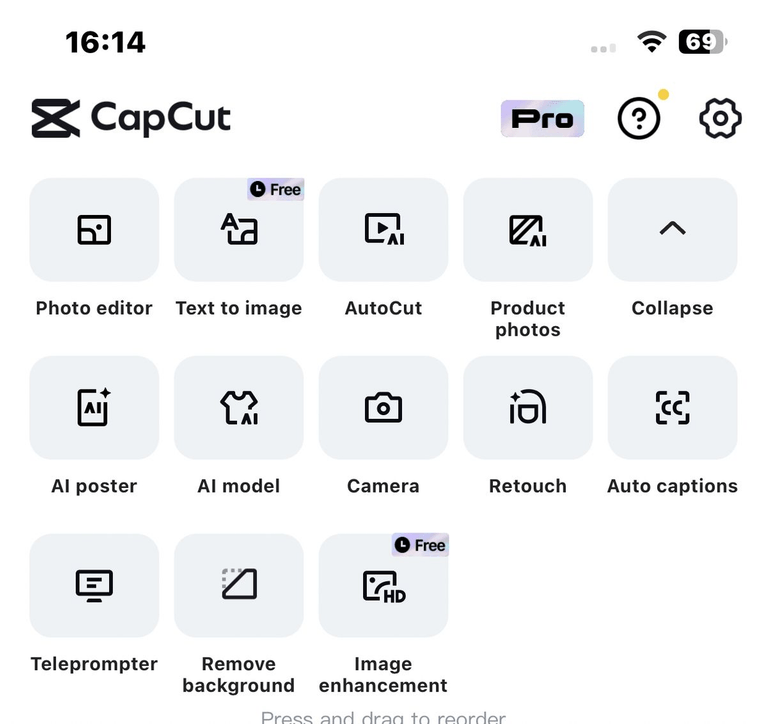
On the mobile app, the official route is: home screen → tap All tools → look in the AI tools section → tap Script to video. In newer rollouts, some accounts see the hub labeled AI Lab or AI Video Maker instead — both lead to the same job. On desktop, the CapCut home dashboard has a standalone Script to video entry, and newer versions may show an AI video maker tile where you pick the script route. On CapCut Web, look for the Instant AI video route with an Enter script box.
Now the honest warning: availability varies by account, app version, and region. CapCut itself notes that text-to-video availability is limited to specific regions, and the tool can move or disappear between updates. If you don’t see it, update the app first, then try signing out and back in. On desktop, a missing button may be a feature flag rather than a broken install, since CapCut’s own help pages describe parts of the AI video system as a gradual rollout.
Step-by-Step: Turn Your Script into a Video
Here’s the full workflow on mobile, following the official CapCut walkthrough labels as they appear in the current app. Desktop steps are nearly identical, just arranged around the desktop dashboard.
Step 1: Open the Script to Video Tool
From the CapCut app home screen, tap All tools, then tap Script to video under the AI tools section. This opens the script workspace, which is separate from the regular timeline editor — you’ll move your finished draft into the timeline later.
Step 2: Write or Generate Your Script
You have two options here. Tap Write your own script to type or paste your text directly, or tap AI writer to get help drafting. The AI writer offers ready-to-use categories — Movies & TV, Games, Commercials, Relations, Life stories, Cooking tutorials, Tech info, Marketing, Education, and Other. Pick a category, enter your topic and highlights plus the Duration you’re aiming for, then tap Generate script. You’ll get script variations you can improve, expand, or shorten before anything is turned into video.
Before you move on, proofread. Read your script out loud and check facts, names, numbers, and your call to action. The footage-matching step cannot fix a vague or inaccurate script — it will just confidently illustrate the wrong thing. Also keep length in mind: this feature is built for short social content, and script generation commonly targets 1–3 minute durations. Very long scripts (think 10+ minutes) tend to degrade in quality, so treat it as a short-form tool.
Step 3: Choose Smart Generation or Local Materials
Next, choose where your visuals come from. Smart generation lets CapCut automatically match stock media from its library to each part of your script. Local materials lets you select your own photos and video clips instead. Tap Apply or Generate video to start.
Which should you pick? Smart generation is the fast option for rough cuts where generic footage is fine — stock libraries are great at “city skyline” and “person typing” but terrible at anything specific. Use Local materials whenever the viewer must see a specific person, product, place, or proof. If the choice doesn’t appear in your account, just proceed with whichever route is shown.
Step 4: Set Aspect Ratio, Voice, and Style
Before generating, set the controls shown in your account. Pick the aspect ratio for your target platform — 9:16 for TikTok, Reels, and Shorts; 16:9 for YouTube; 1:1 for Instagram square posts. Choose your voiceover voice, tone, and language from the voice picker, and preview the voice before applying so you don’t discover a mispronunciation problem in a 60-second video. If you’re curious about getting the most out of AI narration in general, my guide on how to use text to speech in CapCut for voiceovers covers voice selection and pacing in more detail.
Step 5: Generate, Preview, and Edit More
Tap generate and let it finish — don’t tap repeatedly, since generation consumes AI credits. Once the draft is ready, preview it. Then tap Edit more to open the draft in CapCut’s regular timeline. This is where the real work happens.
Replace weak scene matches
Scrub through the timeline scene by scene. For any clip that doesn’t match the narration, use the Replace option on that clip to swap it for better stock footage, your own media, or even AI-generated media. Stock matches are relevant more often than they’re accurate, so expect to replace at least a few.
Fix captions and audio before exporting
AI captions usually need a pass — fix names, numbers, and homophones the speech engine mangled. You can do a deeper caption polish with the standard captions tools; if you’ve never cleaned up auto-generated captions before, my complete guide to auto captions in CapCut walks through editing them word by word. While you’re there, adjust the audio mix so the narration sits clearly above the background music, and add any extra text, stickers, or sound effects you want.
Step 6: Export Your Video
When the draft looks and sounds right, tap Export. Enter a filename, pick your resolution and frame rate — desktop exports support up to 4K–8K quality tiers — and export in MP4 or MOV. Watch the finished video at least once before posting; small caption or sync errors are much easier to catch in the final file than in the timeline.
What It Costs: Credits, Watermarks, and the Free Tier
Let’s be upfront about money, because CapCut changed its model. AI generation moved to a credit-based system in 2026. The free tier lets you try the feature, but with limited generations per month — one 2026 review cited roughly 80 credits a month on the free tier. Each generation consumes credits, so don’t re-generate the same video five times chasing a perfect stock match; it’s cheaper to fix scenes manually with Edit more.
The other cost is the watermark: free-tier AI exports carry branding, often a CapCut-branded clip at the end of the video. CapCut Pro (reported at roughly $6.30–$9.99/month, about $75/year, with around 600 AI credits per month) removes the watermark and unlocks higher export quality plus premium models. Longer durations and premium generation models are gated behind paid plans.
Two caveats. First, exact credit amounts and per-generation costs change often, and they vary by region — always read your own generation and export screens rather than trusting a figure from a blog post (including this one). Second, premium stock assets or templates used inside your project can add their own branded elements, which a Pro subscription won’t necessarily strip.
Common Problems and Quick Fixes
Troubleshooting Script to Video issues
Most Script to Video headaches come from the same few causes. Here’s how to handle each one without burning credits on blind re-generation.
Tool missing from the app
Update CapCut, sign out and back in, and check whether your region supports the feature. On desktop, remember that AI video features are in a gradual rollout — a missing button may be a feature flag on your account, not something you did wrong.
Watermark on your exported video
Free-tier AI exports add branding by design. Upgrade to Pro, or replace any premium/gated assets with standard ones and re-export — sometimes the branding comes from an asset rather than the export itself.
Narration and captions generated, but no footage
This is a known reported failure mode: the narration and captions render but scenes come out empty. Save the project first so you don’t lose anything, then test with a shorter script that has one clear visual beat per line. Often the fastest fix is to keep the generated narration and captions and manually replace the scene media in the timeline — which is exactly what the Edit more step is for.
Narrator mispronounces names or units
AI voices stumble on proper nouns, brand names, and measurements. Preview voices before generating, and if a word keeps coming out wrong, try spelling it phonetically in the script (for the narration track) while keeping the correct spelling in the visible captions.
FAQs About CapCut Script to Video
Is CapCut’s Script to Video really free?
It’s free to try: the free tier allows a limited number of AI generations per month, but exports carry a CapCut watermark. Watermark-free exports, more monthly credits, and higher export resolutions require CapCut Pro. Because pricing and credit limits change often and vary by region, check the screens inside your own app for the current numbers.
Where is Script to Video in the CapCut app?
On mobile: home screen → All tools → AI tools section → Script to video. Newer rollouts may label the hub AI Lab or AI Video Maker. On desktop: home dashboard → Script to video (or AI video maker → script route). On web: Instant AI video with the Enter script box. If it’s missing, update the app, sign out/in, and confirm availability in your region.
Is Script to Video the same as Text to Video?
No. Script to Video assembles a full multi-scene video — visuals, AI narration, and captions — from a complete script you write or generate. Text to Video (under AI media) generates one short clip from a single text prompt. Script to Video is for full narrated videos; Text to Video is for individual shots.
Should I use Smart generation or Local materials?
Use Smart generation when you need a fast rough cut and generic stock footage is acceptable. Use Local materials when the video needs to show a specific person, product, location, or proof — anything stock footage can’t fake convincingly. Either way, review every scene in Edit more before exporting, because stock matches are often only loosely related to your script.
Can I use a Script to Video project for client or commercial work?
Possibly, but it’s not automatic. Check each stock asset’s license inside CapCut’s Materials License Agreement, verify every factual claim in the narration yourself, and note that CapCut’s terms grant broad rights over AI-created content — get proper approvals before client use. The AI assembly doesn’t transfer any rights the underlying assets didn’t have.
Final Thoughts
CapCut’s Script to Video is genuinely useful for one specific job: turning a short written script into a narrated, captioned first draft fast. It’s not a magic finished-video button — it’s a rough-cut machine that saves you the tedious assembly work so you can spend your energy on the creative decisions that actually matter: which scenes work, what the voice sounds like, and whether the captions are clean.
The winning workflow is simple: write or generate a tight script, pick the right visuals route, generate once, then do your real editing in Edit more before exporting. Respect the credit limits, expect to fix the stock matches, and you’ll find it becomes one of the fastest ways to produce consistent short-form content in 2026.