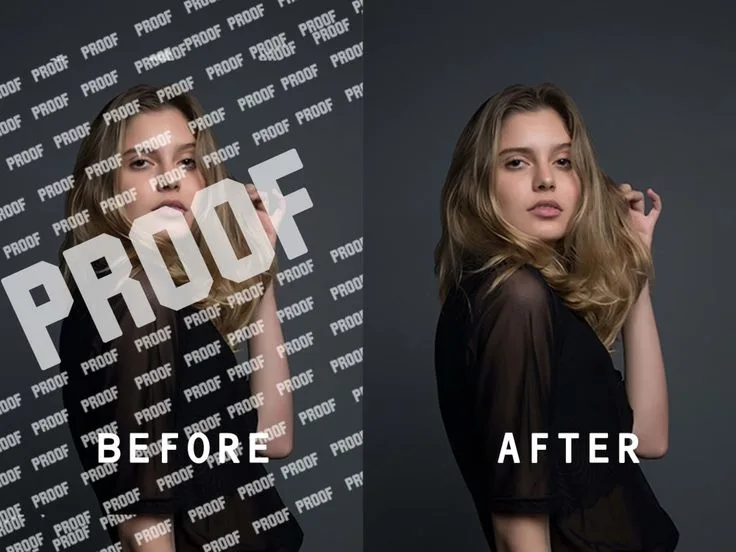
How to Put Text Behind a Person in CapCut: The Viral Depth Effect (2026 Guide)
You have seen it everywhere while scrolling: a creator walks across the frame while a big, bold word slides right behind their head, as if the text is physically sitting in the room with them. It looks like expensive professional work, but putting text behind a person in CapCut is a beginner-friendly trick you can finish in a few minutes on your phone.
This is the viral depth effect, and it runs on a simple idea. You sandwich your text between two copies of the same clip: the original video on the bottom, the text in the middle, and a cutout of the person with the background removed on top. The cutout hides the part of the text that overlaps the person, which fools the eye into seeing real depth.

In this guide, you will get the exact steps for the CapCut mobile app and CapCut desktop, plus fixes for the most common mistakes beginners make.
What the Text Behind a Person Effect Actually Is
At its core, this effect is just clever layering. CapCut lets you stack clips and text on multiple timeline tracks, and the top track always covers what sits beneath it. The viral depth effect uses this on purpose: the top layer is a background-removed copy of your video, so only the person remains. When that cutout sits above the text, the person’s body naturally blocks the letters behind them.
Because the bottom copy of the clip keeps its full background, nothing in your scene is lost. Once you understand this three-layer structure, the whole process becomes obvious, and you can even pair it with other skills like removing the background in CapCut without a green screen for more creative edits.
How to Put Text Behind a Person in CapCut (Mobile App)
The mobile app is where this effect went viral, and it has the fastest workflow. Follow these steps in order, and pay special attention to the layer order at the end, because that is where most beginners go wrong.
Step 1: Import Your Clip and Duplicate It
Open CapCut and tap New project, then import your video clip of the person. Choose a shot with some empty space beside or behind the subject, since that is where the text will live. Tap the clip on the timeline to select it, then tap Duplicate from the bottom toolbar. You now have two identical clips.
Step 2: Convert the Duplicate Into an Overlay
With the duplicated clip still selected, tap Overlay. This moves the copy off the main track and turns it into an overlay layer stacked on top of the original video. You should see the two clips perfectly aligned, one above the other.
Step 3: Add and Style Your Text
Tap Text in the bottom toolbar, then tap Add text. Type your word or phrase, pick a bold font, make it large enough to tuck behind the subject, and choose a color that pops against your background. Drag the text in the preview to position it, then stretch the text layer on the timeline so it covers the full length of the effect.
Step 4: Remove the Background From the Overlay
This is the step that makes the magic happen. Select the overlay clip (the top duplicate), then find Remove background in the bottom toolbar. CapCut offers two removal modes, and picking the right one saves a lot of cleanup time.
Start With Auto Removal
Tap Remove background and choose the automatic option. CapCut’s AI detects the person and erases everything else. On clean, well-lit footage this works almost instantly, and you should immediately see your text appear behind the subject.
Switch to Custom Removal for Tricky Footage
If auto removal leaves chunks of background or eats into the person’s edges, undo it and try Custom removal. This gives you a brush tool to paint over the person, frame by frame if needed. It is slower, but it is the reliable fallback for cluttered backgrounds or fast movement.
Step 5: Check Layer Order and Export
Before exporting, confirm the stack: original clip on the bottom track, text in the middle, and the background-removed overlay on top. If the text still covers the person, open the Layers panel and drag the layers into this order. Play the video back to confirm the cutout follows the person smoothly, then export at the highest resolution your phone handles.
How to Do the Effect in CapCut Desktop
CapCut desktop produces the same result with a bit more precision, which is handy for longer videos. The layer logic is identical; only the menu layout changes.
Method 1: The Duplicate-and-Stack Workflow
Import your video and drag it to the main timeline (track 1). Add text with the Text tool, style it, and place the text layer on track 2, directly above the video. Then drag a second copy of your original clip onto track 3, above the text. Select that top clip and apply the remove background option with auto removal.
Place the Duplicate Above the Text
The background-removed clip must be the highest layer. If the text layer sits on top of the cutout, the letters will cover the person and the effect fails. Drag the tracks until the order from top to bottom is: cutout, text, original video.
Mute the Duplicated Audio
Duplicating a video clip also duplicates its audio, so the sound plays twice and creates an echo. Select the top duplicate, open the Audio panel, and drag the volume slider to zero or hit the mute icon. The bottom clip keeps the original sound, so viewers hear everything exactly once.
Method 2: The Compound Clip Workflow
If your timeline is getting messy, select the video and text tracks, right-click, and choose Create compound clip to merge them into one tidy unit. Then place another copy of the original video above the compound clip and remove its background. This keeps the project cleaner when you plan to add more effects afterward, like adding stylish text overlays in CapCut on top of the finished effect.
Common Mistakes and How to Fix Them
Almost every problem with this effect comes from one of three errors. Here is how to spot and fix each one.
The Text Still Sits in Front of the Person
Your layer order is wrong. The background-removed cutout must be above the text layer, not below it. Open the Layers panel, drag the cutout to the front, and the text will drop behind the subject immediately.
You See a Halo or Fuzzy Edges Around the Subject
Rough edges usually mean auto removal is struggling with a busy or low-contrast background. Try custom removal with the brush tool, or refilm with more distance between the person and the background. Slightly softening the cutout edge also helps it blend.
The Audio Sounds Doubled or Echoey
You forgot to mute the duplicated clip. Select the top layer and bring its volume to zero. If the echo persists, check for a third copy of the clip hiding on another track.
Pro Tips for a Cleaner Depth Effect
Once the basics work, these two habits will make your results look noticeably more professional.
Film With Clean Separation
The AI cutout works best when the person clearly stands out from the background. Simple backgrounds, good lighting, and some space between the subject and the wall behind them make auto removal dramatically more accurate, which means fewer manual touch-ups.
Style Text to Fit the Scene
Giant default fonts scream “tutorial project.” Match the font weight and color to the mood of your video, and try a soft glow or slight shadow so the letters feel like they belong in the scene. Subtle text animations on the middle layer pair beautifully with this effect too.
FAQs
Do I Need a Green Screen for This Effect?
No. That is the whole point of Remove background: CapCut’s AI separates the person from any normal background automatically. A green screen only helps if your footage is very dark or cluttered, since the cutout becomes harder for the AI to detect.
Do I Need CapCut Pro to Remove Backgrounds?
No. Background removal, including auto and custom removal, is available in the free version of CapCut on both mobile and desktop. No Pro subscription is needed for this effect.
Why Did My Text Disappear Completely?
Your text layer is probably shorter than your video, or buried under the wrong layer. Stretch the text on the timeline to cover the full duration, and confirm it sits between the original clip and the cutout in the layer stack.
Can I Use This Effect on Objects or Pets Instead of People?
Yes. The technique works with anything CapCut’s background removal can isolate cleanly: pets, products, cars, even your hand holding something. The steps are identical; just make sure the object has clear edges for a clean cutout.
What If My Subject Moves Around a Lot?
Auto removal handles normal movement well because it tracks the subject frame by frame. For fast or unpredictable motion, custom removal with manual brushing gives you frame-level control to clean up flickering edges.
Conclusion
Putting text behind a person in CapCut looks advanced, but it is really just smart layering: original video on the bottom, text in the middle, and a background-removed duplicate on top. Nail that stack, remember to mute the duplicate’s audio, and the effect takes only a few minutes. Try it on your next edit, experiment with fonts and motion, and watch how much more polished your videos feel.