How to Edit Instagram Reels in CapCut: A Complete Workflow (2026)
Instagram Reels are won or lost before you make your first cut. Canvas shape, export settings, even caption placement all decide whether your Reel looks crisp or blurry and cropped after upload. CapCut is one of the best free tools for the job because it was built for vertical video from the ground up.
Here is a complete, repeatable workflow for how to edit Instagram Reels in CapCut: setting up a 9:16 canvas, pacing your footage, respecting safe zones, adding captions and audio, and exporting settings that survive Instagram’s compression. Steps cover both mobile and desktop.

Menu names differ slightly by device: on mobile you set the frame through Canvas, on desktop through the Ratio option. Export quality is labeled Code rate on mobile and Bit rate on desktop — same setting.
Step 1: Set Up Your 9:16 Canvas First
Edit every Reel on a vertical 1080 by 1920 canvas. Editing in landscape or square and converting at the end forces cropping and loses resolution. Set the canvas before adding anything.
On the CapCut Mobile App
Tap New project and select your clips. On the timeline, tap Canvas and choose 9:16. Pinch to scale clips that don’t fill the frame and drag them into position now, before adding text and effects.
On CapCut Desktop
After creating a project and importing media, click Ratio above the preview window and select 9:16. Drag clips to the timeline, select each one, and use the scale controls in the Video panel to fill the frame.
Step 2: Cut and Pace Your Footage
Reels reward speed — the reach sweet spot is a tight 7 to 30 seconds. Watch your timeline once and cut every dead second: pauses, filler words, and slow pans rarely survive the scroll.
Trim Ruthlessly and Lead With the Hook
Start mid-action: the punchline, the reveal, or your most interesting shot. Split the clip, delete the buildup, and drag the strong moment to the start. Then trim every remaining clip to its essential beats.
Fix Clips That Don’t Fit 9:16
For horizontal or square footage, pick the fix that suits each clip.
Use Auto Reframe for Moving Subjects
Select the clip and enable Auto reframe — on desktop under Video and Basic in the right panel, on mobile in the clip toolbar. Pick the 9:16 preset and CapCut tracks the subject, keeping it centered. Best for talking heads and moving action.
Crop Manually or Add a Blur Fill
For static shots, scale the clip up until it fills the frame. If that crops too much, keep the shot smaller and use Canvas to fill the empty space with a blurred copy of the same video.
Step 3: Respect Instagram’s Safe Zones
Instagram layers its own interface over your video: the username bar at the top, the like and share buttons down the right side, and the caption and audio label at the bottom. Anything under that interface is invisible.
The Numbers to Keep Text Away From
On a 1080 by 1920 frame, keep important text, logos, and faces out of the top 250 pixels, the bottom 350 to 420 pixels, and the right-hand 120 to 150 pixels. Keep everything that matters in the central band, roughly between 250 and 1500 pixels from the top.
Where to Place Text
Hook text sits safest in the upper-middle band, roughly 200 to 600 pixels from the top — clear of every UI element on all device sizes.
Keep Auto Captions Above the Bottom UI
Captions belong in the lower-middle of the safe area, clearly above the caption strip. If they drift into the bottom 350 pixels, Instagram’s interface covers them. Preview full-screen and nudge the block upward if needed.
Center Faces and Calls to Action
Keep faces, product shots, and CTAs near the center of the frame. On taller phones Instagram may zoom slightly to fill the screen, so a comfortable margin beats hugging the edges.
Step 4: Add Audio That Feels Native
Sound drives a huge share of Reel performance. CapCut’s beat tools handle edits you fully control; trending audio is better attached inside Instagram at publish time so your Reel rides the real trending track.
Sync Cuts to the Beat
Import your music track, select it, and use Beats to mark rhythm points automatically. Snap cuts to those markers so every transition lands on a hit — cuts on the beat feel professional even with simple footage.
Ride Trending Audio the Smart Way
If your concept needs a trending sound, don’t bake a downloaded copy into your export. Edit to a quiet placeholder beat, then add the trending audio inside Instagram on the upload screen so your Reel is genuinely attached to the trend.
Step 5: Transitions and Motion
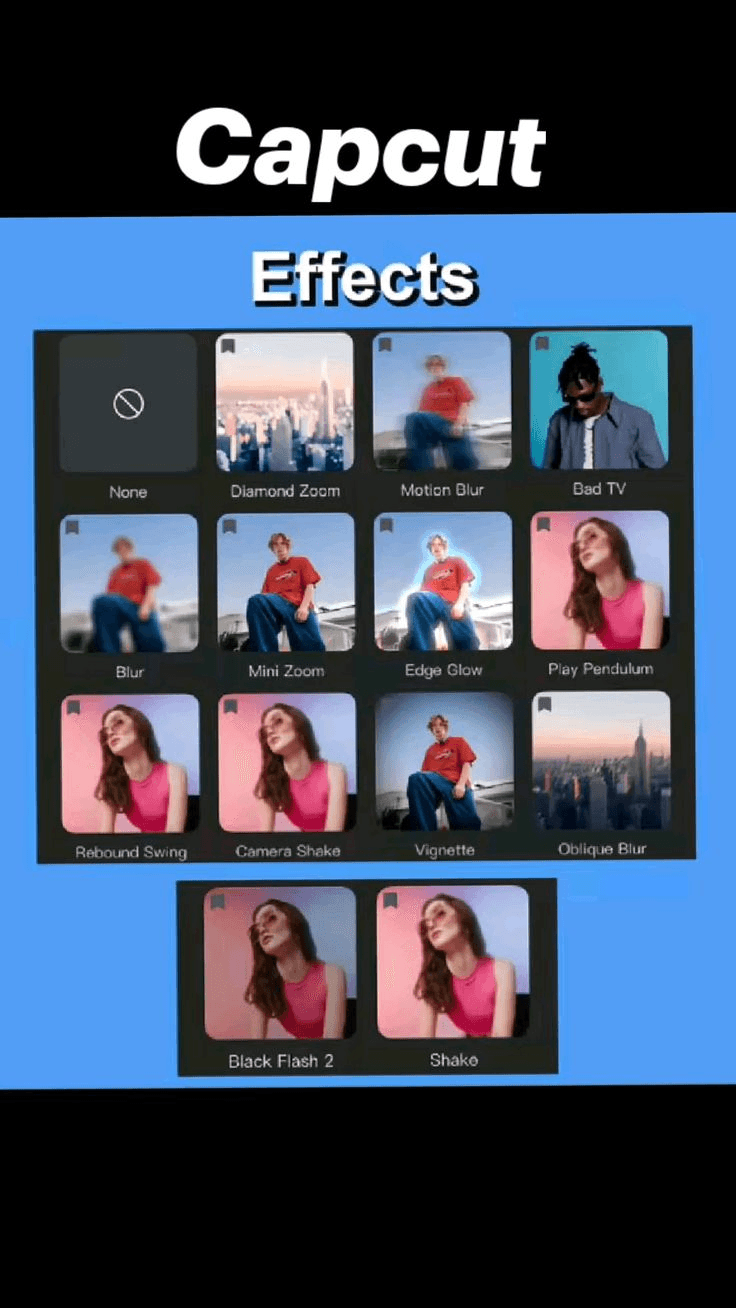
Transitions are seasoning. One or two well-timed moves per Reel look confident; a different effect on every cut looks like a template. Keep motion quick and clean.
Use Transitions Sparingly
Match the transition to the cut’s energy. A beat drop deserves a punch; a calm tutorial cut deserves almost nothing.
Hard-Cut Transitions
Sometimes the best transition is none at all — a hard cut timed exactly to a beat or a word. Hard cuts keep tutorials and talking heads feeling fast and honest, and they never look dated.
Effect Transitions
For montages, subtle moves like Pull In or Camera In add energy without screaming for attention. Keep duration short (0.3 to 0.5 seconds) and use one family of transitions throughout.
Add Subtle Zooms and Velocity
Small punch-in zooms keep static footage alive — scale 100 to 110 percent over half a second with keyframes. For music-driven edits, velocity ramps into a beat drop add impact; our velocity edits guide covers the exact curve settings.
Step 6: Add Captions People Actually Read
Most Reels start playing muted, so captions keep silent scrollers watching. Tap Text, choose Auto Captions, pick your language, and generate in one tap — then review every line by hand, since auto captions mishear fast speech and names. Style them bold and legible at arm’s length, and keep the block inside the safe area. For the full styling workflow, see our guide to auto captions in CapCut.
Step 7: Export With the Right Settings
Instagram recompresses every upload, so your export must give it the cleanest source. Tap Export and set these deliberately:
- Resolution: 1080 by 1920
- Frame rate: 30 fps (60 if you filmed at 60 with fast motion)
- Code rate / Bit rate: High or Recommended — the biggest quality lever
- Codec: H.264, Format: MP4
Export once — re-exporting an exported file stacks compression and softens the result. In Instagram’s settings, turn on Upload at highest quality, disable data savers, and upload over Wi-Fi.
Frequently Asked Questions
What is the best export resolution for Instagram Reels in CapCut?
1080 by 1920 in MP4 with H.264. That is Instagram’s native display size, so nothing gets rescaled. 4K doesn’t look better on Instagram and only slows the upload.
Should I export Reels at 30fps or 60fps?
Match the frame rate you filmed at. Use 30fps for talking heads and tutorials, 60fps for sports, dance, or fast motion. Exporting 60fps from 30fps footage only adds file size.
Why do my Reels look blurry after uploading?
Usually a low-bitrate export plus Instagram’s recompression. Export at 1080p with High or Recommended bitrate, upload over Wi-Fi with high-quality uploads enabled, and never re-export an exported video.
Where should I place text so Instagram’s buttons don’t cover it?
Keep key text, faces, and CTAs out of the top 250 pixels, the bottom 350 to 420 pixels, and the right 120 to 150 pixels of a 1080 by 1920 frame.
Conclusion
Editing Reels in CapCut is a repeatable routine: start on a 9:16 canvas, cut fast and lead with the hook, keep text in the safe zones, let beat sync and captions do the heavy lifting, and export at 1080p with high bitrate.
Run this workflow the same way every time. Once the mechanics are automatic, your energy goes where it counts — better ideas, posted consistently.