How to Create Velocity Edits in CapCut: A Step-by-Step Guide for Beginners (2026)
You’ve seen them all over TikTok and Reels — those clips where the video speeds up and slows down in perfect sync with the music, making every beat hit harder. That’s a velocity edit, and the good news is you don’t need fancy software or years of experience to make one. CapCut’s free speed curve tool puts this viral effect right at your fingertips. Let’s walk through it together, step by step.
What Is a Velocity Edit, Anyway?
A velocity edit is a video editing style where the speed of your clip changes dynamically to match the rhythm of the music. Instead of playing at one constant speed, the footage ramps up during quieter
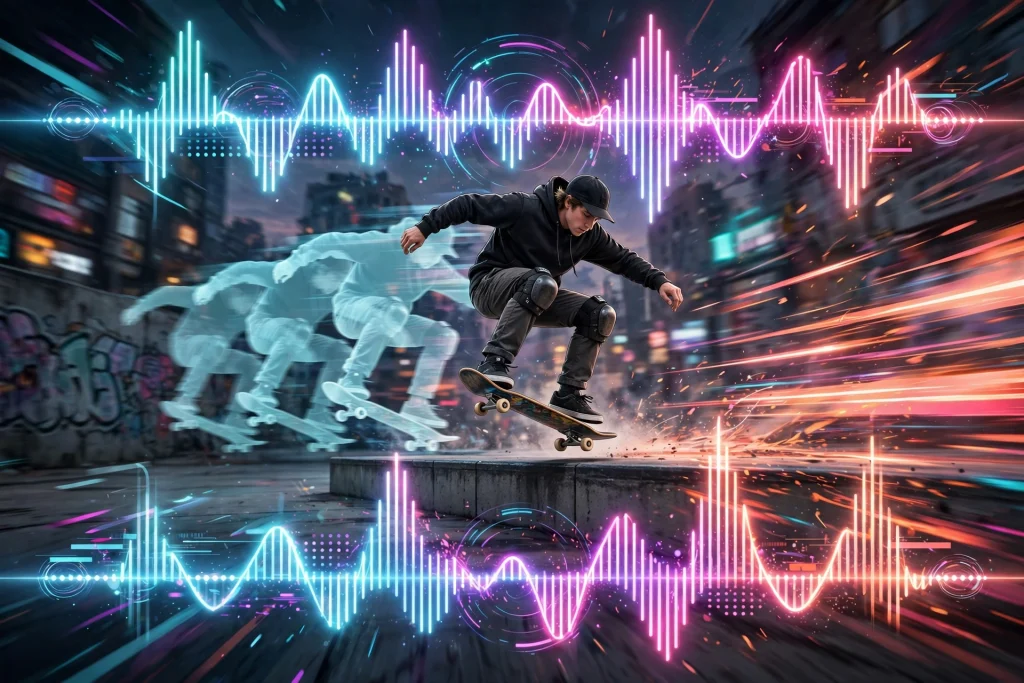
moments and slams into slow moti
on right on the beat drops. The result? Edits that feel alive — punchy, rhythmic, and incredibly satisfying to watch. It’s the same technique behind countless viral anime edits, sports highlights, and aesthetic montages.
What You’ll Need Before You Start
Before you dive in, gather these essentials:
- CapCut installed on your phone (free on the App Store or Google Play) or the desktop version
- A video clip with motion in it — dancing, sports, camera movement, or even a simple walk works great
- A song with a clear, strong beat — phonk, EDM, and hip-hop tracks are popular choices
- Headphones (optional, but they make beat-matching way easier)
How to Create a Velocity Edit in CapCut
Here’s the full process, broken into simple steps. Take it slow the first time — by your second or third edit, it’ll feel like second nature.
Step 1: Start a New Project and Import Your Clip
Open CapCut and tap New Project. Select the video clip you want to edit and tap Add. If your clip is longer than the section you want to use, trim it down now — velocity edits usually shine in short 5–15 second bursts.
Step 2: Add Your Music Track
Tap Audio at the bottom, then Sounds, and pick your track. You can use CapCut’s built-in music library or import your own audio file. Once the song is on the timeline, play it a few times and get a feel for where the beats land — those big drops and kicks are where your speed changes will go.
Step 3: Open the Speed Curve Tool
Open the Speed Settings
Tap your video clip on the timeline to select it, then tap Speed in the bottom toolbar.
Switch to Curve Mode
Choose Curve instead of Normal.
Explore Preset and Custom Curves
You’ll see a graph with preset curves like Montage, Hero Moment, and Bullet Time. For a true velocity edit, tap Custom — this gives you full control with beat points you can drag around.
Step 4: Create Speed Ramps on the Beats
This is the heart of the velocity edit. Tap Add beat to place beat points along the curve, lining them up with the kicks and drops in your music. Drag a beat point upward to speed that section up (great for build-ups) or downward to slow it down (perfect for drops). A classic pattern: speed through the build-up, then drop into dramatic slow motion right when the bass hits. Play it back and nudge the points until the motion locks in with the music.
Step 5: Smooth Out the Transitions
Harsh jumps between fast and slow can look janky. The curve tool smooths transitions automatically between beat points, but take a moment to check each ramp. If a section feels too abrupt, drag the neighboring beat points a little closer together in value to soften the change. The goal is buttery — the speed should flow, not stutter.
Step 6: Add Finishing Touches
Layer on the Final Polish
Now layer on the polish that separates good edits from great ones:
Finishing Touches to Try
- Add a quick white flash or shake effect right on the beat drops (Effects > Video effects > search “flash” or “shake”)
- Use keyframes to add a subtle zoom-in during slow-motion moments
- Tweak brightness and contrast slightly for a punchier look
Step 7: Export in High Quality
Tap the export arrow in the top right. Set the resolution to 1080p and the frame rate to 60fps for the smoothest playback — velocity edits with lots of speed changes look noticeably better at 60fps. Hit Export, and you’re done!
Common Mistakes to Avoid
Beginners tend to trip up on the same things — here’s how to dodge them:
- Ignoring the beat: A velocity edit lives and dies by beat sync. If your speed changes don’t land on the music’s rhythm, the whole thing feels off. Listen closely and mark your beats first.
- Too many speed changes: Cramming ten ramps into five seconds is overwhelming. Fewer, well-placed changes hit harder.
- Low-quality footage: Speed ramping exaggerates every flaw. Start with the highest resolution clip you have.
- Overusing effects: Flashes and shakes are seasoning, not the main course. One or two per drop is plenty.
Frequently Asked Questions
Is it free to make velocity edits in CapCut?
Yes! The speed curve tool is completely free in CapCut — no subscription or watermark needed.
Why does my velocity edit look choppy?
Choppiness usually comes from exporting at a low frame rate or ramping footage that was shot at 24fps. Export at 60fps, and for the smoothest slow motion, shoot your original clip at 60fps or higher.
Can I do this on CapCut desktop?
Absolutely. The desktop version has the same curve tool under the Speed settings — the steps are nearly identical.
What’s the difference between a velocity edit and speed ramping?
They’re essentially the same technique! “Velocity edit” is the name the TikTok and Reels community gave to beat-synced speed ramping.
What songs work best for velocity edits?
Tracks with hard-hitting, predictable beats — phonk house, trap, and EDM drops are community favorites because the beat changes are easy to hear and match.
Final Thoughts
Velocity edits look intimidating, but they’re really just careful listening plus a little curve-tweaking. Your first attempt might not be perfect — mine certainly wasn’t — but each edit sharpens your instincts for rhythm and timing. So grab a clip, pick a banger of a song, and start ramping. Happy editing!