How to Remove Background in CapCut Without a Green Screen (2026 Guide)
Remember when removing a video background meant hanging a giant green sheet behind you and praying the lighting was even? Those days are over. CapCut’s AI background remover can cut you out of any scene — your messy bedroom, a crowded street, anywhere — with a single tap. No green screen, no special setup. Here’s exactly how to do it.
How CapCut’s AI Background Remover Works
CapCut uses artificial intelligence to figure out which pixels are you and which pixels are the background. It detects the human subject — your body, head, and even tricky details like hair — and separates it from everything behind you in real time. The result is a clean cutout you can place over any new background, like a sticker of yourself that you can stick anywhere.
Method 1: Remove Background with Auto Cutout
This is the easiest method and the one most people will use. Five steps and you’re done.
Step 1: Start a New Project and Import Your Clip
Open CapCut, tap New Project, and add the video you want to edit. For the best results, pick a clip where you’re clearly visible and not blending into the background.
Step 2: Select Your Clip on the Timeline
Tap the clip on the timeline so it’s highlighted. All the editing tools at the bottom now apply to this clip.
Step 3: Open the Cutout Tool
Locate the Cutout Tool
In the bottom toolbar, tap Cutout (you may need to scroll the toolbar to find it).
Select Remove Background
You’ll see a few options — choose Remove background.
Step 4: Apply Auto Removal
Tap Auto removal and let CapCut work its magic. In a few seconds, your background disappears, leaving just you on a transparent backdrop. Play the clip to check the edges — if you spot areas the AI missed, don’t worry, we’ll fix those in a moment.
Step 5: Add a New Background
Choose Your New Background
Now for the fun part. Tap Overlay at the bottom, then Add overlay, and choose a new background video or photo — a beach, a city skyline, a gradient, anything.
Position the Background
Drag it below your main clip on the timeline and stretch it to match the length. Just like that, you’ve teleported somewhere new.
Method 2: Chroma Key (If You Have a Green Screen)
If you do happen to have a green screen, the Chroma key option in the same Cutout menu gives you even more precise results. Select your clip, tap Cutout > Chroma key, then use the color picker to tap the green in your footage. Adjust the intensity slider until the green vanishes cleanly. It’s the classic method — just optional now that AI does the heavy lifting.
Pro Tips for the Cleanest Results
The AI is impressive, but it works best when you give it good material to work with:
- Use good lighting: Bright, even lighting on your face and body helps the AI tell you apart from the background. Avoid harsh backlighting.
- Wear contrasting colors: If your shirt matches the wall behind you, the AI will struggle. Pick clothes that stand out from your surroundings.
- Keep some distance: Stand a few feet away from the background. Separation creates depth, which makes the cutout cleaner.
- Minimize fast movement: Quick, jerky motions can confuse the detection from frame to frame. Smooth, deliberate movement cuts out best.
- Shoot in high resolution: More pixels mean more detail for the AI to work with — 1080p minimum.
How to Fix Imperfect Edges
Even great AI cutouts sometimes leave fuzzy edges or flicker. Here’s how to clean them up:
- Add a stroke or glow: A subtle stroke around your subject (in the Style options) hides rough edges beautifully.
- Blur the new background: A slightly blurred background looks natural and draws attention to you, not the edges.
- Zoom in slightly: Scaling your clip up 5–10% crops off the roughest edge pixels.
- Try custom removal: For stubborn spots, use the Custom removal brush to manually paint in areas the AI missed.
Creative Ideas to Try Once You’ve Got the Hang of It
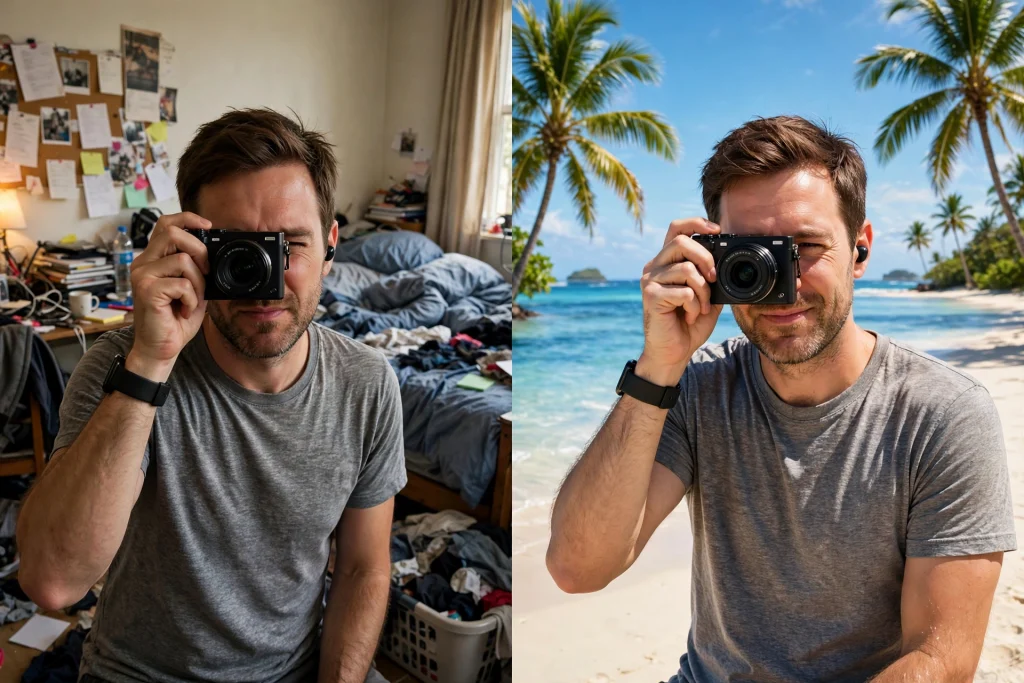
- Fake travel videos: Film in your living room, then drop in the Eiffel Tower behind you.
- Slick presentations: Float yourself over slides or screen recordings for a professional look.
- Clone effects: Film the same shot twice, cut yourself out of one, and place both versions side by side.
- Product showcases: Hold a product up — the cutout keeps the focus on you and what you’re holding.
- Reaction videos: Overlay yourself in the corner over the video you’re reacting to.
Background Remover vs. Overlay: What’s the Difference?
Beginners sometimes mix these two up. Background remover erases what’s behind you; an overlay layers one clip on top of another. In this tutorial you actually use both: the remover cuts you out, and the overlay places your new background underneath.
Frequently Asked Questions
Is CapCut’s background remover free?
Yes — Auto removal is completely free, with no watermark on your exported video.
Why is my cutout flickering?
Flickering usually happens with low light or busy backgrounds. Re-shoot with better lighting and a simpler background, or clean up the edges with the tips above.
Can I remove only part of the background?
Yes! Split your clip at the point you want (tap Split on the toolbar) and apply background removal only to that segment.
Does this work on CapCut desktop?
It does. The desktop editor has the same Cutout > Remove background option with identical results.
Can I remove backgrounds from photos too?
Absolutely — the same Cutout tool works on still images, which is perfect for thumbnails and profile pictures.
Final Thoughts
Green screens were great for their time, but AI cutout is faster, easier, and honestly more fun. The first time you watch your background melt away with one tap, you’ll wonder why you ever did it any other way. Now go make something cool!