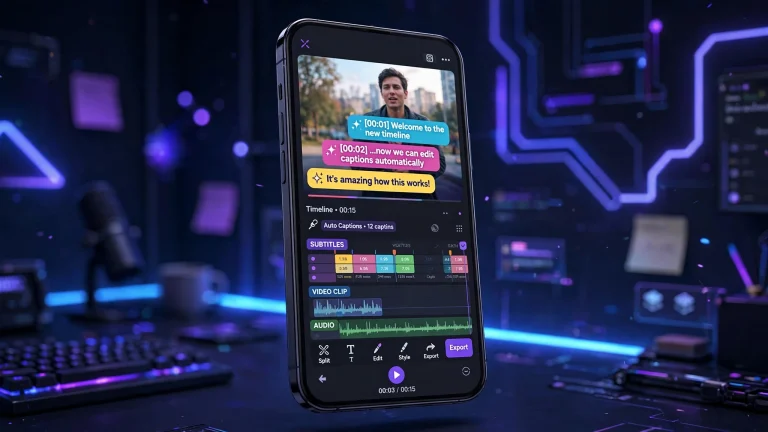

TikTok videos are constantly evolving, and one of the easiest ways to make your content more interesting is by using trending effects. From smooth transitions and slow-motion scenes to face filters, zoom effects, and creative visual transformations, the right effect can turn an ordinary clip into something viewers want to watch and share.
CapCut is one of the most popular video editing tools for TikTok creators because it offers a wide range of effects, filters, transitions, animations, and templates. Many creators use it to recreate popular editing styles, participate in viral trends, and give their videos a more polished appearance.
The best part is that you do not need professional editing experience to get started. With a few simple steps, you can import your footage, apply an effect, adjust its appearance, and export a video ready to upload to TikTok.
However, using trending effects successfully involves more than choosing the most popular filter. You also need to understand how effects work, how to find styles that suit your content, and how to combine them with music, transitions, and good video timing.
In this guide, you will learn how to use CapCut trending effects for TikTok videos, how to find suitable effects, how to apply them correctly, and how to make your videos more engaging without overediting them.
What Are Trending Effects in CapCut?
Trending effects are visual editing features that become popular among creators because they produce an attractive, entertaining, or recognizable result. These effects can spread quickly when people use them in TikTok challenges, transformation videos, dance clips, comedy videos, and other social media content.
Some effects change the appearance of a person’s face, while others modify the colors, lighting, movement, or overall style of a video.
Common examples include:
- Zoom effects: Create the appearance of the camera moving closer to a subject.
- Slow-motion effects: Make movements appear slower and more dramatic.
- Flash effects: Add brief flashes of light during scene changes.
- Blur effects: Create a soft, dreamy, or motion-focused appearance.
- Glitch effects: Add digital distortion for a futuristic or energetic style.
- Beauty and face effects: Adjust facial appearance or apply creative filters.
- Transition effects: Help connect two clips in a visually interesting way.
- Color effects: Change the mood of a video using different tones and visual treatments.
The availability of individual effects can change over time, and some features may be restricted by device, region, or subscription. Therefore, the most useful approach is to explore the effects available in your version of CapCut and choose those that match your creative idea.
Why Do TikTok Creators Use CapCut Trending Effects?
Trending effects can help creators make their videos more visually interesting and easier to recognize. They can also make it easier to participate in popular editing styles without building every effect from scratch.
For example, a fashion creator might use a flash transition to reveal a new outfit. A travel creator could use a zoom effect to move between destinations, while a comedy creator might use a facial effect to make a reaction more entertaining.
There are several reasons creators use these tools.
First, effects can make simple footage more engaging. A basic video recorded on a smartphone may look more polished after a carefully selected color adjustment or transition.
Second, effects can help communicate a mood. A soft filter may suit a romantic video, while a glitch effect might work better for gaming content.
Third, trending effects can make it easier to participate in challenges and popular formats. When viewers recognize a familiar editing style, they may understand the video’s concept more quickly.
However, using a trending effect does not guarantee views or followers. The quality of the content, the opening hook, the music, the subject, and audience interest all matter. Effects work best when they support an interesting idea rather than replace one.
How Do You Use CapCut Trending Effects for TikTok Videos?
Follow these steps to start using trending effects in your videos.
Step 1: Open CapCut and Create a New Project
First, open the official CapCut application on your phone, tablet, or computer.
If you are using the mobile app, tap New project and select the video clips you want to edit from your gallery. Add them to the timeline to begin editing.
Choose footage that fits the type of TikTok video you want to create. For example, if you want to make a fashion transformation video, record an opening clip showing your original outfit and another clip showing the new outfit.
If you are making a travel video, select clips showing different locations, activities, or memorable moments.
You can also start with a single clip if you only want to apply a filter or visual effect.
Before adding effects, watch the footage and remove any unnecessary sections. This gives you a cleaner starting point and makes it easier to decide where each effect should appear.
Step 2: Find Trending Effects in CapCut
Once your footage is ready, explore the effects available in your version of CapCut.
On the mobile app, you can generally find video effects through the Effects section in the editing toolbar. Depending on the version, you may see categories, featured effects, search tools, or other ways to browse available options.
Look for effects that match the style of video you want to create.
For example, if you want a cinematic TikTok video, you might explore color effects, subtle blur, or camera-style effects. If you are making a funny video, facial effects or exaggerated visual transformations may be more suitable.
You can also look for popular CapCut templates and editing styles. Some templates are designed around specific songs, transitions, or visual trends, making it easier to recreate a particular format.
Keep in mind that trending sections and available effects can change. If you cannot find a specific effect, it may have been renamed, removed, or made unavailable in your region or app version.
Another useful approach is to identify the effect used in a TikTok video you like, then search for a similar option in CapCut.
Step 3: Preview an Effect Before Applying It
Before choosing an effect, preview how it looks.
Different effects can produce very different results, even when they seem similar by name. One may add a subtle color adjustment, while another may dramatically change the lighting or distort the image.
Select an effect and preview it using your footage if the option is available.
Ask yourself a few questions:
- Does the effect match the mood of the video?
- Does it make the main subject easier to see?
- Does it look good with the lighting in the original footage?
- Will it help communicate the idea of the video?
- Is it suitable for the audience you want to reach?
For example, a heavy glitch effect might work well in a gaming montage but look distracting in a peaceful travel video.
Do not choose an effect only because it appears popular. A suitable effect should improve your particular video.
Step 4: Apply the Effect to Your Video
After choosing an effect, apply it to your clip.
In CapCut, the exact process depends on the effect type and the version you are using. In many mobile versions, you select the desired effect, confirm it, and adjust its duration on the timeline.
Some effects apply to an entire clip, while others can be positioned over only a particular section.
For example, you might use a color effect throughout the video but apply a flash effect only when revealing a new outfit.
If your effect appears as a separate layer or effect strip on the timeline, adjust its start and end points to control when it appears.
Preview the result to make sure the effect is applied to the correct section.
If the effect makes the video too bright, too dark, or too distracting, try a different option or reduce its intensity if the effect provides that control.
Remember that you do not need to apply an effect to every clip. Sometimes, one carefully placed effect creates a stronger result than several effects used together.
Step 5: Combine Trending Effects With Transitions
Transitions help move viewers from one clip to another. Combining transitions with suitable effects can make TikTok videos feel smoother and more professional.
For example, imagine you are creating an outfit transformation video.
You could begin with a normal shot, cover the camera with your hand, and reveal the new outfit in the next clip. A brief flash or zoom effect can emphasize the moment of transformation.
To add a transition, look for the transition control between clips on the timeline. Select a suitable option and adjust the duration if your version allows it.
You can also use direct cuts instead of transitions. A cut that happens at the right moment in the music may look more effective than a complicated animation.
Try to match the transition to the movement in your footage. If the first clip moves from left to right, a similar movement in the next clip can help the two scenes feel connected.
Avoid using too many different transitions in one video. A consistent editing style usually looks cleaner and helps viewers focus on the content.
Step 6: Synchronize Effects With Trending Music
Music can make a major difference to how an effect feels.
A zoom effect timed to a strong beat may look energetic, while the same effect used at the wrong moment may seem random.
To synchronize your effects with music, add a suitable audio track to your project and listen for the strongest beats or changes in the song.
Then position your clips, transitions, or effects so that important visual changes occur at those moments.
For example, you could use a flash effect when the music reaches a strong beat, reveal a new scene when the chorus begins, or slow down an action before the music becomes more intense.
If your version includes beat detection or beat markers, these tools may help you identify suitable editing points. Otherwise, you can listen to the music and align the clips manually.
Do not force every effect to match every beat. Choose the most important moments and let the other sections flow naturally.
Also, make sure you have permission to use your chosen music, particularly if you are publishing videos for commercial purposes.
Step 7: Use CapCut Templates to Recreate Popular TikTok Styles
Templates are another convenient way to use trending editing styles.
A CapCut template is a prearranged editing project that may include transitions, effects, text, timing, and music-related elements. You replace the sample media with your own photos or videos to create a similar result.
To use a template, explore the templates available in your version of CapCut or follow an available template link from a creator or platform.
Select a template that suits your content, add the requested photos or clips, and preview the result.
Some templates require a particular number of images or videos. Others may have fixed timing or limited customization options.
Templates can save time, especially if you want to create a quick TikTok edit without manually building every transition.
However, always review the finished video. The template may not choose the best order for your clips, and some scenes may not match the rhythm or visual style you want.
If customization is available, adjust the footage, text, and other elements to make the video feel more personal.
Step 8: Adjust Colors and Filters for a Better Look
Trending effects often look more attractive when the original footage has balanced colors and good lighting.
CapCut offers adjustment tools and filters that can help you improve the appearance of your clips.
For example, you can adjust brightness if the footage is too dark, reduce highlights if bright areas are losing detail, or adjust contrast to make the image look more defined.
You can also experiment with saturation and warmth to create a particular mood.
A warm color style may suit lifestyle or fashion videos, while cooler tones may work well for certain cinematic or gaming edits.
If you are already using a strong visual effect, keep the color adjustments relatively subtle. Combining several intense filters can make skin tones look unnatural and cause details to disappear.
Try to maintain a consistent appearance across your clips. If one scene looks extremely warm and the next looks very blue, the video may feel disconnected.
The goal is to improve the footage while preserving important details.
Step 9: Add Text, Captions, and Animations
Text can help explain your video, introduce a transformation, or encourage viewers to participate in a trend.
For example, a fashion video might begin with the words “Before” and reveal “After” during the transformation. A tutorial could use short captions to explain each step, while a comedy video might use text to emphasize a reaction.
To add text in CapCut, open the text tools, create a text layer, and enter your message.
Choose a font and color that are easy to read. Adjust the size and position so that the words do not cover important details.
You can also use text animations if they suit your editing style.
Keep captions short and relevant. Too much text can make a short video feel crowded, especially when combined with several visual effects.
If your video contains spoken instructions, captions can help viewers follow along, including those who watch without sound.
For TikTok, position text carefully so that the platform’s interface does not cover important words.
Step 10: Preview the Video and Make Final Adjustments
Before exporting, watch the complete video from beginning to end.
Check whether the effects appear at the right moments, the transitions are smooth, and the music matches the visual changes.
Pay attention to the following details:
- Are the effects too strong or distracting?
- Does the opening capture attention quickly?
- Are the transitions timed correctly?
- Is the text easy to read?
- Does the music overpower spoken audio?
- Are the clips cropped correctly for vertical viewing?
- Does the ending feel complete?
If something looks wrong, return to the timeline and make the necessary adjustments.
It is often helpful to watch the video more than once. During the first viewing, focus on the overall experience. During the second, pay attention to details such as effect timing, color consistency, and audio levels.
This final review can prevent small editing problems from affecting the finished result.
Step 11: Export and Upload Your Video to TikTok
Once you are satisfied with your edit, export the video from CapCut.
For many TikTok videos, 1080p resolution and a vertical 9:16 aspect ratio are practical choices. Choose a frame rate suitable for your original footage and the type of movement in your video.
The exact export options available depend on your device, source files, and CapCut version.
After exporting, play the saved file to confirm that the effects, music, and transitions appear as expected.
Next, open TikTok and upload the finished video. Add a clear caption and a few relevant hashtags that describe the content.
If the video follows a particular trend, you can use a relevant trend-related hashtag when appropriate. Avoid adding unrelated hashtags simply because they are popular.
Before publishing, check TikTok’s current music and content rules, especially if the video promotes a product or business.
Tips for Getting Better Results With Trending Effects
Using popular effects is only one part of creating engaging TikTok content. These tips can help you make your videos look more polished.
Start with a strong idea. Decide what your video is about before choosing effects. A good idea gives your editing a clear purpose.
Keep the opening interesting. Show an intriguing moment, an interesting transformation, or a clear reason to continue watching.
Use effects selectively. Too many effects can overwhelm the viewer. Choose the ones that support your content.
Match effects to your niche. Fashion creators may benefit from transformation effects, while gaming creators might prefer glitch effects or energetic transitions.
Pay attention to timing. Effects often look better when synchronized with movement, music, or an important moment.
Maintain good video quality. Use clear footage, appropriate lighting, and suitable export settings.
Experiment with your own style. You can use a trending effect without copying every detail of another creator’s video.
Review your analytics. If you publish regularly, examine which videos receive stronger watch time, completion rates, shares, and other meaningful engagement signals. Use those observations to improve future edits.
Common Mistakes to Avoid When Using CapCut Trending Effects
One common mistake is using too many effects in a single video. Constant flashes, zooms, filters, and transitions can make content difficult to follow.
Another mistake is choosing effects that do not fit the subject. A dramatic glitch effect may be suitable for a gaming montage but unnecessary for a simple cooking tutorial.
Some creators also forget about timing. An effect may look attractive on its own, but if it appears too early or too late, it can weaken the overall edit.
Poor lighting can also reduce the quality of the final result. Applying filters to dark, blurry footage will not necessarily make it look professional.
Finally, do not assume that using a trending effect will automatically make a video go viral. Trends can provide inspiration, but the video’s originality, relevance, storytelling, and audience appeal remain important.
Frequently Asked Questions
1. Are CapCut Trending Effects Free?
Some effects are available for free, while others may require CapCut Pro or may be unavailable in certain regions or app versions. Check the label and requirements displayed in your application before using a particular feature.
2. How Do I Find Viral CapCut Effects for TikTok?
Explore the Effects section in CapCut, look through available templates, and pay attention to editing styles used in TikTok videos you enjoy. You can then search for similar effects or templates in the tools available to you.
3. Can I Use CapCut Effects Without Templates?
Yes. You can import your own footage and apply individual effects, filters, transitions, and animations manually. This gives you more control over the timing and appearance of your video.
4. Why Can I Not Find a Trending Effect in CapCut?
An effect may have been removed, renamed, restricted by region, or made unavailable in your version of the app. Try searching for a similar effect or checking whether your application has an available update.
5. Do CapCut Effects Help TikTok Videos Get More Views?
Effects can make videos more visually appealing, but they do not guarantee more views. Strong ideas, relevant content, good pacing, audience interest, and an engaging opening also contribute to a video’s performance.
6. Can I Use CapCut Trending Effects on Android and iPhone?
Yes. CapCut is available on supported Android and iOS devices, although the available features and interface may differ. Some effects may appear on one version before another or may have different requirements.