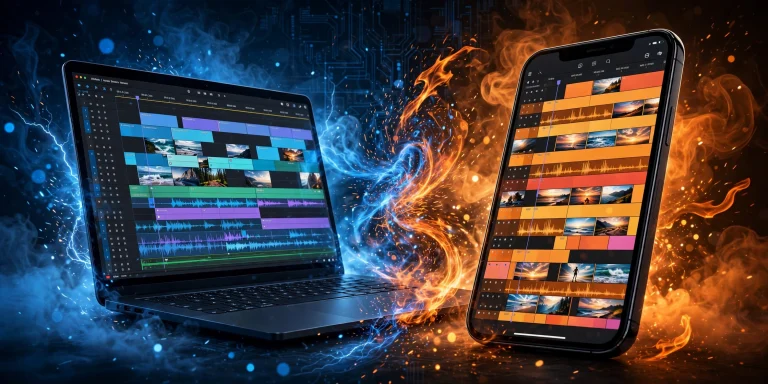
Creating cinematic edits is one of the best ways to make ordinary videos look more professional, emotional, and visually appealing. Whether you are editing travel footage, fashion videos, lifestyle content, short films, or social media clips, cinematic editing can help you tell a story that captures people’s attention.
The good news is that you do not need an expensive camera or professional editing software to achieve a cinematic look. CapCut provides several tools that allow you to adjust colors, control video speed, add music, create smooth transitions, and improve the overall appearance of your footage.
Many content creators use CapCut to transform simple smartphone recordings into videos that look like scenes from a movie. With the right combination of lighting, color grading, music, and editing techniques, you can achieve impressive results without spending a lot of money.
In this guide, you will learn how to make cinematic edits using CapCut, which settings to adjust, how to create smooth transitions, and how to avoid common mistakes that can make your videos look less professional.
What Is a Cinematic Edit?
A cinematic edit is a video editing style that focuses on storytelling, visual quality, atmosphere, and emotion. Instead of simply combining several clips, cinematic editing makes each scene feel connected and helps communicate a particular mood.
For example, a travel video might use slow camera movements, warm colors, beautiful scenery, and emotional background music to make viewers feel as though they are experiencing the journey themselves.
A cinematic fashion video might use dramatic lighting, carefully selected shots, subtle slow motion, and smooth transitions to make the subject stand out.
Cinematic editing does not necessarily mean adding black bars to the top and bottom of a video. Although widescreen framing is sometimes associated with movies, the real cinematic effect comes from how you combine visuals, sound, movement, and storytelling.
CapCut makes it possible to create this style using tools that are accessible to beginners and experienced editors alike.
What Do You Need to Make Cinematic Edits in CapCut?
Before you start editing, gather the materials you need for your project. Preparing your footage and deciding on a visual style will make the editing process easier.
Here are the main things you should consider:
- CapCut: Install the official CapCut application on your phone, tablet, or computer, or use an available web version.
- Good video footage: Choose clear clips with interesting subjects, suitable lighting, and purposeful movement.
- Background music: Select music that matches the mood you want to create.
- A creative idea: Decide whether your video should feel dramatic, peaceful, energetic, romantic, or adventurous.
- Enough storage space: Make sure your device has enough room for your source files and exported video.
You do not need professional equipment to begin. A smartphone can capture footage suitable for cinematic editing, especially when you pay attention to lighting, composition, and camera movement.
How Do You Make Cinematic Edits Using CapCut?
Follow these steps to transform your footage into a cinematic video.
Step 1: Open CapCut and Create a New Project
First, open CapCut and tap New project on the mobile application. If you are using the desktop version, create a new project and import your video files.
Select the clips you want to use and add them to the timeline.
Choose footage that supports the story you want to tell. For example, if you are making a cinematic travel video, you might include wide shots of a landscape, close-ups of interesting details, footage of people walking, and shots showing the surrounding environment.
Try to select clips with different compositions. A combination of wide shots, medium shots, and close-ups can make the final video more interesting.
After importing your footage, arrange the clips in a logical order. You might begin with an establishing shot, move into closer details, and finish with a memorable scene.
This approach helps viewers understand the setting and follow the story instead of watching a random collection of clips.
Step 2: Trim Your Clips to Improve the Story
One of the most important parts of cinematic editing is knowing what to remove.
Even beautiful footage can become boring if it stays on screen for too long or contains unnecessary movement. Trimming your clips helps keep the video focused and improves its overall rhythm.
Play each clip and identify the strongest moments. Remove sections where the camera is adjusting, the subject is not clearly visible, or nothing important is happening.
You can use CapCut’s trimming and splitting tools to shorten clips and remove unwanted sections.
For example, if you recorded a 15-second clip of a person walking toward a building, you might only need the best five or six seconds to communicate the moment.
However, do not make every clip extremely short. Cinematic editing often benefits from allowing important moments to breathe.
A peaceful landscape may deserve several seconds on screen, while a quick action shot may work better as a short cut.
The goal is to give every clip enough time to communicate its purpose without slowing down the entire video.
Step 3: Choose the Right Aspect Ratio
The aspect ratio determines the shape of your video. Choosing the right one is important because different platforms display videos in different formats.
CapCut allows you to adjust the canvas or aspect ratio, although the exact controls may vary by version.
Common choices include:
- 16:9: Suitable for traditional widescreen videos, YouTube content, and many cinematic presentations.
- 9:16: Ideal for vertical content such as TikTok videos, Instagram Reels, and YouTube Shorts.
- 1:1: Useful for square videos and certain social media posts.
- 4:5: A practical vertical format for some social media feeds.
If you are creating a cinematic travel film for YouTube, a widescreen format may suit the footage. If you are producing a cinematic Reel, vertical framing may be more appropriate.
Choose the aspect ratio early in the editing process so that you can position your subjects correctly.
Avoid cropping important details out of the frame. If your original footage is horizontal but you want to publish it vertically, reposition the clip carefully to keep the main subject visible.
Step 4: Adjust Brightness, Contrast, and Exposure
Lighting has a major influence on the cinematic appearance of a video.
If your footage is too dark, viewers may struggle to see important details. If it is too bright, highlights can lose their texture and make the image look washed out.
CapCut provides adjustment tools that can help you improve the brightness, contrast, highlights, shadows, and other image properties.
Select a clip and look for the adjustment controls.
Start by correcting the basic exposure. Increase or decrease brightness as necessary, but avoid making the entire image excessively bright or dark.
Next, adjust contrast to create a clearer difference between darker and lighter areas. A moderate increase can make footage appear more defined, although too much contrast may remove detail from shadows and highlights.
You can also adjust highlights and shadows independently if those controls are available. Reducing overly bright highlights may help preserve detail in skies or bright clothing, while lifting shadows slightly can reveal details in darker areas.
Make small changes and preview the result frequently.
The goal is not to make every scene look dramatic. The goal is to create a balanced image that supports the atmosphere of your video.
Step 5: Apply Cinematic Color Grading
Color grading is one of the most recognizable elements of cinematic editing.
Different colors can communicate different moods. Warm tones may create a comfortable, nostalgic feeling, while cooler tones can produce a calm, mysterious, or dramatic atmosphere.
CapCut provides color adjustment tools and filters that can help you create a consistent appearance across your clips.
For a warm cinematic look, you might slightly increase the warmth, adjust contrast, and reduce overly intense colors.
For a cooler style, you could introduce a subtle blue or cyan appearance while keeping skin tones natural.
You can also experiment with saturation. Lowering saturation slightly may create a more restrained cinematic appearance, while excessive saturation can make colors look artificial.
If you use filters, adjust their intensity when the option is available. Applying a strong filter at full strength can make footage look unnatural, especially when different clips were recorded under different lighting conditions.
One important tip is to maintain consistency. If one clip looks very warm and the next looks extremely blue, the video may feel disconnected.
Where possible, correct each clip first and then apply a consistent creative color style across the project.
Remember that there is no single color grade that works for every video. Choose colors that complement your subject, lighting, and story.
Step 6: Create Smooth Slow-Motion Effects
Slow motion can add emotion and visual impact to cinematic edits when used at the right moments.
For example, you might slow down a person walking through a beautiful location, a wave breaking against the shore, or an athlete performing an important movement.
To create slow motion in CapCut, select your clip and open the Speed controls. Choose the normal speed option and reduce the playback speed.
A setting such as 0.5x can create a noticeable slow-motion effect. If your footage was recorded at a high frame rate, you may be able to slow it down further while maintaining smooth movement.
You can also explore curve speed controls, where available, to create speed ramps. This allows a clip to move at normal speed, slow down gradually, and then return to normal speed.
Use slow motion selectively. If every clip is slowed down, the video may lose its natural rhythm and become repetitive.
For the best result, reserve slow motion for moments that deserve extra attention.
Also, remember that footage recorded at a low frame rate may appear choppy when slowed down significantly. Preview your clip and choose a speed that preserves the quality of the movement.
Step 7: Add Smooth Transitions Between Clips
Transitions help connect scenes and influence how the video feels.
CapCut includes a range of transition options, depending on the version you are using. These may include fades, dissolves, slides, zooms, and other visual effects.
To add a transition, locate the transition control between two clips on the timeline, select a style, and adjust the duration if the option is available.
For cinematic videos, simple transitions are often the most effective.
A fade can work well when moving between emotional or peaceful scenes. A dissolve can connect related shots, while a direct cut may be ideal when the music or action changes.
You can also create a sense of continuity by matching the movement in two clips. For example, if the camera moves from left to right in one shot, a similar movement in the next shot can make the edit feel more connected.
Avoid using a different transition between every clip. Too many flashy effects can make the video feel more like a slideshow than a cinematic film.
Choose transitions that support the mood and keep the viewer focused on the story.
Step 8: Add Cinematic Music and Improve the Audio
Sound is just as important as visuals when creating a cinematic video.
The right music can make a simple scene feel emotional, inspiring, dramatic, or peaceful. Without suitable audio, even attractive footage may feel less engaging.
In CapCut, open the audio section and select a suitable music track or import an audio file that you have permission to use.
Choose music that matches the pace and mood of your footage.
For a travel film, you might choose atmospheric instrumental music. For a dramatic action sequence, a track with a stronger rhythm may work better.
Adjust the music volume so that it complements the video without overwhelming other sounds.
If your footage includes natural sounds, such as footsteps, birds, wind, or waves, consider keeping some of them. These details can make the video feel more realistic and immersive.
You can also use audio fades to create smoother beginnings and endings. If your version supports keyframes for audio volume, you may be able to control the volume at specific points.
Pay attention to the ending. Abruptly cutting off the music can make an otherwise polished video feel unfinished.
Finally, make sure you have the appropriate rights to use your selected music when publishing your video.
Step 9: Use Keyframes for Smooth Camera Movement
Keyframes are useful when you want to create controlled movement within a clip.
In CapCut, keyframes can be used to animate properties such as position, scale, and rotation, depending on the available controls.
For example, you can create a slow zoom toward a subject by setting an initial keyframe at the beginning of a clip and another keyframe later with a slightly larger scale.
CapCut then animates the change between the two points.
This technique can make a still-looking shot feel more dynamic, especially when you are editing landscape footage, portraits, product shots, or photographs.
You can also use position keyframes to move the framing gradually across a scene.
Keep these movements subtle. A slow, controlled zoom often looks more cinematic than a sudden, exaggerated movement.
Before applying keyframes, consider whether the original clip already contains camera movement. Adding too much artificial motion to moving footage can make the scene feel unstable.
Use keyframes when they improve the composition or direct the viewer’s attention toward something important.
Step 10: Add Cinematic Text and Titles
Text can introduce a location, establish the mood, or provide useful information without distracting from the visuals.
For example, a travel video might display the name of a destination at the beginning. A short film might use a simple title before the first scene, while a cinematic product video might introduce the product name with a subtle animation.
To add text in CapCut, open the text tools, create a text layer, and enter your preferred wording.
Choose a font that matches the style of your video. Clean, simple fonts often work well for cinematic edits because they are easy to read and do not compete with the footage.
Adjust the text size, position, color, and duration. You can also explore text animations if they suit the project.
Avoid placing text directly over important faces or objects. Keep enough space around the words so that they remain readable.
If you are making a vertical video for social media, position your text carefully because platform buttons and captions may cover parts of the screen.
Remember that cinematic text should support the video rather than dominate it.
Step 11: Make the Video More Professional With Consistent Editing
At this stage, your video should have its main clips, color adjustments, transitions, music, and any additional effects.
Before exporting, review the project as a complete piece rather than checking each clip individually.
Look for differences in brightness and color between adjacent scenes. Check whether the transitions feel natural and whether the music matches the rhythm of the editing.
Make sure the pacing changes intentionally. A quiet opening followed by a more energetic middle section can create a stronger viewing experience than a video that maintains exactly the same pace throughout.
You should also remove unnecessary effects, repeated shots, and anything that distracts from the main story.
If you have several clips recorded in different lighting conditions, revisit the color adjustments to make them feel more consistent.
Small improvements at this stage can make your final video feel much more polished.
Step 12: Export Your Cinematic Video
When you are satisfied with the edit, export the video from CapCut.
Choose an appropriate resolution and frame rate based on your original footage and publishing platform.
For many projects, 1080p is a practical choice that provides good visual quality without producing an excessively large file. If you recorded and edited your footage at a higher resolution, you may prefer to export at that resolution when your device and intended platform support it.
A frame rate of 24fps is sometimes chosen for a traditional film-like presentation, while 30fps is common for general online videos. A higher frame rate may be more suitable for footage with smooth motion or certain types of action.
However, changing the export frame rate alone does not automatically make a video cinematic. The original recording, shutter characteristics, movement, color, and editing choices also influence the result.
For social media, select the aspect ratio that best suits the platform. A 9:16 format is generally appropriate for vertical short-form videos, while 16:9 works well for traditional widescreen presentations.
After exporting, watch the saved file from beginning to end. Check for audio problems, missing effects, awkward transitions, and any changes in quality.
Best Tips for Creating Cinematic Edits in CapCut
If you want your videos to look more professional, keep these practical tips in mind.
Focus on storytelling. Before adding effects, decide what you want the viewer to feel or understand. A clear story is more important than complicated editing.
Use good lighting. Well-lit footage usually gives you more flexibility when adjusting colors and contrast.
Keep your colors consistent. Choose a color style that fits your video and apply it carefully across the clips.
Avoid excessive effects. Too many filters, transitions, and animations can make a video look cluttered.
Pay attention to sound. Background music and natural audio can dramatically improve the viewing experience.
Use slow motion strategically. Reserve it for moments that benefit from additional emphasis.
Choose suitable footage. Interesting composition and controlled camera movement make cinematic editing much easier.
Watch your video on different screens. A video that looks good on your editing device may appear too dark or difficult to read on another screen.
Common Mistakes to Avoid When Making Cinematic Edits
One common mistake is assuming that a cinematic video must use dark colors. While darker grading can work for certain styles, excessively dark footage may hide important details and make the video difficult to watch.
Another mistake is applying the same strong filter to every clip without correcting differences in lighting. This can create inconsistent skin tones, strange colors, and blown-out highlights.
Overusing transitions is another problem. Cinematic editing often relies on simple cuts, thoughtful pacing, and visual continuity rather than constant effects.
Some creators also overlook audio quality. Music that is too loud, abrupt sound changes, or poorly balanced original audio can reduce the impact of an otherwise attractive video.
Finally, avoid slowing down footage excessively just to make it look cinematic. Slow motion works best when it supports the movement and the story.
The key is to make deliberate choices rather than applying every available feature.
Frequently Asked Questions
1. Can You Make Cinematic Videos in CapCut for Free?
Yes. Many of the basic tools needed for cinematic editing are available without a paid subscription, including trimming, speed adjustment, audio editing, text, and various visual adjustments. Some premium effects, templates, or other features may require CapCut Pro, depending on your version.
2. What Is the Best Filter for Cinematic Videos in CapCut?
There is no single best filter for every video. A warm filter may suit travel or lifestyle footage, while a cooler look may complement dramatic scenes. Start with your original footage, correct the exposure and white balance where possible, and then experiment with subtle filters.
3. What Is the Best Frame Rate for Cinematic Editing?
A frame rate of 24fps is commonly associated with traditional film presentation, while 30fps is widely used for online content. Higher frame rates can be useful for smoother motion and slow-motion editing. Choose a setting that fits your footage and intended style.
4. How Do You Make CapCut Videos Look Like Movies?
Use good footage, thoughtful shot selection, consistent color grading, suitable music, controlled camera movement, and smooth transitions. You can also experiment with widescreen framing where appropriate. However, the cinematic appearance depends on the entire editing process rather than one filter or effect.
5. Can You Make Cinematic Edits on CapCut Mobile?
Yes. CapCut’s mobile application offers many tools for creating cinematic videos, including trimming, speed controls, audio editing, text, transitions, and color adjustments. The exact features available may differ from the desktop version.
6. Do You Need CapCut Pro for Cinematic Editing?
No. You can create attractive cinematic videos with basic editing tools. A paid subscription may provide additional effects, filters, or other resources, but good footage, careful editing, and a clear creative idea matter more than having access to every premium feature.