How to Make Smooth Slow Motion Videos in CapCut (2026)
There is something about a well-done slow motion shot that instantly makes a video feel cinematic. Whether it is a hair flip, a skateboard trick, water splashing, or just someone walking with confidence, slowing the moment down gives it weight and drama.
CapCut has some of the best slow motion tools of any free editor. You can slow down clips with one tap, build custom speed ramps with curves (see also our velocity edits guide), and even smooth out choppy footage with frame interpolation. In this guide, I will show you exactly how to make smooth slow motion videos in CapCut in 2026, plus the shooting tips that separate buttery slow-mo from choppy slow-mo.
The Secret to Smooth Slow Motion: Shoot at a High Frame Rate
Before we touch CapCut, let us talk about the one thing that matters most. Slow motion is not created in editing – it is created when you shoot.
Here is the simple math: a normal video plays at 24 or 30 frames per second (fps). If you shoot at 60fps and slow that footage to 50%, CapCut can show you every single captured frame and the result still looks smooth. If you shoot at 30fps and slow it to 50%, CapCut only has 15 frames per second to work with, and the result looks choppy.
So rule number one: shoot at 60fps or 120fps whenever you plan to slow a clip down. Most modern phones can do 60fps easily, and many offer 120fps or even 240fps slow-mo modes. The higher the frame rate, the smoother your slow motion.
If you only have 30fps footage, do not worry – CapCut has a trick for that too, which I will cover below.
Method 1: Simple Slow Motion (Normal Speed Control)
This is the fastest way to slow down a clip in CapCut.
Steps:
- Open your project and select the clip you want to slow down on the timeline.
- Tap Speed in the bottom toolbar (or click it in the desktop properties panel).
- Choose Normal.
- Drag the speed slider to the left. A value of 0.5x plays at half speed, 0.25x at quarter speed.
- Preview the result. If it looks smooth, you are done.
This method is perfect for simple slow-mo moments and it is dead easy. The downside: everything in the clip slows down uniformly, which can feel a bit flat compared to a proper speed ramp.
Method 2: Speed Curves for Cinematic Speed Ramping
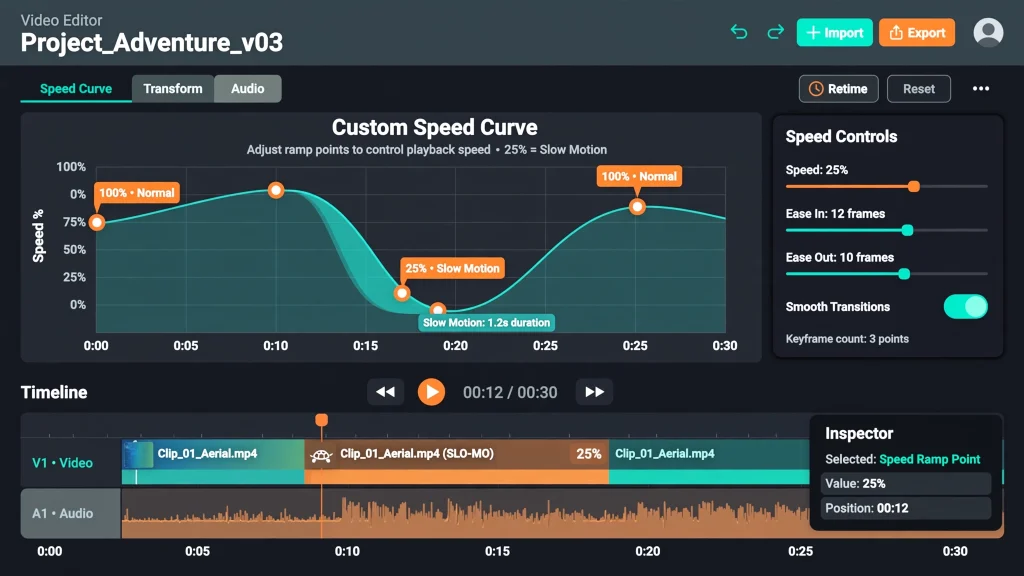
Speed ramping is what separates amateur slow motion from the stuff you see in professional edits. Instead of a constant slow speed, the video speeds up and slows down smoothly – like a “mountain” or a “valley” on a graph.
Steps:
- Select your clip and tap Speed, then choose Curve.
- You will see preset curves like Hero, Montage, Bullet, and Flash. Tap one to preview it.
- For full control, tap Custom (or Custom curve).
- You will see a graph with dots. Drag the dots up to speed the clip up at that point, and drag them down to slow it down.
- A classic cinematic move: start at normal speed, dip down to 0.3x in the middle, then rise back to normal. This “slow in the middle” shape is called a mountain curve.
- Preview and adjust the dots until the transition feels smooth, not jerky.
The key to good ramping is smooth transitions between fast and slow. Sharp angles on the curve create jarring jumps. Round, gentle curves feel cinematic.
Method 3: Smoothing Choppy Footage with Frame Interpolation
If you shot at 30fps and slowed it down, you might see stuttering. CapCut’s frame interpolation (sometimes called “optical flow”) fixes this by generating in-between frames with AI.
Steps:
- Select your slowed-down clip and open Speed.
- Look for an option called Frame interpolation, Smooth slow motion, or Optical flow (the exact name varies by version).
- Enable it and choose a quality level if offered.
- Let CapCut process the clip. Higher quality takes longer but looks better.
- Preview: the stutter should be replaced with smooth, flowing motion.
One warning: frame interpolation can create weird warping artifacts on fast-moving objects or complex backgrounds. If you see ghosting or wobbling, try a lower intensity or go back to shooting at a higher frame rate next time.
Best Export Settings for Slow Motion Videos
Export settings matter more for slow motion than for regular clips. Here is what works:
- Resolution: 1080p minimum, 4K if your footage supports it.
- Frame rate: Match your project frame rate (usually 30fps). Do not export slow-mo at 60fps unless your whole project is 60fps – it can cause timing issues.
- Bitrate: Set to Higher or Recommended+. Slow motion with lots of detail (like water or fabric) needs more data to stay clean.
- Format: MP4 is the safest choice for TikTok, Reels, and Shorts.
5 Shooting Tips for Better Slow Motion
- Use plenty of light. High frame rate modes need more light. Slow motion shot in a dark room looks grainy and muddy.
- Use a tripod or stabilize. Camera shake becomes painfully obvious in slow motion. CapCut’s stabilizer can help, but a steady hand (or a tripod) is better.
- Pick the right moment. Slow motion works best on action with visible movement: splashes, jumps, hair, smoke, confetti. A static scene gains nothing from slow-mo.
- Keep it short. A 2-3 second slow motion moment inside a normal-speed video is powerful. A whole minute of slow motion gets boring.
- Add sound design. Slow motion with the right sound effect (a whoosh, a deep rumble, a beat drop) hits ten times harder. CapCut’s audio library has plenty of slow-mo-friendly sounds.
Common Slow Motion Problems (and Fixes)
Problem: The slow motion looks choppy. Fix: You shot at 30fps. Either enable frame interpolation, or shoot at 60fps+ next time.
Problem: The video looks blurry in slow motion. Fix: High frame rate modes on phones often use lower resolution or higher ISO. Add light and shoot in 1080p60 rather than 4K30 for slow-mo scenes.
Problem: The audio sounds weird and stretched. Fix: Slow motion stretches audio too. Mute the clip’s original audio and add music or sound effects on a separate audio track instead.
Problem: Speed ramp feels jerky. Fix: Soften the curve points. Avoid sharp angles – use gentle, rounded transitions between speed changes.
FAQs
How do I make slow motion smooth in CapCut if I only have 30fps footage?
Enable frame interpolation (optical flow) on the slowed clip. It generates synthetic in-between frames to smooth out the motion. It works well for simple motion but can artifact on complex scenes.
What is the best speed for slow motion in CapCut?
Start with Half Speed
For most footage, 0.5x (half speed) looks great.
Go Slower for Drama
For dramatic moments, 0.25x to 0.3x works. Go slower only if you shot at 120fps or higher.
Can I slow down just part of a clip?
Yes. Either use the Curve speed control and place a slow section in the middle of the graph, or split the clip (Split tool) and apply slow motion only to the segment you want.
Does CapCut slow motion reduce video quality?
Slowing down does not reduce resolution, but low-frame-rate slow motion can look choppy, and phone slow-mo modes sometimes use lower resolution. Shoot at 60fps in good light for the best results.
Why does my slow motion video look dark?
Less Light Per Frame
High frame rate recording captures less light per frame.
Add More Light
Shoot in bright conditions or add lighting when filming slow motion scenes.
Final Thoughts
Smooth slow motion in CapCut comes down to two things: shoot at a high frame rate, and use speed curves instead of flat slowdowns. Master those two habits and your slow motion shots will look like they came from a much more expensive camera.
The next time you film something with movement in it – a jump, a splash, a spin – switch your phone to 60fps or 120fps. Your future self, sitting in CapCut building that speed ramp, will be very grateful. And if you are just getting started, our CapCut beginner’s tutorial covers all the basics.