How to Use CapCut Templates: A Beginner’s Guide (2026)
If you have ever seen a TikTok trend where everyone’s video has the exact same transitions, text animations, and beat sync – and wondered how regular people make those so fast – the answer is almost always CapCut templates.
A CapCut template is a pre-built editing project. Someone else already did the hard work: the cuts, the transitions, the effects, the text timing, the beat sync. All you do is drop your own photos or video clips into the placeholder slots, and the template does the rest.
In this beginner’s guide, I will show you exactly how to find, use, and customize CapCut templates in 2026 – plus the mistakes that make template videos look cheap instead of clean.
What Is a CapCut Template, Exactly?
Think of a template like a cake mix. The recipe is figured out, the ingredients are measured, and you just add your own eggs and water – in this case, your own photos and clips.
Each template contains:
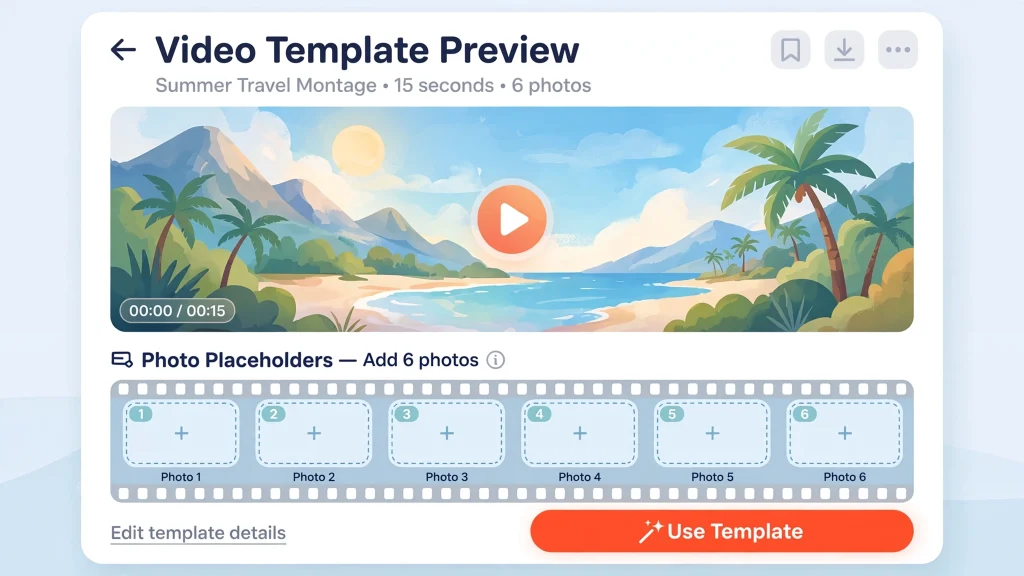
- Placeholder slots for a specific number of photos or videos (e.g., 6 photos, each shown for 0.8 seconds).
- Pre-timed transitions and effects synced to music.
- Text and sticker layers that you can usually edit or replace.
- The audio track that the template was built around.
When you use a template, your media takes the place of the original creator’s media, but all the editing magic stays intact.
How to Find CapCut Templates
Inside the CapCut App
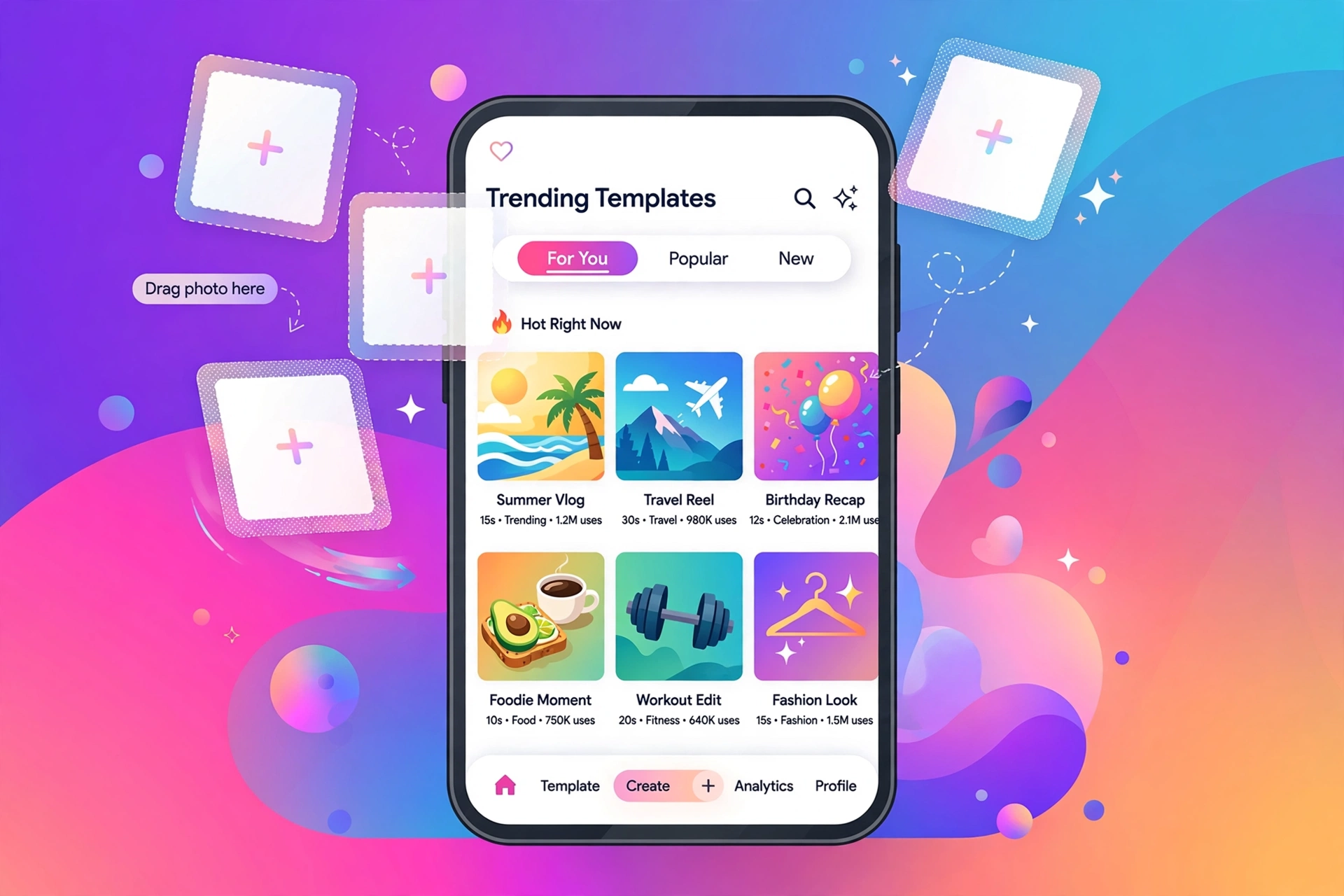
- Open CapCut and look at the bottom navigation bar on the home screen.
- Tap Templates. You will land in the template gallery.
- Browse trending categories like Trending, New, Aesthetic, Velocity, Travel, and more.
- Tap any template to preview it with its original media.
- If you like it, tap Use template to start adding your own content.
By Searching
If you saw a specific template on TikTok, the creator often names it in the caption or comments. Search that name in the Templates tab. You can also search by vibe – “birthday”, “couple”, “gym”, “aesthetic” – and CapCut will show matching templates.
From TikTok Directly
Many TikTok videos made with a template have a small “CapCut – Try this template” label above the caption. Tap it and TikTok will open CapCut with that exact template loaded. This is the fastest way to jump on a trend. For more TikTok growth tactics, see how to make TikTok videos go viral with CapCut.
How to Use a CapCut Template: Step by Step
- Preview the template. Watch the full preview first. Count how many clips it needs and how long each one shows. This tells you what media to pick.
- Tap “Use template”. CapCut opens the media picker.
- Select your photos or videos in order. The template expects a certain number of clips. Tap them in the order you want them to appear. Pay attention to any on-screen hints about which slot is which.
- Adjust if needed. Some templates let you trim each clip slightly or reposition photos. Do this now – it is much easier than fixing it later.
- Preview your version. Watch the whole thing with your media in place. Check that faces are not cut off and the timing feels right.
- Edit the text. Most templates have text layers with the original creator’s words. Tap the text and change it to your own caption or message.
- Export. Tap Export, choose 1080p, and share directly to TikTok, Instagram, or wherever you want.
Customizing Templates So They Do Not Look Generic
Here is the thing about templates: thousands of people use the same ones. If you just drop in photos and export, your video looks like everyone else’s. A few small customizations make a big difference:
Change the Text Style
Spot the Giveaway
The default template text is the most obvious giveaway.
Make It Your Own
Change the font, color, or position. Even better, write your own caption instead of keeping the template’s placeholder text.
Swap or Add Music
Check the Audio Lock
Some templates lock the audio, but many let you change it.
Match the Sound to Your Video
If the trending sound fits your video, keep it. If not, swap in something that matches your content better.
Add Your Own Touch at the End
Add a short personal outro – 2-3 seconds of your own edited footage after the template ends. It breaks the “template sameness” and gives the video a personal signature.
Match Your Media to the Template’s Energy
A high-energy velocity template with sleepy vacation photos looks wrong. Pick media that matches the template’s pace and mood. Fast templates need dynamic clips; aesthetic templates need pretty, well-lit shots.
Templates vs. Editing From Scratch: When to Use Each
Templates are amazing for speed, but they are not always the right choice:
Use templates when:
- You want to jump on a trend fast.
- You are new to editing and want to learn by seeing how effects are built.
- You need to post consistently without spending hours editing.
Edit from scratch when:
- You want a unique style that stands out.
- The template’s timing does not fit your story.
- You are building a personal brand with a consistent look.
Many successful creators do both: templates for quick trend posts, custom edits for their signature content.
Common Template Mistakes Beginners Make
Mistake 1: Using the wrong number of clips. Templates are built around a specific clip count and duration. Forcing 12 photos into a 6-slot template throws off all the timing. Pick a template that fits your media, not the other way around.
Mistake 2: Ignoring the preview. Always watch the preview first. If the template has vertical text that will clash with your photos, or transitions that cut off faces, pick a different template.
Mistake 3: Leaving the watermark or credits. Some templates add a creator credit. Check the final export and remove or reposition anything you do not want (where the app allows it).
Mistake 4: Posting without checking the text. The number one template fail is publishing a video that still says the template creator’s sample text. Always replace placeholder text with your own words.
Mistake 5: Using low-quality photos. Templates with zoom and pan effects expose blurry photos mercilessly. Use your sharpest, best-lit images.
Are CapCut Templates Free?
Most templates in the CapCut gallery are free to use. Some premium templates are marked with a Pro badge and require a CapCut Pro subscription. The free selection is huge, though – you will not run out of options.
FAQs
Where is the Templates tab in CapCut?
On the mobile app, it is in the bottom navigation bar on the home screen, between the main editing area and other sections. On desktop, templates are available through the CapCut website and template links.
Can I create my own CapCut template?
Yes. CapCut has a template creator program where experienced editors can publish templates for others to use. It requires an application and a track record of quality edits.
Why can’t I find a template I saw on TikTok?
Template names change, some get removed, and regional availability varies. Try searching keywords from the video’s caption, or check the comments – someone usually links the template name.
Do templates work on CapCut desktop?
The template gallery is primarily a mobile feature. Desktop users can open template links shared from mobile, but the full browsing experience lives in the mobile app.
Will using templates hurt my reach on TikTok?
No. TikTok does not penalize template-made videos. What matters is whether people watch and engage. A good template video with great media performs just as well as a custom edit.
Final Thoughts
CapCut templates are the fastest shortcut in short-form video. They let a complete beginner produce a polished, trend-ready video in under five minutes. The trick is to use them as a starting point, not a finished product: pick the right template, use great media, customize the text, and add one personal touch.
Do that, and nobody will ever guess your viral video started as a template. Completely new to editing? Start with our beginner’s guide to CapCut.