
How to Add Sound Effects in CapCut for More Engaging Videos (2026)
Watch any polished TikTok or YouTube Short and listen closely: a whoosh lands exactly on the transition, a pop punctuates the text reveal, a riser builds under the punchline. Sound effects are the invisible layer that separates amateur edits from professional ones — and most beginners leave them out entirely.
CapCut makes this easy. The app ships with a built-in sound effects library holding hundreds of free effects, organized by category and searchable by keyword. You can also import your own sounds. This 2026 guide shows you how to add sound effects in CapCut step by step: finding the library, timing effects to your visuals, importing custom SFX, and mixing everything so your video sounds as good as it looks.
Where to Find Sound Effects in CapCut
CapCut’s effects library is tucked inside the audio tools, and the exact label varies slightly between mobile and desktop. Here is where to look on each.
On the Mobile App: Audio, Then Effects
Open your project and tap Audio in the bottom toolbar, then tap Effects (in some versions it is labeled Sound Effects). You will see categories like Transition, Nature, Animals, Funny, Magic, Laugh, Horror, Fight, Pop-up, and Game FX — plus a search bar. Type a keyword like “whoosh,” “click,” or “explosion” to jump straight to what you need.
On CapCut Desktop: The Audio Tab
On desktop, open the Audio tab in the media panel and choose Sound effects. Search works the same way — type “notification” or “applause,” preview the results, and click the + button to add one to your timeline. Right-clicking any audio clip also gives you handy options like separating vocals or instruments.
What You Get for Free
Hundreds of effects are free, and they cover nearly every common need. A few carry the diamond Pro badge — skip those if you are on the free tier. Note that effects download the first time you use them, so you need a stable connection; if you edit while traveling, open and preview your go-to effects on Wi-Fi first so they are cached.
Adding a Sound Effect, Step by Step
Adding an effect is quick. Making it land perfectly takes a little more care — here is the full process.
Step 1 – Open the Library and Search
With your project open, go to Audio → Effects and search for the sound you want. Be specific: “whoosh” beats scrolling through the Transition category, and “camera shutter” beats the general search. Tap any result to preview it before committing.
Step 2 – Preview, Position the Playhead, and Add
Move the playhead to the exact moment the sound should start — the frame where the transition hits, the text pops in, or the punch lands. Then tap the + button. CapCut drops the effect onto the timeline at the playhead position as its own audio clip.
Step 3 – Time It to the Visual
This is where good edits become great ones. A whoosh that lands two frames late feels broken; one that lands exactly on the cut feels electric. Zoom into the timeline and nudge the effect clip until it locks to the visual.
Align the Waveform Peak with the Visual Hit
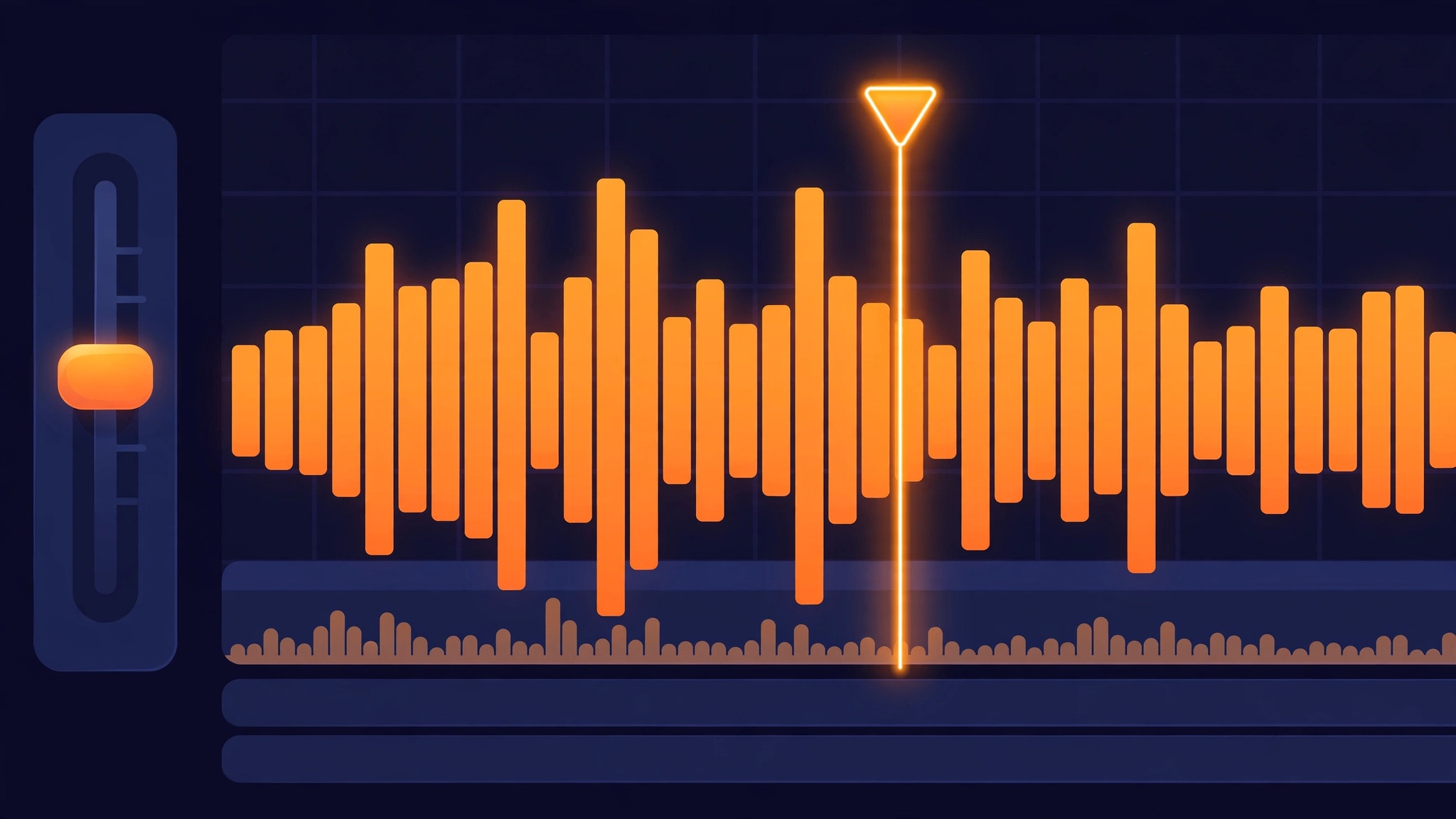
Look at the effect’s waveform — the tallest spike is its loudest moment. Drag the clip so that peak sits exactly on the visual cue: the transition midpoint, the punch impact, the text reveal. Your eyes forgive a lot, but your ears notice even tiny misalignments, so zoom in close.
Trim the Tails
Many effects have a second of silence or reverb tail you do not need. Drag the clip’s edges inward to cut dead air at the start and end. A tight effect sounds punchy; a loose one sounds sloppy.
Step 4 – Set the Volume and Fades
An effect at the wrong volume is worse than no effect. Select the SFX clip and open Volume: sound effects should support the scene, not shout over it. If the effect has a hard start or stop, add a short Fade in or Fade out so it melts into the mix instead of popping. Our audio fade guide goes deeper on smoothing every transition.
Volume Levels That Sit Right
As a starting point, keep dialogue as your anchor and tuck effects just under it. If an effect fights with speech, lower the effect — never raise everything else. Small moves (a few decibels) make a bigger difference than you would expect.
Fade In and Fade Out for Clean Edges
Even a 3–5 frame fade removes the tiny click you hear when an effect starts or stops abruptly. Select the clip, open the fade controls, and drag the fade handles inward slightly. It is a five-second move that makes every effect sound more expensive.
Adding Your Own Custom Sound Effects
The built-in library is deep, but sometimes you need a specific sound — your channel’s signature pop, a meme sound, a client’s branded sting. CapCut lets you bring your own.
Import from Your Device
Go to Audio → Sounds → Your Sounds (or From Device on some versions) and import MP3, WAV, or M4A files from your phone or computer. Imported sounds behave exactly like built-in effects: drag them on the timeline, trim, set volume, and fade them like anything else.
Free Royalty-Free SFX Sources
Need sounds CapCut does not have? Freesound.org, Zapsplat, and Pixabay all offer large free libraries, much of it usable without attribution. Download what you need, import via Your Sounds, and build a personal collection. Stick to royalty-free sources — ripping sounds from random videos can get your uploads flagged or muted.
Mixing Tips That Make Videos Sound Pro
Adding effects is step one. Mixing them is what makes a video feel professionally produced. These habits take minutes and pay off in every upload.
Layer Multiple Effects on Separate Tracks
Big moments deserve layered sound: a riser building up, a whoosh on the cut, an impact on the landing. Put each effect on its own track so you can adjust timing and volume independently. If you are syncing effects to music, our Beat Sync guide shows how to lock everything to the rhythm.
Duck Music Under Dialogue
When someone is talking, background music and effects should step back. Use the Volume Curve to dip music under speech, then bring it back up in the gaps. A common starting balance: dialogue peaking around −6 to −12 dB with music sitting near −18 dB underneath. Your viewers should never strain to hear words.
Match the Effect Style to Your Video
Cartoon boings belong in comedy; cinematic booms belong in drama. Mismatched SFX — a horror sting in a cooking video — pull viewers out of the moment. Before adding an effect, ask whether it matches the video’s energy. Consistency of style is what makes sound design feel intentional rather than random.
Frequently Asked Questions
Where is the Sound Effects option in CapCut?
On mobile: open your project, tap Audio, then Effects (labeled Sound Effects in some versions). On desktop: open the Audio tab and select Sound effects. Both have search and category browsing.
Can I add my own sound effects to CapCut?
Yes. Go to Audio → Sounds → Your Sounds (or From Device) and import MP3, WAV, or M4A files. Imported sounds work exactly like built-in effects on the timeline.
How do I make a whoosh land exactly on a transition?
Zoom into the timeline, find the effect’s waveform peak (its loudest point), and drag the clip so the peak sits exactly on the transition’s midpoint. Nudge frame by frame until it feels locked — your ears will tell you when it is right.
Can I layer multiple sound effects at once?
Yes — put each effect on its own audio track so you can time and balance them independently. Layering a riser, a whoosh, and an impact is how trailer-style moments are built.
Are CapCut’s sound effects safe to use on YouTube?
CapCut-provided effects are generally fine, and royalty-free libraries like Pixabay and Zapsplat are safe bets. Avoid ripping recognizable sounds from other videos or shows — those can trigger copyright claims or mutes even if the edit itself is original.
Conclusion
Sound effects are the cheapest upgrade in video editing: free, fast to add, and transformative when timed well. Learn the library, align every effect to its visual, keep your volumes balanced, and mix with intention. Do that consistently, and viewers will feel the difference in every video — even if they never notice the sounds themselves. That is exactly the point.