How to Sync Music to Your Video in CapCut with Beat Sync (2026)
Why Music Sync Matters
Have you ever watched a video where every cut lands exactly on the beat, and it just feels satisfying? That is not luck — it is beat sync, and it is one of the easiest ways to make your edits feel professional.
CapCut has a built-in beat sync feature that automatically detects the beats in your music and marks them on the timeline. In this guide, you will learn how to use it to sync your clips, cuts, and transitions to the music like a pro.
What Is Beat Sync in CapCut?
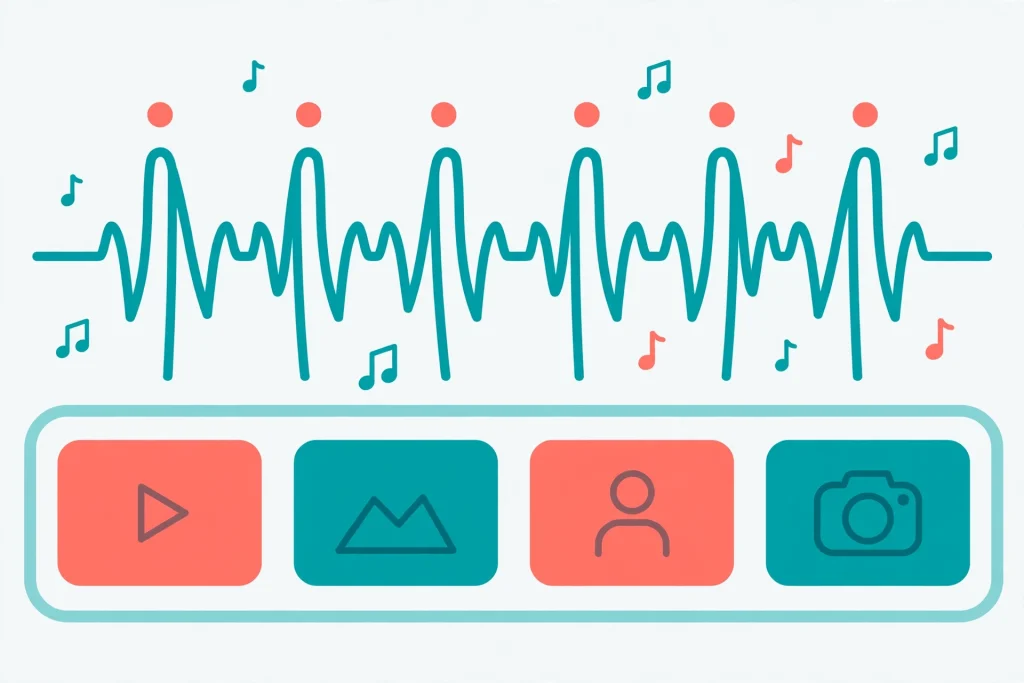
When you add a music track to your project, CapCut can analyze the audio and place small beat markers (yellow dots) along the audio waveform wherever it detects a strong beat. You then align your clip cuts, transitions, and effects to those markers — and suddenly your edit pulses with the music.
How to Use Beat Sync in CapCut (Mobile)
Step 1: Add Your Music
Open your project, tap Audio in the toolbar, then Music. Choose a track from CapCut’s library or import your own audio. The track will appear on the timeline.
Step 2: Open the Beat Options
Select the audio track on the timeline. In the bottom toolbar, tap Beats, then choose Generate beats (it may also be labeled “Auto generate” or “Create beats automatically”).
Step 3: Let CapCut Detect the Beats
CapCut will analyze the track for a few seconds and place yellow beat markers along the waveform. Zoom into the timeline with two fingers to see them clearly.
Step 4: Align Your Clips to the Beats
Now arrange your video clips so that cuts, scene changes, and transitions land on the beat markers. A simple approach: split your clips at the markers using the Split tool, then trim each clip to start and end on a beat.
Step 5: Sync Effects and Text Too
Do not stop at cuts — time your text animations, zoom effects, and filter changes to the beats as well. When visuals and audio move together, the whole video feels more energetic.
Adding Beats Manually
Auto-detection is good, but it is not perfect — especially with complex music. To add a beat marker manually:
- Select the audio track and tap Beats.
- Choose Add beats manually.
- Play the music and tap the Add beat button (or the beat icon) every time you hear a beat you want to mark.
- CapCut places markers wherever you tapped.
Manual beats take a little longer but give you full control, which matters for songs with tempo changes or dramatic pauses.
Beat Sync Techniques That Look Amazing
The Cut-on-Beat Montage
Keep Clips to One or Two Beats
The classic: a fast montage where every clip is exactly one or two beats long.
Best Videos for This Technique
Works brilliantly for travel videos, product showcases, and sports highlights.
Zoom Pulses
Add Zoom Keyframes on Beats
Add a subtle zoom-in keyframe on each beat during a talking-head or performance clip.
Why It Works
The gentle pulse keeps viewers engaged without distracting cuts.
Beat-Drop Transitions
Save your flashiest transition for the song’s drop. Build up with simple cuts, then hit the drop with a zoom or spin transition — the payoff feels huge.
Text Reveals on Beats
Time your captions and titles to appear exactly on beats. Karaoke-style word-by-word captions synced to the rhythm are especially popular on TikTok and Reels.
Choosing the Right Music
- Strong, clear beats work best: Electronic, hip-hop, and pop tracks with obvious downbeats are easiest to sync.
- Match the energy: Fast cuts suit upbeat tracks; slow, emotional music suits longer clips and gentle transitions.
- Watch the length: Pick a track that roughly matches your video length to avoid awkward looping or fading.
- Use copyright-safe music: CapCut’s built-in library is cleared for use, which keeps your uploads from copyright claims.
Common Beat Sync Mistakes
- Syncing to every single beat: Cutting on every beat gets exhausting. Sync to every second or fourth beat for a more natural rhythm.
- Ignoring the music’s structure: Verses, choruses, and bridges have different energy — let your editing reflect that instead of cutting mechanically.
- Forgetting the ending: Time your final clip or logo reveal to land on the last beat for a satisfying finish.
Frequently Asked Questions
Is beat sync free in CapCut?
Yes, both automatic and manual beat marking are free features in the CapCut mobile app.
Why are the auto-generated beats wrong?
Auto-detection struggles with songs that have soft beats, tempo changes, or heavy vocals. Switch to manual beat marking for those tracks.
Can I use beat sync on CapCut Desktop?
CapCut Desktop supports beat markers as well. The workflow is similar: select the audio track and look for the beats option in the audio panel.
How do I delete beat markers?
Select the audio track, open the Beats menu, and choose the option to clear or delete beats. You can then regenerate or re-add them.
Does beat sync work with voiceovers?
Beat detection is designed for music, not speech. For voiceovers, manually mark the moments you want to emphasize instead.
Conclusion
Beat sync is one of those small techniques with an outsized payoff: add your music, generate the beats, and line up your cuts and effects with the markers. Start with a track that has clear, strong beats, resist the urge to cut on every single one, and save your biggest moment for the drop. Your viewers will feel the difference even if they cannot name it.