How to Add Camera Shake Effects in CapCut (2026 Guide)
There is a reason your favorite TikTok edits hit harder than everyone else’s. Half the time, it is not the music or the cuts — it is the shake. A perfectly timed camera shake on a beat drop turns a flat clip into something that feels like it was shot with real energy.
The good news? You do not need a fancy camera or complicated software. CapCut has built-in camera shake effects on mobile and desktop in 2026, and applying one takes about thirty seconds once you know where to look. This guide shows where the shake effects live in CapCut’s interface, how to apply them on your phone and computer, how to limit shake to just a beat drop, and how to build a custom shake with keyframes.
One quick note before we dive in: effect names and categories can vary slightly depending on your app version and region. If something below is not exactly where I say it is, try the search bar inside the effects panel — the fastest way to find any effect in CapCut, in every version.
What Is the Camera Shake Effect in CapCut?
A camera shake effect simulates handheld camera movement — that tiny, jittery, alive feeling you get from footage shot by hand instead of on a tripod. In music edits and highlight reels, editors exaggerate it on purpose: a single sharp jolt lands with an impact hit in the audio, while a longer wobbly shake adds energy across a hype moment.
This is different from stabilization, which removes unwanted wobble from real footage. Here we are adding movement on purpose, as a style choice — and CapCut has it built right in, free of charge, alongside a couple of alternative ways to get the same look.
The Shake Effects Built Into CapCut
CapCut’s effects library includes several shake-style video effects, with the current names verified in the 2026 library listed below. Exact placement between categories (Basic, Trending, Camera, Lens, Party) can shift between app versions and regions, so searching “Shake” is the most reliable way to pull them all up.
Camera Shake and Shake
The classics. “Shake” is the default everyone starts with, while “Camera Shake” is described as a simulated handheld shake. Both are free, and you will reach for them most often.
Swing
Swing is a smoother, more controlled side-to-side shake — a rhythmic sway rather than chaotic jitter. It works beautifully for slower music, cinematic intros, and emotional scenes.
Repeat Shake and Shake Impact
Repeat Shake is a rapid-fire repeating shake with a frame echo effect — great for high-energy drops and glitch-style edits. Shake Impact, on the other hand, is a single hard jolt built for one beat. Use it exactly where the bass hits and nowhere else.
Camera Shake V2
A newer variant listed under the Lens category on some versions — a slightly more refined take on the classic. One caution: newer premium variants can occasionally carry a Pro badge depending on your version and region, so glance for a crown icon before promising yourself a specific effect. The core shakes are confirmed free.
How to Add Camera Shake on CapCut Mobile (Step by Step)
The mobile workflow takes under a minute:
- Select your clip. Open your project and tap the video or photo clip in the timeline that you want to shake.
- Open Effects. In the bottom toolbar, tap Effects.
- Go to Video Effects. Make sure you are in the Video Effects tab. You will see category chips like Basic, Trending, Camera, Lens, and Party.
- Find the shake effect. Type “Shake” into the search bar, or browse the Camera category, then tap the thumbnail of the effect you want.
- Apply it. Tap the tick or checkmark to apply the effect to the clip.
- Adjust the settings. Most shake effects show adjustable parameters (Speed, Strength, and others) right after applying. Start conservative — around 30 to 50 percent intensity gives that trendy look without turning your footage into soup.
If the shake effect is missing entirely, update the app — very old CapCut versions did not include it at all.
How to Add Camera Shake on CapCut Desktop (Step by Step)
The desktop workflow is slightly different because effects live on their own track instead of inside the clip:
- Open the Effects panel. In the left or top panel, click Effects, then Video effects.
- Search for the effect. Type “shake” in the search bar, or browse the Lens or Camera categories (Camera Shake V2 is listed under Lens on some versions).
- Drag it onto the timeline. Drag the effect onto its own effects track above your clip. This is important: on desktop, the effect does not sit inside the clip itself — it occupies its own track, which actually makes precise control easier.
- Trim the duration. Drag the effect block’s edges on the timeline to control exactly where the shake starts and ends. Want it only across a beat drop? Trim it to just that moment.
- Confirm. Tap the tick or confirm button to lock it in.
Because the effect lives on an independent track, its duration is completely separate from the clip’s length — the standard documented desktop workflow, and honestly more flexible than mobile once you get used to it.
How to Shake Only Part of a Clip (and Sync It to a Beat)
Full-clip shake gets old fast. The pro move is shaking only at the moments that matter — the beat drop, the punchline, the impact — and here are the two verified ways to do it.
The Split-Clip Method
This is the simplest approach, especially on mobile. Split your clip around the target moment first, then apply the shake effect only to that segment. The rest of the clip stays perfectly still, and the shake lands exactly where you want it.
Split right on the beat
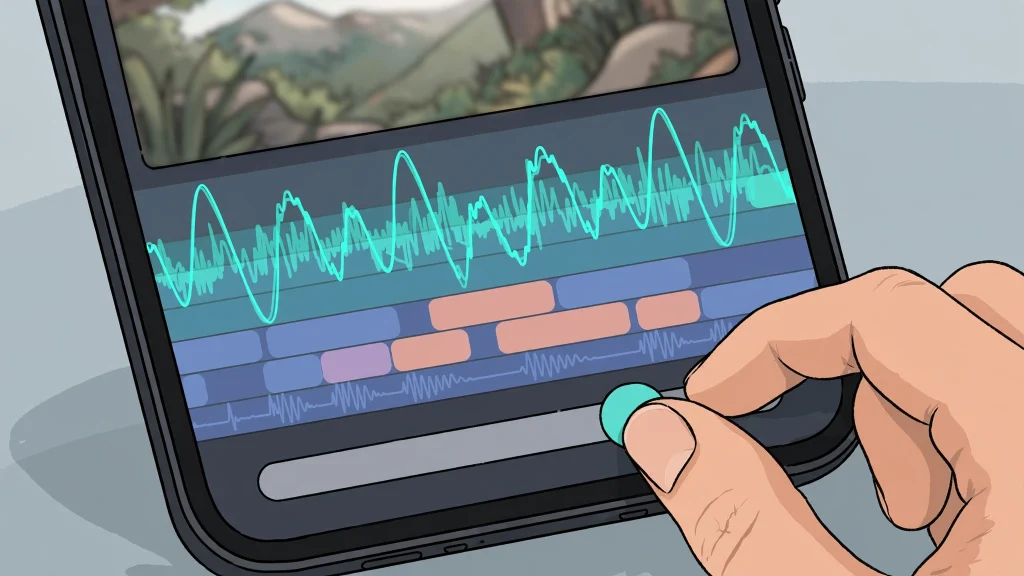
Zoom into the timeline, find the exact frame of the beat drop (play slowly or watch the audio waveform — the drop usually shows as a visible spike), and split there. Split again a few frames after it to isolate a short segment.
Apply the effect to the segment only
Select just that short segment and apply your chosen shake effect to it. The effect applies only to the selected clip on mobile, so everything outside your split stays untouched.
Trimming the Effect Strip Instead
If you do not want to split the clip, you can control the effect’s duration directly.
On mobile
After applying the effect, it appears as a strip on the timeline. Drag its start and end handles to shorten it — for example, so it covers only the beat drop. This keeps your clip in one piece while the shake stays brief.
On desktop
The effect already sits on its own track above the clip, so just trim the effect block’s edges to the exact moment of emphasis. Beats, hits, impacts — line them up precisely and the edit will feel ten times more professional.
Whichever method you choose, here is the golden rule from every guide: sync each shake to a music beat. That single habit is what separates amateur-looking shake from professional-looking shake. If you are not sure how to find beats in your audio, our beat sync guide walks through the full process step by step.
How to Create a Custom Shake With Keyframes
Built-in effects are fast, but sometimes you want something specific — a shake that moves in one direction, lands exactly on certain beats, or feels like real handheld camera work. That is when you build the shake yourself with keyframes.
The Quick Way: Shake In and Shake Out Presets
Before going fully manual, try CapCut’s built-in animation presets. Select your clip, open Animation, then choose In and pick Shake In — or Out and pick Shake Out for a quick preset shake on entry or exit.
The Manual Keyframe Method
This is how experienced editors do it: keyframed X and Y position (sometimes with a little zoom) gives you a beat-synced, directional shake that no automatic effect can match.
Setting your keyframes
Add a keyframe at the start of your clip, then shift the clip’s position slightly — a small nudge up, down, left, or right. Move forward 2 to 3 frames, add another keyframe, and shift the position a different direction. Repeat this pattern for as long as you want the shake to last. Keep each move small and quick; big slow moves look like panning, not shaking.
Adding zoom and motion blur
Pair your position keyframes with a small zoom in or out, and add a touch of motion blur if your version of CapCut offers it. That subtle blur between positions is what sells the effect as real camera movement rather than a clip sliding around on screen. If you are new to keyframing, our keyframes beginner’s guide covers the fundamentals in detail.
Parameters and Pro Tips for a Professional-Looking Shake
Knowing which buttons to press is only half the battle. These settings and habits keep your shake looking intentional, not accidental.
What Each Parameter Actually Does
Speed sets how fast the shake moves (higher means more chaotic, lower means a subtle wobble). Strength, sometimes labeled Intensity, controls how far the frame moves — 30 to 50 percent is the sweet spot for the trendy look. Range or Size goes from a small tight shake to wilder moves. Direction (horizontal, vertical, or random) is documented for the Camera Shake effect in the current 2026 guides, while Swing uses its own set — Speed, Size, Intensity, and Jitter. And the effect’s duration is always adjustable on the timeline, on every platform.
Duration matters more than intensity
A gentle shake that lasts too long feels nauseating. A strong shake that lasts four frames feels electric. When in doubt, shorten the effect before you lower the intensity — brief and punchy beats long and wobbly almost every time.
Export at 60fps for smoother motion
Shake involves rapid frame-to-frame movement, and low frame rates make it look choppy. If your project allows it, export at 60fps. The difference between a 30fps shake and a 60fps shake is genuinely night and day — the motion reads as smooth energy instead of stuttery jitter.
Tips That Keep Your Shake Looking Clean
- Use shake sparingly. Reserve shake for beats, drops, and impacts — not entire clips. Overuse causes viewer fatigue and even motion sickness, and it makes the effect lose all its power.
- Keep text static. Shaking text overlays destroys readability. Keep captions and key messages static, and let the footage shake underneath them.
- Stabilize first, shake after. If your source footage already has unwanted wobble, stabilize it first to remove the messy movement, then apply the shake effect for controlled style.
- Lower preview quality if playback stutters. Heavy effects can lag in live preview. Drop the preview quality, or export a short test clip to see the real result before committing to a full render.
Common Mistakes to Avoid
- Cranking intensity to the max. The most common beginner error. High intensity looks jittery and ugly — start at 30 to 50 percent and only increase if the moment truly demands it.
- Shaking the entire video. A shake that never stops is not an effect, it is a headache. Isolate it to the moments of impact.
- Ignoring the frame rate. Shake at 30fps can look rough; 60fps makes the same effect feel smooth and professional.
- Applying shake to text-heavy clips. Important text must stay readable. Shake the footage, not the words.
- Stacking too many effects at once. Shake plus zoom plus glitch plus flash, all at once, is visual noise. Pick one star per moment.
- Searching the wrong category and giving up. Effect names and categories move between versions. If you do not see the shake effect, search “Shake” in the effects search bar before assuming it is missing — and update the app if it is truly gone.
FAQ
Where is the shake effect in CapCut?
On mobile: select your clip, tap Effects in the bottom toolbar, open Video Effects, and search “Shake” or browse the Camera category. On desktop: open the Effects panel, go to Video effects, and search “shake” — also try the Lens and Camera categories. If it is not there at all, update the app, since very old versions did not include a shake effect.
Is the camera shake effect free, or does it need CapCut Pro?
The core shake effects — Shake, Camera Shake, and Swing — are free, confirmed by current guides as part of CapCut’s free features. A few newer premium variants may display a Pro badge, so check for a crown icon on the specific effect you want rather than assuming every variant is free.
How do I apply the shake effect to only part of my video?
On mobile, drag the effect strip’s start and end handles to shorten it — the effect’s duration is independent of the clip. Or split the clip around the beat drop and apply the effect only to that segment. On desktop, trim the effect block on its own track to the exact moment you want shaken.
How do I make the shake effect look smooth instead of cheap and jittery?
Lower the Speed and Intensity (start around 30 to 50 percent intensity), keep the shake short — just a few frames around a beat — export at 60fps, and add subtle motion blur. Most importantly, sync each shake to a music beat; beat-synced shake is what separates the amateur look from the professional one.
Can I add a shake effect to photos or text in CapCut?
Yes — the effect applies to photo clips exactly like it does to video clips, so photo slideshows can get the same energy. Text overlays can be shaken too, but shaking text usually destroys readability. The better approach is to keep captions and key messages static while the footage underneath shakes.
Conclusion
Camera shake is one of those edits that looks advanced but takes seconds to learn. Search for the effect, apply it to the right moment, keep the intensity around 30 to 50 percent, and sync it to the beat. When you want more control, the keyframe method gives you a custom shake no preset can match.
The one thing to remember: less is more. One perfectly placed shake on a drop impresses viewers more than a whole video of wobbling footage ever will. Open CapCut, pick a clip with a strong beat, and try it — you will feel the difference the moment it lands.