Video editing has become an important part of creating content for social media, YouTube, TikTok, Instagram Reels, and other online platforms. Whether you want to make entertaining videos, edit family memories, promote a business, or create professional-looking content, having a reliable video editing app on your phone can make the process much easier.
One application that many Android users consider is CapCut. It offers a variety of editing tools that allow you to trim clips, add music, insert text, apply filters, create transitions, and improve the overall appearance of your videos. You do not need to be an experienced video editor to get started, which is one reason the application appeals to beginners.
However, if you have never installed CapCut before, you might wonder where to download it, how to install it correctly, and what to do if the application is unavailable in your country or incompatible with your device.
The good news is that downloading and installing CapCut on Android is usually straightforward when you use a legitimate source and follow the correct steps.
In this guide, we will explain how to download and install CapCut on an Android phone, how to handle APK files safely, how to solve common installation problems, and how to start editing your first video.
What Is CapCut for Android?
CapCut is a video editing application developed by ByteDance. It is designed to help users create and edit videos using a collection of simple and advanced editing tools.
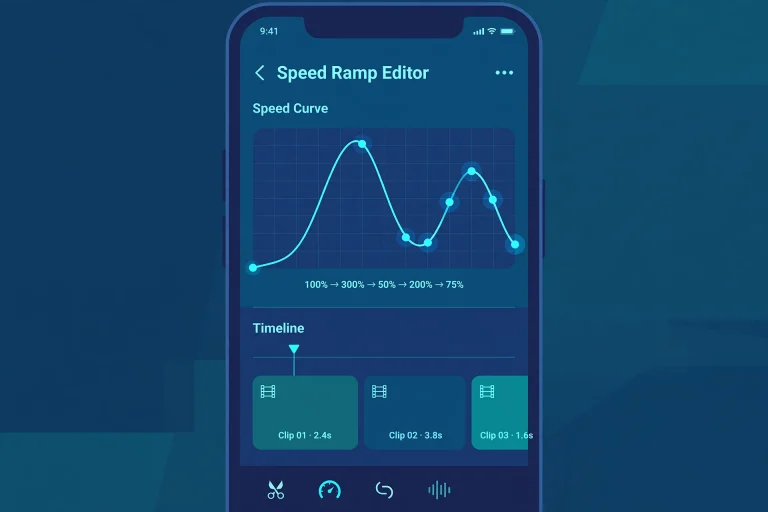
With CapCut, you can combine multiple clips, remove unwanted scenes, add background music, insert captions, adjust video speed, apply visual effects, and prepare content for different social media platforms.
For example, imagine that you recorded several short videos during a trip. Instead of sharing each clip separately, you can use CapCut to combine them into one video, add your favorite music, remove unnecessary footage, and create a smooth final result.
The application can also be useful for small business owners who want to create product advertisements, teachers who prepare educational videos, and content creators who regularly publish short-form content.
CapCut offers some tools without requiring a paid subscription, although certain features, effects, resources, and advanced functions may require payment. Availability can also vary by region, device, account, and application version.
Before downloading the application, it is worth checking whether CapCut is officially available for your Android device and in your country.
How to Download CapCut on Android
There are different ways to obtain CapCut for Android, but using an official distribution channel is generally the safest and easiest option.
Method 1: Download CapCut From the Google Play Store
The Google Play Store is usually the best place to start because it provides a familiar installation process and helps reduce the risk of downloading an altered application.
Follow these steps to download CapCut.
Step 1: Open the Google Play Store
Unlock your Android phone and locate the Google Play Store application. It is usually available on the home screen or in your app drawer.
Tap the icon to open the store.
Step 2: Search for CapCut
Tap the search bar at the top of the screen and type “CapCut.”
Wait for the search results to appear. Before selecting an application, check the developer information and make sure you have identified the genuine CapCut app rather than an unrelated application using a similar name.
Step 3: Check Whether the App Is Available
Open the application’s listing and review the available information.
You may see details about compatibility, permissions, ratings, and the application’s features. Availability can depend on your location and device.
If the official listing is available and your phone is compatible, you can continue with the installation.
Step 4: Tap Install
Tap the Install button and wait while the Google Play Store downloads and installs the application.
The time required depends on your internet connection, device performance, and the size of the download.
It is a good idea to use a reliable Wi-Fi connection if your mobile data allowance is limited.
Step 5: Open CapCut
Once installation is complete, tap Open.
CapCut may request access to selected photos and videos or other permissions needed for particular features. Review these requests carefully and grant only the access you are comfortable with.
You can now begin exploring the editing tools and create your first project.
Keep in mind that the official app may not appear in every country or on every Android device. If you cannot find it, do not immediately assume that your phone is faulty. Regional availability and compatibility restrictions may be responsible.
Method 2: Download CapCut From Its Official Website
Another option is to visit CapCut’s official website and check the Android download options provided for your region.
This method can be useful when you want to verify the developer’s recommended distribution channel before installing the application.
Start by opening your phone’s browser and visiting the official CapCut website. Look for the Android download option, if one is offered in your location.
Follow the instructions provided on the official website.
Depending on your device and the distribution method, the website may direct you to an app store rather than provide a separate APK file. Follow the instructions for your particular device.
Always check the website address carefully. Unofficial websites may imitate the appearance of legitimate download pages to encourage users to install unwanted software.
If you are redirected to an unfamiliar website offering a modified version of CapCut, it is safer to stop and verify the source before proceeding.
How to Install CapCut APK on Android
Some Android users search for a CapCut APK because the application is unavailable through their usual app store or because they prefer installing an application package manually.
APK stands for Android Package Kit. It is the file format used to package Android applications for installation.
However, downloading an APK from an unknown website can expose your phone to malware, unwanted advertising software, privacy risks, or an altered application. Therefore, you should prioritize official distribution channels and only consider manual installation when you can verify the file’s authenticity and source.
If you have obtained a legitimate, compatible APK from a trusted source, the general installation process works as follows.
Step 1: Download the APK File
Use your Android browser to download the APK from the verified source.
Wait until the download finishes before attempting to install it. You can usually find the downloaded file in your phone’s Downloads folder or through the browser’s download history.
Be careful with websites that advertise CapCut APK files with claims such as unlimited premium access, every paid feature unlocked, or guaranteed virus-free downloads. Such claims do not prove that a file is safe.
Step 2: Locate the Downloaded File
Open your phone’s file manager and navigate to the Downloads folder.
Look for the CapCut APK file you downloaded.
Before opening it, check that the filename and source match what you intended to download. A filename alone cannot establish that a file is genuine, so the original source remains important.
If the file has an unexpected extension or the website has asked you to install several unrelated applications, do not continue without verifying what you have received.
Step 3: Allow Installation From That Source if Necessary
Depending on your Android version and settings, your phone may display a warning that it cannot install applications from your browser or file manager.
Android may provide an option to allow the particular application to install unknown apps.
If you have verified the APK and decide to proceed, you may need to enable this permission for the specific source you used.
Avoid enabling this permission for every application unnecessarily. Once you have finished, you can disable it again in your Android settings.
This permission does not verify that an APK is safe. It simply allows the selected source to install applications.
Step 4: Start the Installation
Return to the downloaded APK file and tap it.
If the package is compatible and valid, Android should display an installation screen. Review the information presented and follow the on-screen instructions.
If Android displays a security warning, do not ignore it automatically. Stop and investigate the warning, especially if the file came from an unofficial website.
If the installation fails, the file may be corrupted, incompatible, incomplete, or otherwise unsuitable for your device.
Step 5: Open the Application
After a successful installation, look for CapCut in your app drawer or on your home screen.
Open the application and follow any initial setup instructions.
You may need an internet connection to download additional resources, access certain features, or sign in to an account.
If the application opens normally, you can begin editing videos. If it crashes repeatedly or asks for suspicious permissions, uninstall it and obtain a legitimate version through an official channel.
What Should You Do Before Installing CapCut?
Before installing any application, it is sensible to check whether your device is ready.
Check Your Android Version
Not every version of CapCut supports every Android device.
Open your phone’s Settings application and look for About phone, About device, or a similarly named section. You should be able to find information about your Android version.
Compare it with the requirements listed by the official application distributor.
If your Android version is too old, you may need to install a supported system update if one is available for your phone.
Make Sure You Have Enough Storage
Video editing applications need storage space for installation, temporary files, imported media, and exported videos.
If your phone is nearly full, CapCut may fail to install or struggle to save finished projects.
Before downloading the application, check your available storage. You can remove unnecessary downloads, duplicate videos, and unused applications if you need additional space.
Remember that a video editing project can require more space than the application itself.
Check Your Internet Connection
A slow or unstable internet connection can interrupt downloads and cause incomplete files.
If you are using mobile data, check whether your data plan has enough allowance. A reliable Wi-Fi connection may be more convenient for downloading large files and additional editing resources.
If a download repeatedly fails, try reconnecting to the internet and restarting the download from the official source.
Keep Your Phone Updated
Android system updates can improve security, stability, and compatibility.
Check whether your phone has an available system update before troubleshooting persistent installation problems. You should also keep the application updated through a trusted distribution channel whenever updates are offered.
How to Start Using CapCut After Installation
Once CapCut is installed, the next step is learning how to use it.
Fortunately, you do not need to understand every feature before creating your first video. Starting with a simple project is often the best approach.
1. Create a New Project
Open CapCut and select the option to create a new project.
Choose the videos or photographs you want to use. You can begin with a single clip or combine several files.
For your first project, try using a few short clips rather than a long recording. This makes it easier to understand the editing process.
2. Trim Unnecessary Footage
Watch your clips and remove parts that do not contribute to the video.
For example, if you recorded a tutorial, you might remove the moments when you were preparing the camera or searching for an item. If you recorded a travel video, you could keep the most interesting scenes and remove repeated shots.
Trimming helps make your video clearer and more engaging.
3. Add Music or Sound
Depending on the tools available in your version, you can add music, sound effects, or other audio to your project.
Make sure the audio suits the video and does not overpower important speech.
If you intend to publish the finished video, pay attention to copyright and licensing requirements. Not every song can be used freely in every type of online content.
4. Insert Text and Captions
Text can help explain what is happening in a video.
You can add an opening title, highlight important points, or include subtitles that make spoken content easier to follow.
Choose a readable font and keep the text on screen long enough for viewers to understand it.
If you use automatic captions, review them carefully because speech recognition can make mistakes.
5. Export Your Video
When you are happy with the result, preview the entire project and check for errors.
Then select the available export settings that suit your needs.
Higher resolutions can produce sharper videos, but they also require more storage and may take longer to export. If you are new to video editing, start with a suitable standard setting and adjust it as you gain experience.
Once exported, your video can be saved to your device and shared through supported platforms.
Common Problems When Downloading or Installing CapCut
Even when you follow the correct steps, you may encounter an installation problem. The solution often depends on the error message and your device.
CapCut Is Not Available in the Play Store
If CapCut does not appear in the Google Play Store, it may be unavailable in your region, incompatible with your device, or subject to other distribution restrictions.
First, check the official CapCut website for the supported download options in your location.
Make sure your device is compatible and that your Play Store settings are correct.
Avoid downloading random APK files simply because the official listing is missing. An unofficial file does not necessarily solve the underlying restriction and may create additional risks.
The App Says It Cannot Be Installed
This error can occur when the APK is corrupted, the device lacks sufficient storage, the Android version is incompatible, or the package conflicts with an existing installation.
Try the following steps:
- Check that your phone has enough free storage.
- Confirm that the file came from a legitimate source.
- Download the file again if the original download was interrupted.
- Check your device’s compatibility requirements.
- Remove an existing unofficial version if it is causing a conflict, after considering whether you need to back up any projects stored locally.
Avoid deleting important project files or clearing application data without understanding the consequences.
CapCut Keeps Crashing After Installation
Crashes may occur because of limited memory, software bugs, incompatible media, or device limitations.
Restart your phone, close unnecessary background applications, and make sure enough storage is available.
If you installed an unofficial APK, consider uninstalling it and installing the legitimate version instead.
If the problem continues, check whether your device meets the application’s requirements.
CapCut Is Running Slowly
Editing high-resolution videos can place considerable demands on your phone.
Try closing other applications, reducing the complexity of your project, and freeing up storage space. You can also use lower preview or export settings where available.
Older or entry-level phones may struggle with some demanding effects and AI-powered features. This does not necessarily mean that the application is broken.
Is CapCut APK Safe for Android Phones?
Safety is an important consideration, particularly when installing applications outside the Google Play Store.
An APK file is not automatically dangerous, but it is also not automatically safe. Its security depends on the file’s authenticity, the source that distributed it, and whether it has been modified.
Unofficial copies may contain harmful code, request unnecessary permissions, or expose personal information. Modified versions advertised as premium or unlocked may carry additional risks.
To protect your phone, download CapCut through official distribution channels whenever possible. Verify the developer, avoid suspicious download pages, keep Android updated, and review the permissions requested by the application.
You should also be careful with the personal content you edit. Videos can contain faces, private conversations, home interiors, and location information. Review the application’s privacy practices before using online or cloud-based features with sensitive footage.
If you have already installed an APK from a suspicious source, consider uninstalling it, checking your device with a reputable security tool, and changing passwords if you believe your accounts may have been exposed.
Frequently Asked Questions
Is CapCut free to download on Android?
CapCut may be available to download without an upfront charge, depending on your region and distribution channel. Some editing features and resources are free, while others may require a subscription or payment.
Can I download CapCut without the Google Play Store?
Possibly. The official website may provide an alternative supported download method in some regions. However, you should verify the source and avoid downloading APK files from unknown websites.
Can I install CapCut on any Android phone?
No. Compatibility depends on your Android version, device hardware, and the requirements of the available application release. Check the official listing before installing.
Why does CapCut require access to my photos and videos?
The application needs access to the media you select for editing. Depending on your Android version, you may be able to grant access only to selected files. Review each permission request and provide only the access necessary for the features you want to use.
Can I update CapCut after installing an APK?
Updates depend on how the application was installed and whether the package is compatible with the available release. Official distribution channels generally provide the simplest update process. If you installed an unofficial version, updating it may be more complicated and could cause problems.
Is CapCut MOD APK better than the original app?
Not necessarily. A modified version may advertise additional features, but those claims do not guarantee that the application works as promised or is safe. Modified APKs can introduce security risks and compatibility problems, so the official version is generally the better choice.
Can I use CapCut without an internet connection?
Some basic editing tasks may work offline when your media and required resources are already available on your device. Other functions, including certain templates, cloud features, and online tools, may require an internet connection.