How to Add Smooth Transitions in CapCut (2026)
Watch any video that feels “professional” and you will notice something: the cuts between clips do not jar you. One scene flows into the next. That flow comes from transitions – and getting them right is one of the fastest ways to level up your CapCut edits.
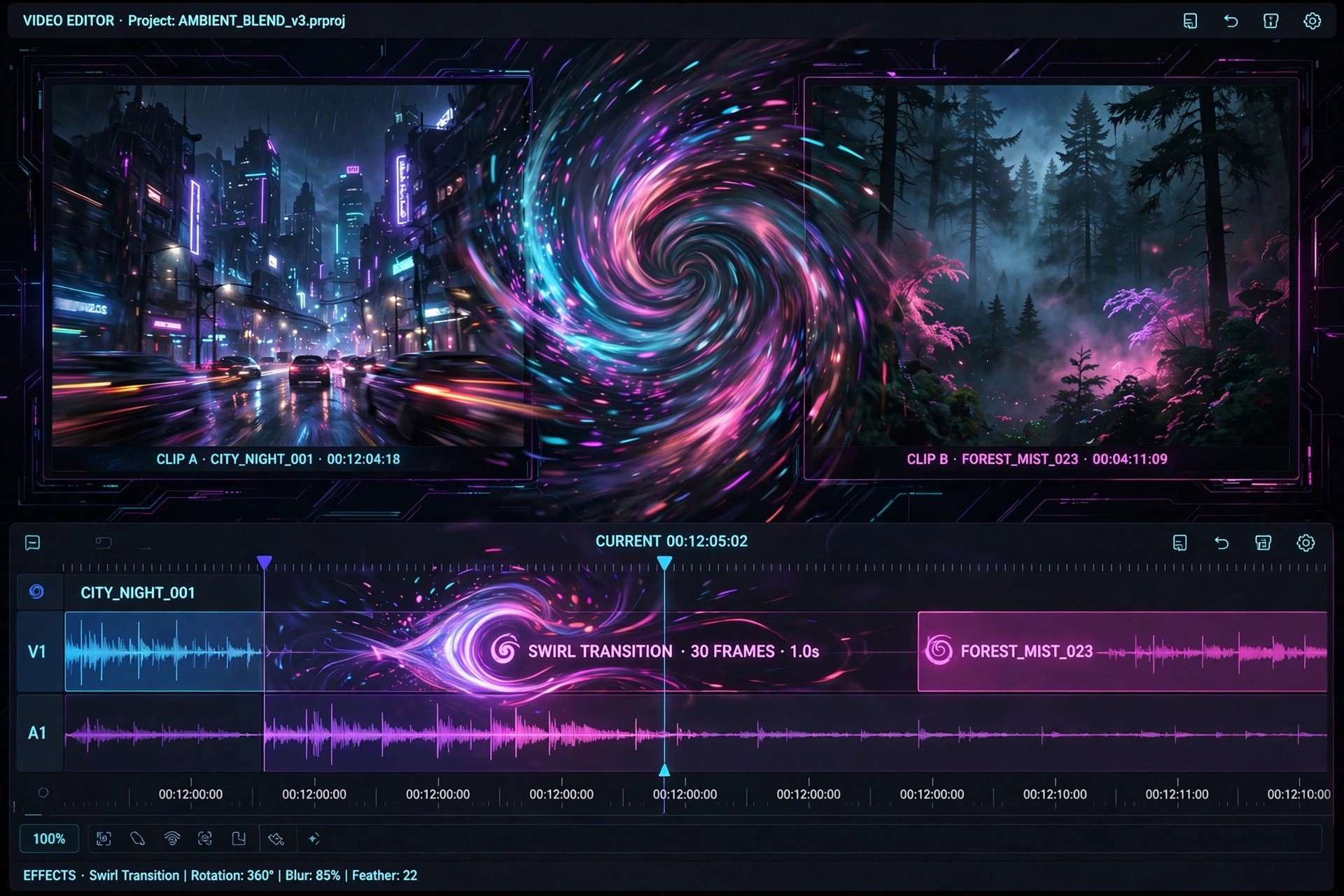
A transition is simply the effect that connects two clips. It can be as subtle as a quick fade or as flashy as a camera spin. CapCut ships with hundreds of them, sorted into categories like Basic, Camera, Trending, and Mask. The problem most beginners have is not finding transitions – it is knowing which ones to use and when.
In this guide, I will show you how to add smooth transitions in CapCut, which transitions actually look good, and the timing secrets that make them feel seamless instead of cheesy.
How to Add Transitions in CapCut (Mobile)
- Add at least two clips to your timeline. Transitions live in the gap between clips, so you need a minimum of two.
- Tap the small white icon in the gap between the two clips on the timeline. It looks like a little square between them.
- The Transitions panel opens, showing categories: Basic, Camera, MG (motion graphics), Trending, Mask, and more.
- Preview any transition by tapping it. The preview plays in the main viewer.
- Adjust the duration with the slider – usually 0.3 to 0.8 seconds. Shorter is snappier, longer is dreamier.
- Tap the checkmark to apply it.
That is it. Your two clips now flow into each other with the chosen effect.
How to Add Transitions on CapCut Desktop
- Place two or more clips on the timeline.
- Click the Transitions tab in the top-left media panel.
- Browse or search the transition library.
- Drag a transition onto the gap between two clips.
- Click the transition on the timeline to adjust its duration and settings in the properties panel.
Desktop gives you finer control over duration and lets you see the transition’s effect on the full timeline more clearly.
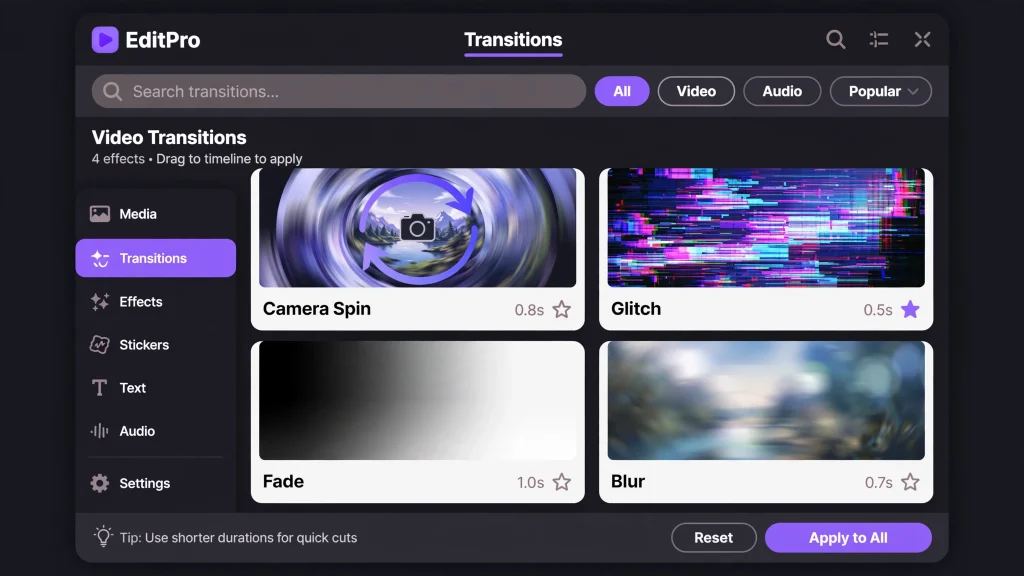
The Best CapCut Transitions (and When to Use Each)
Not all transitions are created equal. Here are the ones that consistently look good, grouped by use case:
For Clean, Professional Videos
- Fade / Dissolve: One clip gently fades into the next. Perfect for vlogs, tutorials, and emotional content.
- Blur: A quick blur between clips. Clean, modern, and never distracting.
- Pull In / Push: The new clip slides in over the old one. Great for product videos and presentations.
For Trendy, High-Energy Edits
- Camera In / Camera Out: Simulates a camera zooming between scenes. A staple of TikTok edits.
- Spin: The frame spins into the next clip. Use sparingly – it is high energy.
- Glitch: Digital glitch effect. Perfect for gaming content and tech videos.
- Shake: A quick shake transition synced to a beat drop. Very popular in velocity edits.
For Creative Storytelling
- Mask transitions: These use shapes (circles, wipes, splits) to reveal the next clip. Great for travel videos and before/after content.
- Light leaks / Flash: A bright flash between clips. Works beautifully for upbeat montages.
- Morph: Blends similar shots together so it looks like one continuous take. Amazing for outfit changes and location swaps.
The Golden Rules of Transitions
Rule 1: Less Is More
Avoid the Beginner Mistake
The biggest beginner mistake is using a different flashy transition between every single clip.
Stick to One or Two Styles
Pick one or two transition styles for your whole video and stick with them. Consistency looks professional; variety looks chaotic.
Rule 2: Match the Transition to the Music
For music-driven edits, place transitions on the beat. A camera-in transition landing exactly on a beat drop feels incredible. A transition landing half a second off the beat feels wrong, even if viewers cannot explain why.
Rule 3: Match the Transition to the Mood
A soft fade suits a wedding video. A glitch suits a gaming montage. A spin suits a hype edit. Ask yourself: does this transition match the feeling of my video? If not, pick a subtler one.
Rule 4: Keep Durations Short
Most transitions look best between 0.3 and 0.6 seconds. Longer transitions slow your video down and test the viewer’s patience, especially in short-form content where every second counts.
Rule 5: Cut on Action When Possible
Use a Well-Timed Cut
The smoothest “transition” is often no transition at all – just a well-timed cut.
Cut on the Action Peak
If someone is mid-motion (throwing, jumping, turning), cutting at the peak of the action feels seamless because the viewer’s eye is following the movement, not the edit point.
Advanced: Mask Transitions for Seamless Edits
Mask transitions are the secret weapon of advanced CapCut editors. Instead of an effect between clips, you hide the cut inside the footage itself:
- The whip pan: End clip A with a fast camera pan, start clip B with a fast pan in the same direction. The motion blur hides the cut completely.
- The object wipe: Walk something (a hand, a door, a passing car) across the frame at the end of clip A. Start clip B with the same object leaving the frame. The cut hides behind the object.
- The match cut: End clip A and start clip B with a similar shape or movement in the frame – a spinning wheel becoming a spinning coin, for example.
These take more planning when filming, but they look ten times more impressive than any preset transition.
Fixing Common Transition Problems
Problem: The transition looks choppy. Fix: Shorten the duration, or check that both clips have enough extra footage (handles) at the cut point. Transitions need a few frames of overlap to work smoothly.
Problem: The transition covers an important moment. Fix: Move the cut point. Trim a few frames off either clip so the transition sits on a less important moment.
Problem: Transitions make my video feel slow. Fix: You are probably using too many, or they are too long. Cut the count in half and shorten durations to 0.3-0.4 seconds.
Problem: The same transition looks different on each cut. Fix: Some transitions behave differently depending on clip length and aspect ratio. Preview each one and adjust duration individually.
FAQs
How many transitions should I use in a short video?
For a 30-60 second video, 3-6 transitions is plenty. Use clean cuts for the rest. The transitions should highlight key moments, not fill every gap.
Are CapCut transitions free?
Most transitions are free. Some premium ones carry a Pro badge and need a CapCut Pro subscription, but the free library is more than enough for great edits.
Can I save my favorite transitions?
CapCut lets you mark transitions as favorites (tap the heart or star icon in the transitions panel) so your go-to effects are always one tap away.
Why is there no transition icon between my clips?
The transition icon only appears when two clips are directly adjacent on the same track with no gap. If there is a gap, close it first. Overlapping clips on different tracks will not show the icon either.
How do I remove a transition?
Tap the transition on the timeline to select it, then tap the delete/trash icon (or press Delete on desktop). The clips return to a hard cut.
Final Thoughts
Smooth transitions are not about collecting the flashiest effects – they are about rhythm. One consistent transition style, timed to your music, at the right duration, will make your video feel professional. Ten random effects will make it feel like a slideshow from 2009.
Pick your two favorites from the list above, practice the timing, and watch how much smoother your edits feel. New to CapCut? Our beginner’s tutorial will get you up to speed. Your viewers will notice the difference even if they never learn the word “transition.”