How to Create Smooth Zoom Effects in CapCut: Keyframe and Ken Burns Guide (2026)
Scroll through any polished travel video or documentary-style reel and you will spot it: a still photo slowly drifting closer, or a clip that gently pushes in on the subject right before the big reveal. These zoom effects look expensive, but they are one of the simplest things to build in CapCut.
The classic version of this technique has a famous name. The Ken Burns effect comes from the American documentary filmmaker who made slow zooms and pans across still photographs his signature style. Here is the honest truth up front: CapCut has no dedicated “Ken Burns” preset — the look is achieved with a slow, keyframed zoom or pan on a still photo, and that is the standard method every tutorial teaches. Once you understand keyframes, you can create it yourself in under two minutes.
In this guide, you will learn three verified ways to create smooth zoom effects in CapCut in 2026: the keyframe method on mobile (full control), the quick Animation-tab presets, and the desktop workflow. You will also learn how to smooth the motion with spacing and easing, how to apply the Ken Burns look to photos, and which beginner mistakes make zooms look amateur.
What Are Zoom Effects and the Ken Burns Effect?
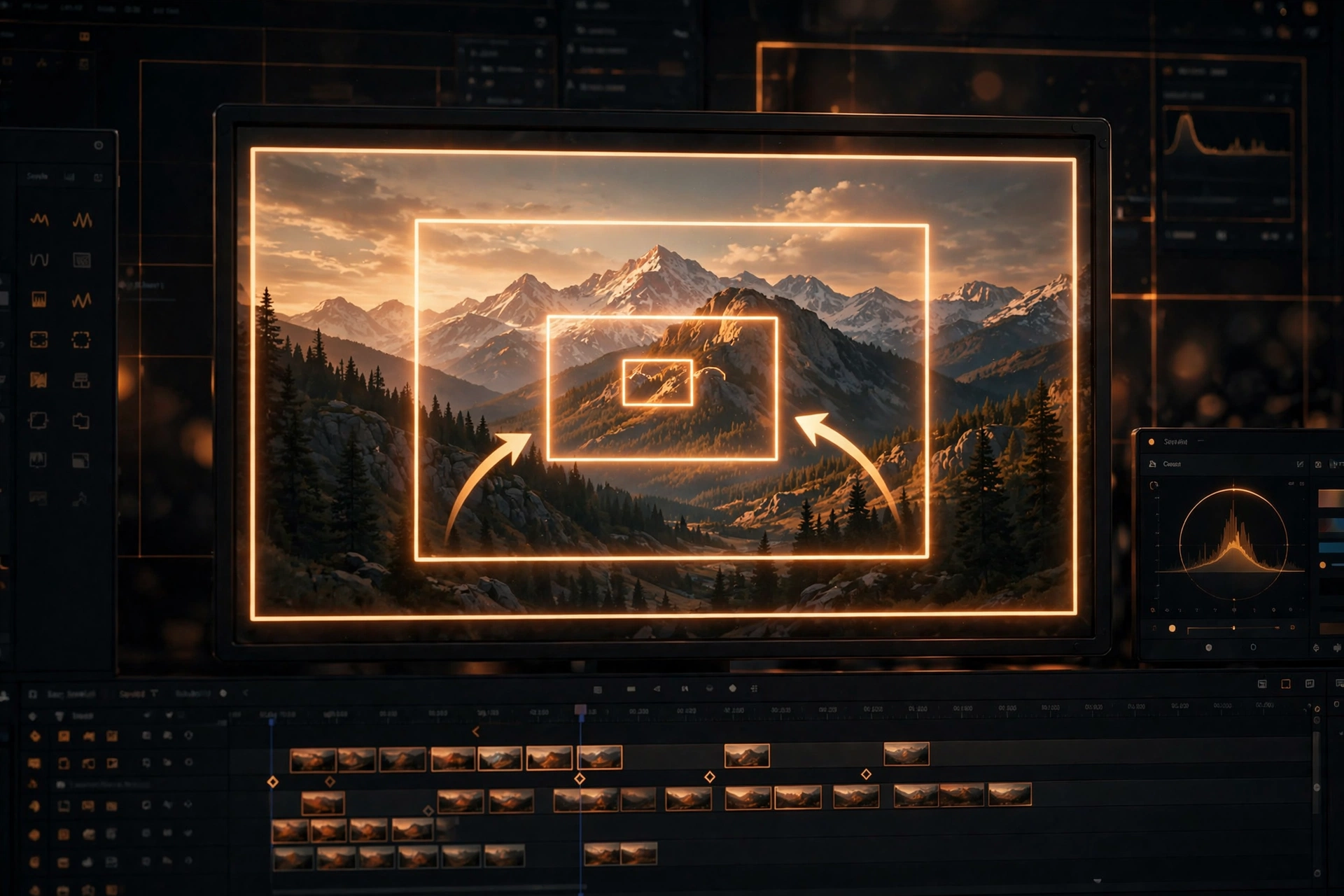
A zoom effect is any shot where the framing appears to move closer to (zoom in) or farther from (zoom out of) the subject over time. Real cameras do this with a lens; editors fake it digitally by scaling the image up or down across frames. When done slowly and smoothly, a zoom-in creates tension and focus — it tells the viewer, look closer, this matters.
The Ken Burns effect is a special case: a slow zoom (usually combined with a gentle pan) applied to a still photograph rather than a video clip. It turns a static image into a living shot, which is why it is everywhere in documentaries, slideshows, wedding videos, and history content. In CapCut, you build it exactly the same way you build any keyframed zoom — set the photo’s duration, then animate its scale (and optionally its position) from a start keyframe to an end keyframe with wide spacing between them.
Why learn zoom effects at all? Because static shots go dead fast on TikTok, Reels, and Shorts. A subtle push-in keeps the eye engaged without distracting from your message, and it works on virtually any content — talking heads, product demos, photo montages, travel clips. The technique is also completely free: keyframes themselves are not a Pro feature in CapCut. One caveat worth knowing — if CapCut ever asks you to go Pro at export time after animating, it is because of a Pro-tagged asset you used (an effect, filter, template, or music track), not the keyframes themselves.
Method 1: Keyframe Zoom on Mobile (Full Control)
This is the method most creators end up using, because it gives you complete control over the speed, direction, and target of the zoom. It works on both iOS and Android. One heads-up before you start: CapCut rearranges its toolbars between builds, and the exact position of the keyframe and Graphs buttons varies depending on whether you selected a video clip, a photo, or a sticker. If a button is not where you expect, select your element first, then look for the diamond icon beside the relevant property in your build. If you are brand new to keyframes, our beginner’s guide to keyframes in CapCut covers the fundamentals first.
Step 1: Select your clip and place the start keyframe
Import your clip or photo and tap it on the timeline to select it. Drag the playhead to the exact frame where the zoom should start. Then tap the diamond-shaped keyframe icon in the bottom toolbar. A diamond marker appears on the clip — one guide notes it turns red to confirm the keyframe is placed. This first keyframe locks in your current scale and position as the starting point.
Step 2: Move the playhead and pinch to create the end keyframe
Drag the playhead forward to where the zoom should end — for a gentle push-in, leave a second or two of space (we will cover spacing below). Now pinch outward with two fingers on the preview to zoom in. CapCut automatically creates the second keyframe at that position with your new scale value. Preview it: the clip should now glide from its original framing into the tighter shot.
Step 3: Add a zoom-out if your edit needs one
Need the shot to push in and then pull back out? Move the playhead further along the timeline, tap the keyframe icon again, and pinch back to 100% (or drag the corners of the preview back down). CapCut adds a third keyframe, and the clip zooms in, then eases back out to full frame. Chain as many of these as you like to create rhythmic push-in/pull-out sequences.
Step 4: Tap the checkmark, preview, and export
When the motion looks right, tap the checkmark to confirm your edits. Preview the full zoom at least once — and preview from before the first keyframe, not from the final frame, so you judge the motion honestly from its real starting point. If it is smooth, tap Export and you are done.
Method 2: Animation-Tab Zoom Presets (The Quick Way)
Do not need surgical control? CapCut ships with built-in zoom animations you can apply in seconds. They are less flexible than keyframes, but for simple intros and outros they are genuinely fast. Note that the exact preset names beyond Zoom In and Zoom Out are not firmly confirmed across builds, so look for zoom-style presets under the names you see in your app.
How to apply a Zoom In or Zoom Out preset
Select the clip on the timeline, then tap Animation in the bottom toolbar and open the In tab. Choose the Zoom In preset (for a push-in) or the Zoom Out preset (for a pull-back) from the list. The animation applies instantly, and you can watch it in the preview without touching keyframes at all.
Zoom In presets work best for intros
A quick Zoom In at the start of a scene adds instant energy — the shot opens wide and pushes toward the subject as the action begins. It is a reliable way to make static B-roll feel dynamic without any manual keyframing.
Zoom Out presets work best for outros and reveals
Zoom Out animations shine at the end of scenes and at dramatic reveals, where pulling back gives the viewer the full picture. Pair one with a sound effect and you have a serviceable transition for free.
Adjust the duration to control the speed
Here is where you get your only real control with presets: drag the edges of the animation’s block on the timeline to change its duration. A longer block means a slower, calmer zoom; a shorter block means a fast, punchy one. Even this small adjustment separates a thoughtful edit from a slap-dash one.
Method 3: Smooth Zoom on CapCut Desktop
The desktop app (PC and Mac) uses the same keyframe logic, but the controls live in the inspector panel instead of a bottom toolbar. The result is identical motion — some editors simply prefer the precision of sliders and the bigger preview.
Zoom with the Scale property
Select the clip on the timeline, then look at the top-right inspector and open Video → Basic (the panel may also be labeled Transform depending on your build). Move the playhead to the zoom start point and click the diamond keyframe icon beside Scale — one 2026 guide calls this the “Transform Add Keyframe button.” Then move the playhead to the zoom end point and increase the Scale slider value, or drag the clip’s corners directly in the preview. CapCut automatically creates the second keyframe with the new value.
Adding the start keyframe on Scale
Place your first keyframe exactly where the motion should begin — not at the very start of the clip if the zoom should kick in later. The marker locks in the current scale as the “before” value, and everything you change afterward becomes the “after.”
Increasing the Scale value for the end keyframe
At the end position, raise Scale from 100% to your target — a modest 130–150% for a standard focus pull, up to around 200% for a dramatic push-in. Watch the preview as you drag the slider; you will see the framing tighten in real time, and the new keyframe is created automatically.
Zooming back out
For a pull-back, move the playhead further along and return Scale to 100%. Another keyframe is created automatically, and the clip settles back to its original framing.
Zoom toward a specific point with Position keyframes
By default, a zoom travels straight toward the center of the frame. To push in on a face, a product, or a detail off to the side, add Position keyframes alongside the Scale keyframes: place the playhead at the end point, click the diamond beside Position, then drag the clip in the preview to reframe the subject where you want it. Check both the start and end frames in the preview to make sure the subject stays well-framed throughout the move.
How to Make the Zoom Silky Smooth
The difference between an amateur zoom and a professional one is almost never the tool — it is the spacing and the easing. Get these two right and even a simple two-keyframe zoom looks buttery.
Control speed with keyframe spacing
The rule is simple and verified on both mobile and desktop: keyframes placed closer together create a faster zoom; keyframes farther apart create a slower one. For a gentle one-second zoom at 30fps, leave roughly 30 frames between keyframes. For a slow, dramatic push-in, spread them 2–3 seconds apart. The golden rule: fix the duration with spacing first, before touching any curves. Most choppy zooms are a spacing problem, not an easing problem.
Go slow for gentle, documentary-style zooms
The Ken Burns look lives here: wide keyframe spacing over several seconds on a still photo. Slow zooms feel calm, cinematic, and expensive — perfect for emotional beats, intros, and photo montages.
Go dramatic with 2–3 seconds of distance
For hype edits and reveals, a 2–3 second push-in hits harder than an instant snap. It builds anticipation exactly like a camera slowly dollying forward, and it reads beautifully at higher frame rates too.
Soften the motion with easing curves
Even with good spacing, a linear zoom can feel mechanical — constant speed from start to finish. Easing curves change the speed within the zoom so it accelerates or settles naturally, the way real cameras move.
On mobile: use the Graphs button
With two or more keyframes set, select the clip and find the Graphs button in the bottom toolbar (swipe the toolbar left if it is wider than your screen). The Graph shows time on the horizontal axis and value on the vertical axis — flatten the curve to slow the zoom at that point. Ease In starts gently and accelerates, Ease Out settles gently into the final frame, and Ease In-Out softens both ends. For most zooms, Ease In-Out is the safest choice.
On desktop: right-click for easing presets
On desktop, right-click a keyframe on the timeline to find easing presets (in some builds this appears under Show All Presets) and pick a curve such as Cubic Ease, which tutorial creators commonly recommend for smooth zooms. Apply your chosen curve to each keyframe set and preview the difference — the motion should feel like it glides in and settles, rather than starting and stopping abruptly.
The Ken Burns Effect on Photos
This is the money move for slideshows, wedding videos, travel content, and historical storytelling: taking a still photo and making it drift and breathe like a live shot.
There is no dedicated Ken Burns preset — and that is fine
To be crystal clear: CapCut does not ship a preset named “Ken Burns.” The Ken Burns look in CapCut is simply a slow keyframed zoom-in or pan on a still photo — and this is the standard, documented method across guides, not a workaround. Because you build it with keyframes, you control everything: the speed, the direction, and whether you zoom, pan, or combine both. Knowing this also keeps expectations honest — anyone promising a one-tap “Ken Burns button” is overselling.
The keyframed Ken Burns recipe
Follow these steps on any photo and you will get the classic documentary look.
Set the photo’s duration first
Import the photo and drag its edges on the timeline to set how long it should stay on screen — 3 to 5 seconds is the sweet spot for a slow, readable move. This duration determines how far apart your keyframes can sit.
Place start and end keyframes with wide spacing
With the playhead at the start of the photo, add a Scale keyframe (100%). Move the playhead to the end of the photo and pinch to around 115–125% — subtle is the whole point of Ken Burns. The wide spacing between the keyframes makes the zoom drift almost imperceptibly, which is exactly the effect.
Add a slow pan with Position keyframes
For the full classic look, add Position keyframes too: frame the subject slightly off-center at the start, then drag the photo so the subject settles into a balanced composition at the end. The combination of slow zoom plus slow pan is what makes viewers feel the photo is “alive.”
Photo shortcuts: Style tab and 3D Zoom
If you want something faster, select a photo and open the Style tab at the bottom — styles with names like In Out, In In, and Out Out apply an automatic Ken Burns-style zoom; tap one to preview, then hit Apply in the top right. You can also try Effects → Trending → 3D Zoom for a parallax-style zoom on photos. Treat both as one-tap starting points rather than finished results: they are quick, but a hand-built keyframed move almost always looks more intentional.
Common Mistakes That Ruin Zoom Effects
These five mistakes account for nearly every “why does my zoom look bad?” question. Fix them and your zooms instantly level up.
Five mistakes beginners make with CapCut zooms
Mistake 1: Two keyframes, no movement
A keyframe only saves a value — it does not create motion by itself. If both keyframes sit at 100% Scale, there is nothing to interpolate between, and the “zoom” does nothing. This is the most common cause of “my zoom isn’t animating.” Compare the values at both markers: they must be different.
Mistake 2: The zoom snaps at the end
A hard snap instead of a smooth glide usually comes from keyframes placed too close together, a conflicting preset Animation applied to the same clip, or a stray extra keyframe hiding on the timeline. Widen the spacing, remove the conflicting preset, and delete any keyframe you did not mean to add.
Mistake 3: The zoom wanders off the subject
Pinch gestures often change Scale and Position at the same time, so your zoom-in quietly drags the subject out of frame. Keep the subject framed deliberately: add Position keyframes so the face or object stays where you want it while the scale changes — verified by multiple guides as the fix.
Mistake 4: Zooming too far
Digital zoom crops into existing pixels, so every percent of zoom costs you sharpness. Practical guidance from experienced editors: end around 130–150% for a standard focus pull, up to about 200% for a dramatic push-in. Beyond that, footage softens fast — especially on low-resolution sources. Use the highest-resolution source you have and export at full resolution to minimize the loss.
Mistake 5: Animating everything at once
Animating scale, position, and opacity all at the same time makes problems nearly impossible to diagnose — when something looks wrong, you cannot tell which property caused it. Build one property at a time: get Scale working and preview it, then add Position only if you actually need it.
Frequently Asked Questions
How do I make the zoom smoother in CapCut?
Use keyframes, widen the distance between them (slower zoom), and apply easing — the Graphs button on mobile (Ease In-Out) or right-clicking the keyframe for easing presets like Cubic Ease on desktop. Also start with a steady, well-framed clip: no amount of easing will smooth out shaky source footage.
Is the zoom feature in CapCut free?
Yes — zooming via keyframes and the basic Animation-tab presets is free. Export only gets locked if you used a Pro-tagged effect, filter, template, or music track in the project. Keyframes themselves cost nothing.
Why is my zoom choppy or not animating at all?
Two causes cover almost every case: both keyframes store the same value (so nothing interpolates), or the keyframes are too close together (so you get a snap instead of a zoom). Check the values first, then widen the spacing. Also check for a conflicting Animation preset on the same clip.
How do I zoom into a specific part of the photo instead of the center?
Add Position keyframes alongside your Scale keyframes: pinch to set the scale at the end keyframe, then drag the preview to reframe on the subject. Preview both the start and end frames to confirm the subject stays in frame throughout the move.
Does zooming reduce video quality?
Yes, for digital zooms — you are cropping into existing pixels, so you lose detail as you push in. Keep the final zoom modest (around 130–150%), use the highest-resolution source possible, and export at full resolution to minimize the loss.
Conclusion
Smooth zoom effects in CapCut come down to one core skill: keyframes. Pinch-to-zoom between two keyframes handles the basic push-in, the Animation tab gives you Zoom In and Zoom Out presets for quick work, and the desktop inspector’s Scale property offers slider-level precision. On photos, the same technique with wide spacing and a slow pan gives you the Ken Burns effect — no dedicated preset required.
The pro finish comes from spacing (wider equals slower), easing (Ease In-Out on mobile graphs, Cubic Ease on desktop), and restraint (130–150% keeps things sharp). Avoid the classic traps: identical keyframe values, keyframes crammed together, and accidental position drift from pinch gestures.
Pick one photo today and try the Ken Burns recipe on it — a 4-second slow zoom with a gentle pan. Once you feel how spacing changes the mood, you will start seeing zoom opportunities in every project. And if you ever need a dramatic hold before the push-in, try freezing a frame in CapCut first — a frozen frame plus a slow zoom is a classic reveal combo.