How to Make a Split Screen Video in CapCut (2026)
Split screen videos are everywhere — reaction videos, product comparisons, before-and-after transformations, tutorial commentary over screen recordings. They look impressively professional, but here’s the secret: making one in CapCut takes about two minutes once you know which buttons to press.
This guide walks you through the exact steps on both mobile and desktop, shows you how to get that crisp dividing line between panels, and covers the audio balancing trick most tutorials skip. By the end, you’ll be building clean side-by-side videos without guessing.
Note: this is about side-by-side panels — two or more videos sharing the frame. If you want a smaller clip floating over a bigger one, see our picture-in-picture guide instead.
What Split Screen Actually Needs
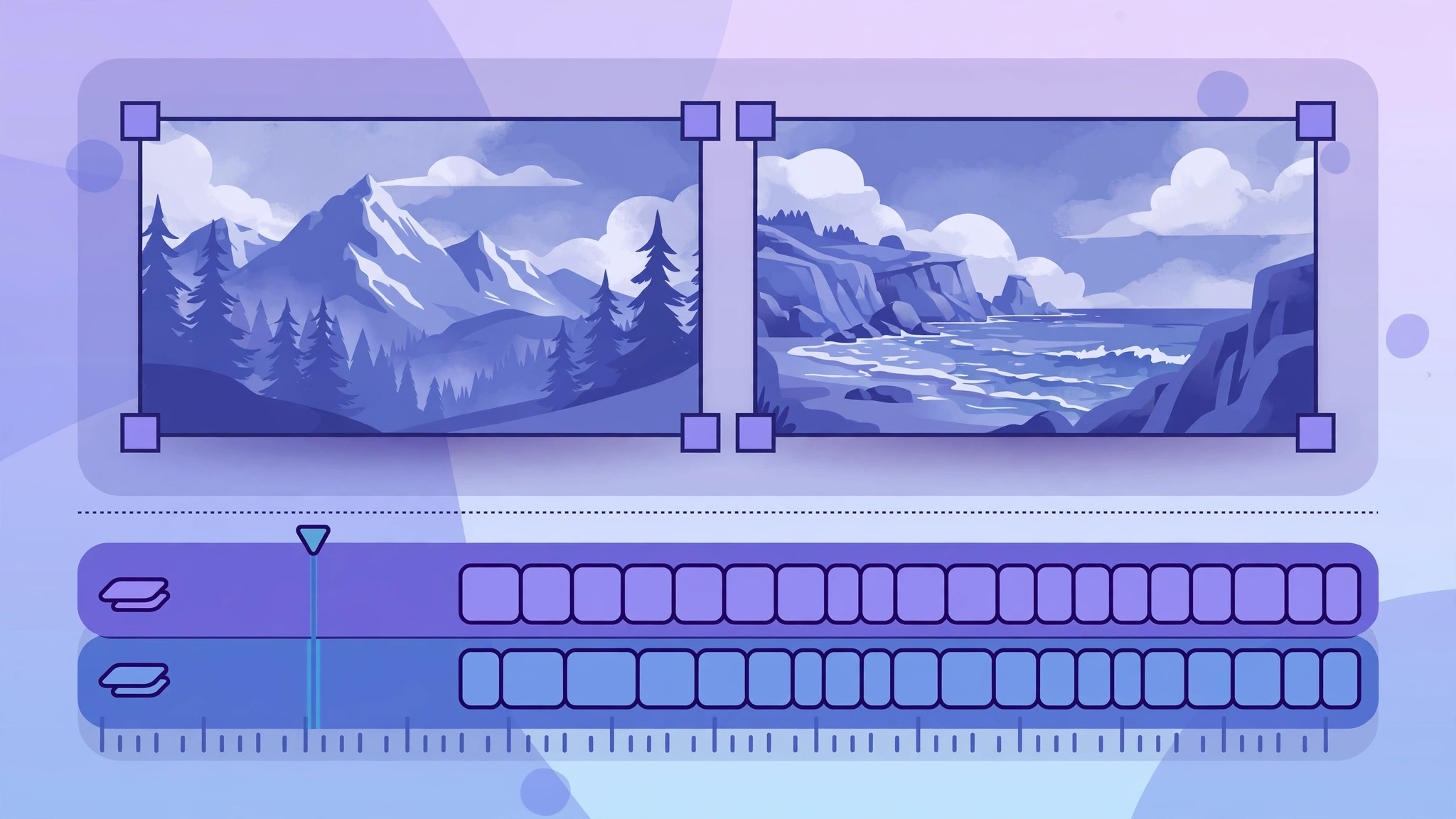
A split screen is just two videos playing at the same time in one frame, each occupying its own panel. CapCut builds this with overlays — video tracks stacked on top of the main timeline track. No special template, no premium feature, nothing locked behind a paywall.
Before you start
Pick your two clips and make sure they work well together. Check that both have similar visual quality and, ideally, the same aspect ratio. A horizontal video next to a vertical one will need cropping before the panels look uniform — decide on your layout before you touch the timeline.
Common uses worth copying
Reaction videos (you on one side, the video on the other), product comparisons (product A vs product B), before-and-after reveals, and tutorials where you talk over a screen recording. All of these follow the exact same steps below.
Split Screen on Mobile: Step by Step
The mobile app is where most people build split screens, and the workflow is straightforward.
Step 1: Start with your main clip
Open CapCut, tap New Project, and add your first video — this is the clip that will anchor one half of your split screen. It sits on the main timeline track at the bottom.
Step 2: Add the second clip as an overlay
Tap Overlay in the toolbar, then Add Overlay, and pick your second video. The overlay appears as a second track above your main clip on the timeline. This is the whole trick: one clip on the main track, one on the overlay track, both visible at once.
Step 3: Resize and position in the preview
Select the overlay track, then pinch and drag directly in the preview window. Shrink the second clip and slide it into position — half the screen for a 50/50 side-by-side, a corner for a smaller panel, or split the frame horizontally for a top-and-bottom layout. There’s no fixed grid forcing your hand; you compose the panels visually.
Matching durations
Drag the edges of the overlay track on the timeline so both clips start and end together. A split screen where one panel goes black five seconds early looks broken — line up the durations before anything else.
Uniform panels
If your two clips have different aspect ratios, crop or scale them first so each panel fills its half cleanly. Stretched or squashed video is the most common giveaway of an amateur split screen.
Getting a Crisp Divider Line
A soft, blurry seam between panels can work for blends, but most split screens look best with a clean, sharp dividing line. CapCut’s Mask tool is what draws it — and this is the only masking this article needs, so don’t confuse it with clone-effect tutorials.
Using the Split or Rectangle mask
Select the overlay clip, tap Mask, and choose Split or Rectangle. This draws a hard edge along the overlay’s boundary, giving you a clean vertical or horizontal dividing line instead of a floating box. Adjust the mask’s position until the line sits exactly where you want it — dead center for a true 50/50.
Feather for soft blends
Prefer a gentle transition between panels? Raise the Feather value on the mask. A feathered edge melts the two videos together, which works beautifully for before-and-after reveals or dreamlike transitions. Keep it at zero for comparison videos where each side must read as its own panel.
Split Screen on CapCut Desktop
The desktop workflow uses the same overlay logic with a bigger preview to work in.
Stacking clips on the timeline
Drag your second clip onto the timeline above the first one — CapCut auto-creates an overlay track for it. Select the clip, open Edit in the toolbar, and resize or reposition it by dragging the corners directly in the preview. Crop from the toolbar if the aspect ratios don’t match.
Fine-tuning with desktop precision
Desktop gives you pixel-level positioning and numeric scale values, so centering a 50/50 split is easier here than on a phone screen. You also get the same Mask options — Split and Rectangle — for the divider line, plus Feather for soft blends. If you haven’t decided which platform suits you, our keyframe animations guide shows off what the desktop timeline can do.
Handling Audio: The Part Everyone Forgets
Two videos mean two audio tracks playing at once, and that’s where most split screens fall apart. Here’s the rule:
Balance each clip separately
Tap each clip on the timeline and adjust its volume independently. Typically you want one panel’s audio dominant — say, your commentary at full volume — and the other panel lowered to a background murmur. Find the volume controls in the clip’s audio settings and set real numbers instead of guessing.
Mute one track when they clash
If both videos have full spoken audio, don’t fight it — mute one entirely. Reaction videos usually mute the source video’s audio or drop it very low under the reactor’s commentary. Two people talking at once is unwatchable, and viewers will click away in seconds.
The quick test
Before exporting, play your split screen on a phone speaker — not headphones. If you can follow one clear audio source, you’re good. If it’s a muddy mess, rebalance.
Mistakes to Avoid
A few traps that catch beginners every time.
Too many panels
More than two or three panels turns your video into a postage-stamp collage. Every extra panel shrinks everything and splits the viewer’s attention. Stick to two for most content, three max.
Ignoring aspect ratios
Mismatched aspect ratios cause distortion or awkward empty bars. Crop and scale to uniform panels before you finalize positioning — never stretch a clip to fit.
Overloading with effects
Stacked clips plus masks plus animations are heavy work, especially on low-storage phones. Export crashes are a real risk if you pile on. Keep it to three or four effects per clip and export a draft before adding more.
Inconsistent visual style
One panel graded warm and cinematic, the other raw and cold — it looks like a mistake. Match the basic color treatment across panels so the split screen reads as one deliberate composition.
Frequently Asked Questions
Can I do split screen on CapCut mobile?
Yes — everything in this guide works on the mobile app. New Project, Overlay → Add Overlay, then pinch and drag in the preview to position your panels. No desktop required.
How do I make an exact 50/50 split?
Pinch each clip so its edge touches the frame’s edge, leaving the two halves flush. Then apply a Split mask to the overlay for a perfectly straight dividing line. On desktop, numeric scale and position values make centering even easier.
Can I split 3+ videos?
Yes — just stack more overlay tracks. Each new overlay adds another panel. That said, keep it to three at most; beyond that the panels get too small to watch comfortably.
How do I stop both audios playing at once?
Adjust each clip’s volume separately — lower or mute the secondary panel’s audio so only one clear audio source dominates. For reaction videos, the commentary panel stays loud and the source panel drops to background level or mutes entirely.
Conclusion
Split screen in CapCut is one of those effects that looks far harder than it is. The entire recipe is: one clip on the main track, one on an overlay track, pinch them into place, draw a clean divider with a Split or Rectangle mask, and balance the audio so one voice leads.
Get those five steps right and your reaction videos, comparisons, and tutorials will look instantly more professional. Now open CapCut, grab two clips, and build your first split screen — it’s the fastest way to make the workflow stick.