
How to Trim, Split and Cut Videos in CapCut: A Beginner’s Guide (2026)
If you want to trim and split videos in CapCut, you are learning the two most important skills in video editing. Almost every edit you will ever make — from a 15-second TikTok to a full YouTube video — starts with cutting out the boring parts and keeping only the moments that matter. The good news is that CapCut makes trimming, splitting, and cutting incredibly easy, even if you have never edited a video before.
In this beginner-friendly guide, I will walk you through exactly how to trim, split and cut videos in CapCut on both the mobile app and the desktop editor. You will learn what each tool does, the exact taps and clicks for every method, and a few pro tricks that will make your edits look polished instead of choppy.
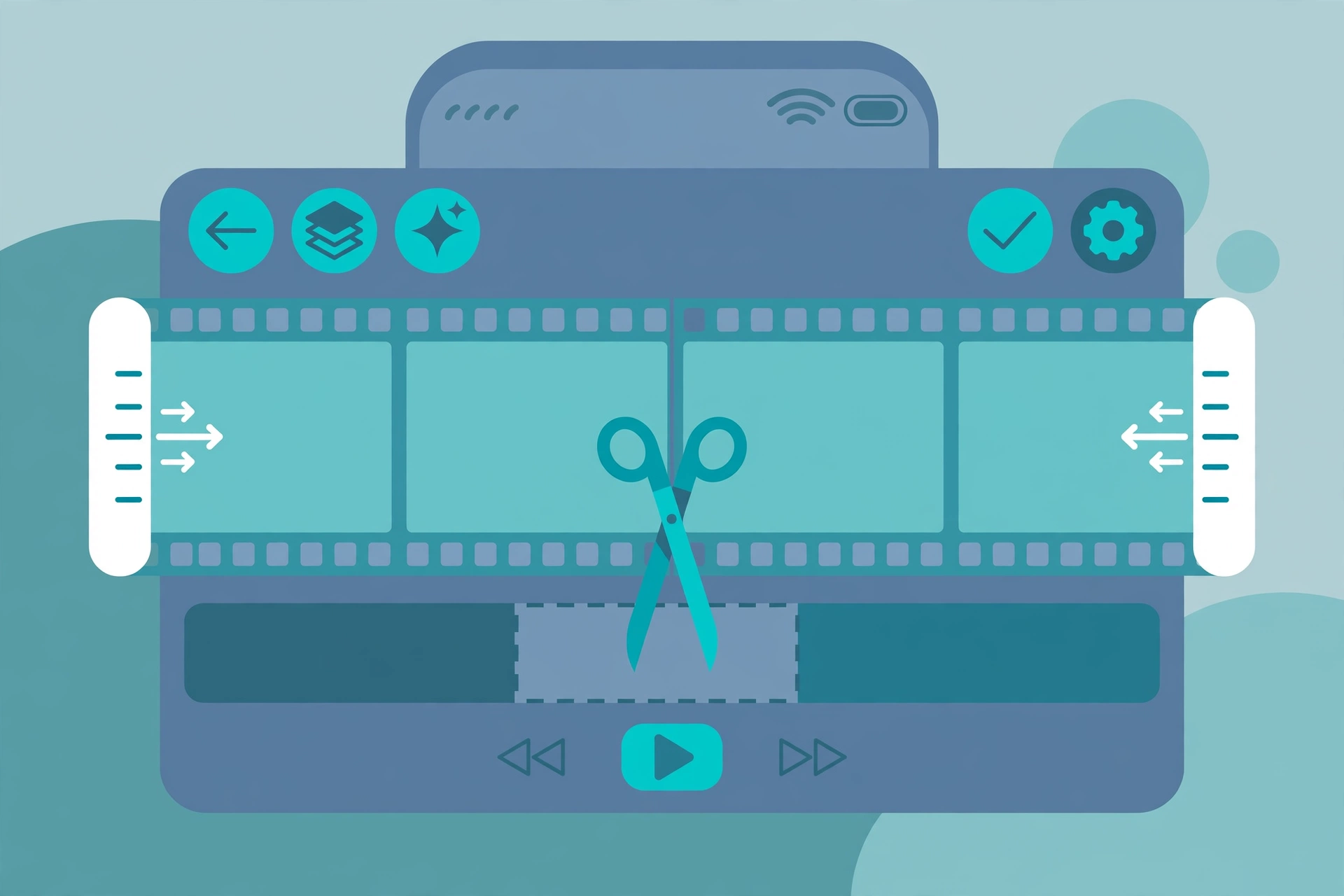
What Do “Trim,” “Split,” and “Cut” Actually Mean?
Beginners often mix up these three terms, so let us clear them up before you touch the timeline. Once you know the difference, the rest of the guide will feel obvious.
Trim means shortening a clip from its beginning or end. Imagine your recording starts with five seconds of you adjusting your camera — trimming removes that dead air without touching anything else in the clip.
Split means dividing one clip into two separate clips at a single point. The two halves stay on your timeline, so you can move them, delete one of them, or put something else between them.
Cut is the general word for removing a piece of footage. You usually cut by splitting a clip in two or more places and deleting the unwanted segment in the middle. Together, trimming and splitting give you complete control over every second of your video.
How to Trim Videos in CapCut on Mobile
Trimming is the fastest way to clean up a clip. Do this first on every clip you import — most raw footage has awkward moments at the start and end that should go.
Trim the Start and End with Edge Handles
When you tap a clip on the timeline, two white handles appear at its left and right edges. These are your trim handles, and they are the whole trimming workflow on mobile.
Trimming the Start of a Clip
Tap the clip to select it, then touch the white handle on the left edge and drag it to the right. The preview window updates live, so you can watch the frame you are cutting to. Stop dragging the moment the action you want begins.
Trimming the End of a Clip
Do the same on the right edge: drag the white handle to the left until the last thing you want is the last thing in the frame. This is perfect for removing the moment you reach for the phone to stop recording.
Trimming During Import
CapCut even offers you a shortcut: when you first add a clip to a new project, the app shows a trim screen before the clip lands on your timeline. Drag the yellow range sliders on that screen to set your start and end points right away, then tap Add. It saves you a step later.
How to Split a Clip in CapCut on Mobile
Splitting is how you cut something out of the middle of a clip. Let us say the middle ten seconds of your video are great but the end is unusable — you split, then delete the bad part.
Splitting Step by Step
- Tap the clip on the timeline to select it. A bottom toolbar with editing tools will appear.
- Drag the timeline playhead (the white vertical line) to the exact frame where you want the split. Scrub slowly and watch the preview to land on the right frame.
- Tap Split in the bottom toolbar. Your clip is now two separate clips that sit side by side.
That is it. The two segments are independent now — you can tap either one and move it, trim it further, or delete it.
How to Cut Out a Middle Section (Split + Delete)
Removing a section from the middle combines both skills, and it is the technique you will use most often to trim and split videos in CapCut like a real editor.
- Move the playhead to the frame where the unwanted section starts and tap Split.
- Move the playhead to the frame where the unwanted section ends and tap Split again. You now have three segments.
- Tap the middle segment to select it, then tap the Delete trash can icon in the toolbar. The boring part is gone.
- Check the gap: in most cases CapCut slides the remaining clips together automatically. If a gap is left behind, long-press the clip after the gap and drag it left until it touches the previous clip.
Made a mistake? Tap the Undo arrow above the timeline (on the right side) to reverse your last action. You can undo several times, so experiment freely without fear.
How to Trim and Split Videos in CapCut Desktop
The desktop editor works the same way conceptually, but it gives you a bigger timeline, a mouse, and keyboard shortcuts that make cutting much faster. If you prefer editing on your computer, here is how everything maps over.
Trimming and Splitting on the Desktop Timeline
Click a clip on the timeline to select it. To trim, hover over the left or right edge of the clip until the trim cursor appears, then click and drag inward. To split, move the playhead to your cut point and click the Split scissors icon in the toolbar just above the timeline. Delete a selected segment by pressing the Delete key or right-clicking and choosing Delete.
Desktop Keyboard Shortcuts for Faster Cutting
These shortcuts will double your editing speed once you memorize them:
- Ctrl+B (Windows) or Cmd+B (Mac) — split the selected clip at the playhead.
- Q — delete everything to the left of the playhead in the selected clip.
- W — delete everything to the right of the playhead in the selected clip.
- Spacebar — play or pause so you can pause exactly on the frame you want to cut.
- Left/Right arrow keys — nudge the playhead frame by frame for precise cuts.
- N — toggle auto-snapping, which helps clips and the playhead snap into alignment.
- Ctrl+Z / Cmd+Z — undo a cut or trim you regret.
Pro Tips for Clean, Professional Cuts
Knowing the buttons is only half the battle. These habits separate sloppy edits from smooth ones:
- Zoom in on the timeline. Pinch to zoom on mobile, or use the zoom slider on desktop. Precise cuts need a close-up view, especially when cutting on a beat or a word.
- Cut on motion or sound. The smoothest splits happen mid-gesture or on a beat of the music, because the viewer’s attention is on the action, not the cut.
- Watch the audio waveform. Split just before a word starts, not in the middle of it, or you will hear a clipped syllable.
- Preview after every cut. Play the edited section each time you split and delete. Small jump cuts are easier to fix immediately than at the end of the project.
- Keep your project snappy. Extremely long projects with hundreds of cuts can slow down the app, especially on older phones. Finish trimming in short sessions and export drafts along the way.
Once your cuts are clean, you are ready for more advanced rhythm edits — for example, velocity edits that sync your footage to music beats, or learning how to reverse a video for fun rewind effects. Both build directly on the trimming and splitting skills from this guide.
Common Mistakes Beginners Make
- Deleting the wrong segment. After splitting, make sure the correct segment is highlighted before tapping Delete. The selected clip shows a white border — check it before you delete.
- Cutting too much. New editors often over-trim and end up with jumpy, rushed videos. Cut a little, preview, then cut more if needed.
- Leaving gaps on the timeline. Black gaps between clips export as black frames. Always drag clips together after deleting a segment.
- Splitting without selecting the right clip. On a multi-track timeline, the Split tool cuts the clip you have selected, or whichever clips sit under the playhead. Select the intended clip first, especially when you have overlays or text layers stacked above.
- Forgetting the CapCut ending screen. CapCut adds a branded ending by default on many versions. Open the project settings (the gear icon) and turn off the “Default Ending” before you export.
Frequently Asked Questions
Will trimming or splitting my video reduce its quality?
No. Cutting a video in CapCut does not re-compress or lower the quality of your footage. Your clips keep their original resolution through every trim and split, and the final quality is decided by the export settings you choose, such as 1080p at 30fps.
How do I undo a split or trim in CapCut?
On mobile, tap the Undo arrow above the timeline on the right side. On desktop, press Ctrl+Z (Windows) or Cmd+Z (Mac). CapCut keeps a history of your recent edits, so you can undo multiple steps in a row. If you go too far back, the Redo option is right next to Undo.
Why can’t I find the Split button in CapCut?
You need to tap a clip on the timeline first. The Split button only appears in the bottom toolbar when a video clip is selected. If the toolbar is showing other tools, tap the clip once and the full tool row — Split, Audio, Text, and the rest — will appear.
How do I merge two clips back together after splitting them?
If the two halves are still adjacent, simply drag them together and export — CapCut treats them as one continuous shot. If you accidentally deleted a middle segment, use Undo to restore it. There is no dedicated “join” button, but adjacent clips with matching footage play seamlessly as one.
Conclusion
That is everything you need to trim and split videos in CapCut. Remember the simple pattern: drag the edge handles to trim the start or end, move the playhead and tap Split to divide a clip, and combine both to remove any section in the middle. The desktop editor follows the same logic with the added speed of shortcuts like Ctrl+B and the Q/W keys.
These three moves are the foundation of every video you will ever edit. Practice them on a short clip today, and the rest of CapCut — transitions, effects, captions, and all — will start to feel natural. Happy editing!