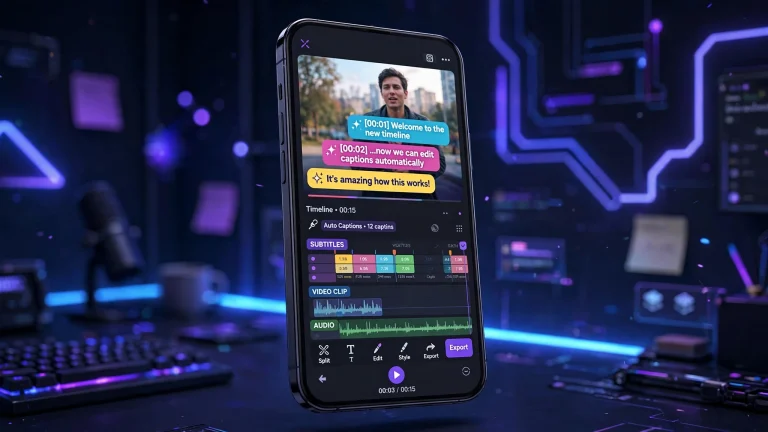
Creating a beat-sync video in CapCut is one of the easiest ways to make your content look more attractive and professional. If you have ever watched a TikTok video where every clip changes perfectly with the music, you have probably seen beat synchronization in action. This editing technique makes videos more exciting by matching scene changes, transitions, effects, and movements to the rhythm of a song.
The good news is that you do not need to be a professional video editor to create this type of content. CapCut provides several editing tools that help beginners synchronize their footage with music without spending hours learning complicated editing techniques.
Whether you want to create a TikTok trend, an Instagram Reel, a YouTube Short, a travel montage, or a photo slideshow, learning how to sync your videos to music can make a noticeable difference in the final result.
In this guide, you will learn how to create a beat-sync video in CapCut, how to identify music beats, how to synchronize clips manually, and how to make your finished video look smooth and engaging.
What Is a Beat-Sync Video in CapCut?
A beat-sync video is a video in which visual elements change or move in time with the rhythm of the background music. These changes can include switching between clips, adding transitions, zooming in on a subject, displaying text, or applying visual effects when a particular beat occurs.
For example, imagine you are creating a video showing different outfits. Every time the music produces a strong beat, the video switches to a new outfit. This creates a satisfying rhythm that makes the content more enjoyable to watch.
Beat-sync editing is popular on platforms such as TikTok, Instagram Reels, and YouTube Shorts because it helps creators produce short, energetic videos that capture attention quickly.
CapCut is a useful tool for this purpose because it allows you to arrange clips, add music, trim footage, apply transitions, and adjust timing on a timeline. Some versions also provide automatic beat detection or music-based editing features, although the available options can vary depending on your device, app version, and region.
What Do You Need Before Creating a Beat-Sync Video?
Before opening CapCut, prepare the materials you want to use in your project. Having everything ready will make editing easier and help you avoid unnecessary interruptions.
Here are the main things you need:
- CapCut application: Install the official CapCut app on your phone, tablet, or computer.
- Video clips or photos: Choose the footage or images you want to include in your final video.
- Background music: Select a song with a clear rhythm that matches the mood of your content.
- Enough storage space: Make sure your device has sufficient space for your media files and exported video.
- A clear editing idea: Decide whether you want to create a fast-paced, cinematic, emotional, or relaxed video.
You do not need expensive equipment to get started. Even a few smartphone clips and a suitable music track can produce an impressive result when edited carefully.
How Do You Create a Beat-Sync Video in CapCut?
Follow these steps to create your first beat-sync video.
Step 1: Open CapCut and Start a New Project
First, open CapCut on your device. On the mobile app, tap the New project option to begin editing.
Select the video clips or photos you want to use and import them into your project. Try to choose media that fits the theme of your video. For example, if you are making a travel montage, use clips showing destinations, scenery, activities, and memorable moments.
Once you have selected your files, add them to the timeline.
Arrange the clips in the order you want them to appear. You can drag clips into position and remove unnecessary footage before moving on to the music.
It is usually better to start with a small collection of strong clips rather than filling the timeline with too many unrelated scenes. A shorter video with well-timed edits often looks better than a longer video with random transitions.
Step 2: Choose Music That Matches Your Video
Music is one of the most important parts of beat-sync editing. The song you choose determines the rhythm, mood, and overall feeling of your video.
In CapCut, open the audio section and look for the available music options. Depending on your version, you may be able to select music from the app’s library or import an audio file stored on your device.
Choose a song with a rhythm that is easy to recognize. Music with clear drum hits, bass beats, or regular percussion is often easier to synchronize with video clips.
For example, upbeat electronic music can work well for fashion edits, dance videos, and gaming montages. Softer instrumental music may be more suitable for travel videos, nature scenes, or emotional photo slideshows.
After selecting your song, add it to the timeline. Play the music and listen carefully to identify the sections where the strongest beats occur.
One useful tip is to avoid choosing a song simply because it is popular. The best music is the one that fits your footage and supports the message you want to communicate.
Also, if you plan to publish your video, check whether you have the necessary rights to use the music on your chosen platform.
Step 3: Identify the Beats in Your Music
Now that your music is on the timeline, the next step is to identify the beats.
A beat is a regular pulse in music. It may sound like a drum hit, a bass note, or another noticeable rhythmic sound. In beat-sync editing, these moments provide natural points where you can change clips or apply effects.
Some CapCut versions offer beat detection or beat markers through their audio editing tools. If this feature is available, use it to help identify important points in the song.
The exact menu names and availability can differ between versions, so do not worry if your app does not display a dedicated beat detection option.
You can also identify beats manually.
Play the music in the timeline and watch the audio waveform if it is displayed. Notice where the stronger peaks occur, then pause playback at those moments. You can add markers if your version supports them or simply use the waveform and timeline ruler as visual guides.
For example, if the song has a strong beat every half-second, you could change clips at selected beats to create a fast-paced edit. However, you do not need to use every single beat. Choosing the most noticeable beats usually creates a cleaner result.
Step 4: Synchronize Your Video Clips With the Music
This is the main part of creating a beat-sync video in CapCut.
Start playing your music and identify the points where you want the visuals to change. Then trim or split your video clips so that important scene changes happen at those points.
To split a clip in CapCut, move the playhead to the desired position, select the clip, and use the Split tool. You can then remove unwanted sections, adjust the duration, or arrange the resulting clips.
Repeat the process for the other clips in your project.
For example, if your music has four strong beats in a short section, you might arrange four different shots so that each new shot appears on one of those beats.
You can use this technique for different types of content:
- Fashion videos: Change outfits or camera angles on strong beats.
- Travel montages: Switch between locations as the music progresses.
- Photo slideshows: Display a new image at selected points in the song.
- Gaming videos: Synchronize exciting gameplay moments with the music.
- Dance videos: Match movements and scene changes to the rhythm.
Remember that not every clip needs to have the same duration. You can use longer shots during slower sections and shorter clips when the music becomes more energetic.
The goal is to make the edits feel natural rather than forcing every scene to change at exactly the same interval.
Step 5: Add Transitions Between Clips
Once your clips are synchronized with the music, you can add transitions to make the video flow more smoothly.
CapCut offers different transition styles, depending on your version. These may include fades, slides, zoom transitions, and other visual effects.
To add a transition, look for the transition control between two clips on the timeline. Select a style and adjust its duration if the option is available.
For beat-sync videos, transitions should support the rhythm instead of distracting from it.
For example, a quick zoom transition may work well when the music has a strong bass hit. A simple cut may be more effective for a fast-paced montage. A fade can work nicely when the music becomes softer or more emotional.
You do not need to add a transition between every clip. In many cases, direct cuts synchronized with the beat look cleaner and more professional.
Try a few different options and preview the result before deciding which transition works best.
Step 6: Use Effects to Make the Beats More Noticeable
Effects can add energy to your video when they are applied at the right moments.
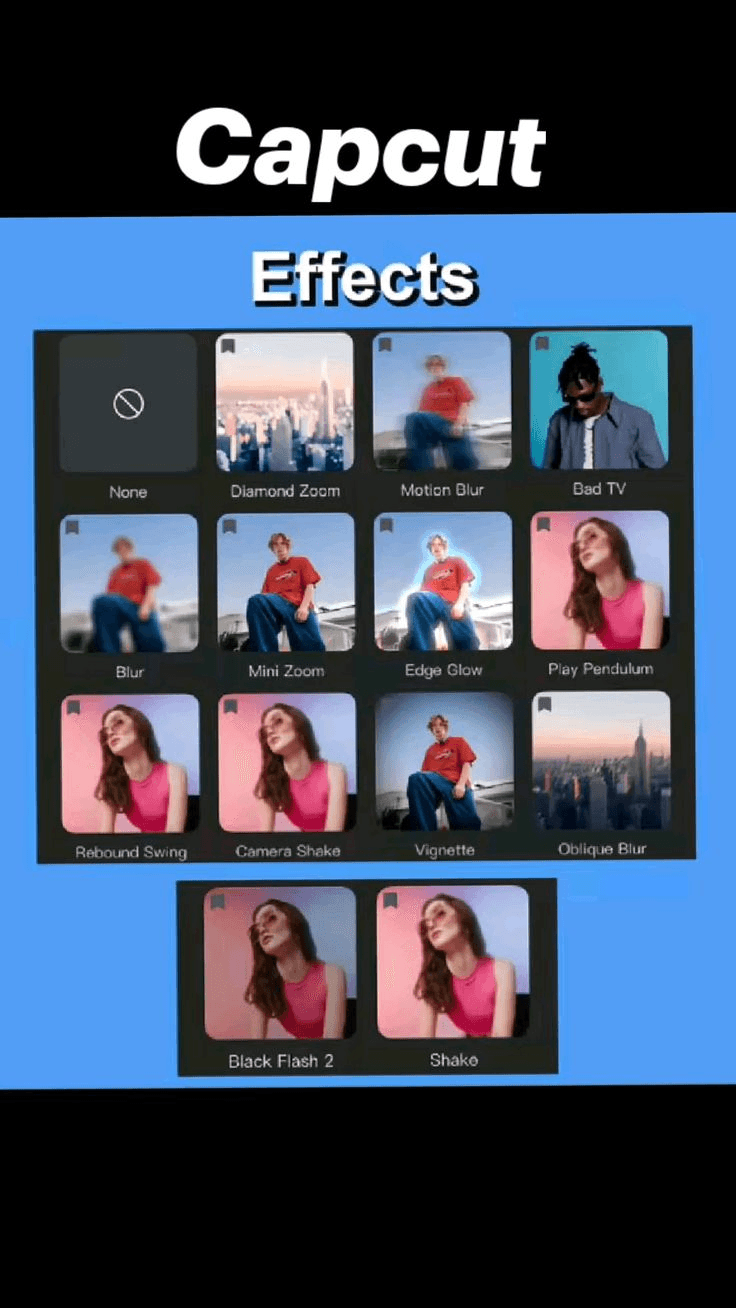
CapCut includes different visual effects and animation options, although availability may depend on your version and subscription. You can experiment with zoom effects, flashes, camera movements, blur effects, or other styles that suit your content.
For example, you might add a short zoom when the bass drops or use a brief flash effect when switching to a new scene.
You can also animate individual clips by using keyframes, where supported. Keyframes allow you to control properties such as position, scale, and rotation at different points in the timeline. This makes it possible to create a gradual zoom or movement that finishes exactly on a musical beat.
However, be careful not to overuse effects. Too many flashes, shakes, and zooms can make your video difficult to watch.
Choose one or two effects that complement your music, and use them consistently. A simple, well-timed effect often looks better than several effects competing for attention.
Step 7: Add Text and Captions at the Right Moments
Text can make your beat-sync video more informative and visually appealing.
If you are creating a motivational video, for example, you might display a short phrase when the music reaches a strong beat. For a fashion edit, you could show the name of an outfit or a brief title as the scene changes.
To add text in CapCut, open the text section, create a text layer, and enter your preferred wording. Adjust the font, size, color, position, and duration to match your video.
You can also explore text animations if they are available in your version.
For the best result, keep your text short and easy to read. Avoid placing important words where platform interface elements may cover them, especially when creating vertical videos for social media.
Make sure the text appears at the intended moment and remains on screen long enough for viewers to read it. If the words are meant to appear on a beat, align the start of the text animation with that point on the timeline.
Step 8: Adjust the Speed of Your Clips if Necessary
Speed adjustments can make a beat-sync video more dynamic.
For example, you might slow down a short action shot before a strong beat, then return to normal speed when the beat hits. Alternatively, you can speed up a clip to fit a shorter section of music.
To adjust speed, select a clip and open the speed controls. Depending on your CapCut version, you may find normal speed adjustments and a curve-based speed feature.
Normal speed controls let you make a clip faster or slower by choosing a playback speed. Curve-based speed controls, where available, offer more flexibility by allowing speed to change throughout a clip.
Use speed changes when they add something to the story or visual rhythm. Slowing down every clip can make the video feel repetitive, while speeding up too many shots may make important details difficult to see.
For beginners, start with one or two carefully selected speed adjustments and check how they fit the music.
Step 9: Preview the Entire Video and Fix Timing Problems
After arranging the clips, adding transitions, and applying effects, play the entire video from beginning to end.
This step is important because a video may look correctly aligned when viewed as individual clips but feel awkward when everything plays together.
Pay attention to the following details:
- Do the main scene changes happen on the intended beats?
- Are any clips too long or too short?
- Do the transitions feel smooth?
- Are the effects distracting?
- Does the video match the mood of the music?
- Is the original clip audio interfering with the background music?
- Does the ending feel complete?
If a clip changes slightly before or after the beat, move its edge or adjust the split point until the timing feels right.
You should also listen to the audio carefully. If you are using music as the main soundtrack, lower the original audio from your clips when necessary. If the footage includes important dialogue, balance the sound levels so that viewers can hear the speech clearly.
Do not rush this stage. Small timing adjustments can make a noticeable difference in the final quality of your video.
Step 10: Export Your Beat-Sync Video
Once you are happy with the result, export the video.
Tap the export button in CapCut and select suitable resolution and frame-rate settings. The available options depend on your device, project, and app version.
For many social media videos, 1080p resolution is a practical choice because it offers good visual quality without creating an unnecessarily large file. A frame rate of 30 frames per second works well for many everyday videos, while 60 frames per second can be useful for smoother motion when your original footage supports it.
Wait for the export to finish, then play the saved video to make sure everything looks and sounds correct.
Check that the clips are synchronized properly, the music is clear, the transitions work as intended, and no unwanted black frames or gaps appear.
If you are uploading the video to TikTok, Instagram Reels, or YouTube Shorts, a vertical 9:16 format is generally suitable. For other types of content, choose an aspect ratio that fits your intended platform.
Tips for Making Your CapCut Beat-Sync Videos Look Better
Learning the basic steps is only the beginning. A few simple editing habits can help you create more polished results.
Choose music with a clear rhythm. Songs with noticeable beats are usually easier to synchronize than tracks with unpredictable timing.
Start with the strongest section of the song. You do not always need to use the entire track. A short, engaging section may be enough for a social media video.
Use high-quality footage. Clear, well-lit clips help your finished edit look more professional.
Avoid excessive transitions. Simple cuts timed to the music can be just as effective as complicated visual effects.
Keep the rhythm consistent. You can vary clip duration, but make sure the changes feel intentional.
Watch the video before publishing. Always check the exported version to catch timing issues or audio problems that you may have missed during editing.
Experiment with different styles. Try creating a fast-paced montage, a cinematic edit, or a photo slideshow to discover which approach works best for your content.
Can You Automatically Sync Videos to Music in CapCut?
Yes, depending on the version and tools available to you, CapCut may offer automatic beat-sync editing features, beat detection, or templates that arrange visual content around music.
These features can save time because they reduce the amount of manual trimming required. They are especially useful if you are creating a quick slideshow or a short social media video.
However, automatic editing does not always produce the exact result you want. A tool may select an unsuitable transition, cut an important moment too early, or create a sequence that does not match your creative idea.
For this reason, review the automatically generated video and make any necessary adjustments. You can combine automatic tools with manual editing to get a better result.
If your version does not include an automatic beat-sync option, you can still create the same effect by adding music, identifying the beats, and trimming your clips manually.
What Are the Common Mistakes to Avoid When Creating Beat-Sync Videos?
One common mistake is changing clips randomly without paying attention to the rhythm. Even if the footage looks good, poorly timed cuts can make the video feel disconnected from the music.
Another mistake is using too many effects. Flashing lights, constant zooms, and repeated shakes can quickly become distracting when they appear throughout the entire video.
Choosing unsuitable music can also affect the result. A slow, relaxed track may not work well with footage that depends on fast action, while energetic music may not suit every emotional or cinematic scene.
Some beginners also forget to check the audio levels. Background music that is too loud can overpower dialogue, while overlapping audio tracks can create an unpleasant listening experience.
Finally, avoid making every clip exactly the same length just because you want to synchronize everything. Music has different accents and patterns, and some moments deserve more screen time than others.
Focus on rhythm, visual storytelling, and consistency rather than trying to add an effect to every beat.
Frequently Asked Questions
1. Is CapCut Good for Beat-Sync Editing?
Yes, CapCut is a useful option for beat-sync editing because it offers timeline editing, audio tools, transitions, effects, speed controls, and text animations. These features allow beginners and experienced creators to synchronize visuals with music.
2. Can I Create a Beat-Sync Video Without Templates?
Yes. You can create a beat-sync video manually by importing your clips, adding music, identifying the beats, and splitting or trimming your footage at the appropriate moments. Manual editing also gives you more control over the timing and style of the final video.
3. Why Are My Clips Not Matching the Music in CapCut?
Your clips may not match the music because the split points are slightly misplaced, the audio waveform is difficult to interpret, or the music has an irregular rhythm. Play the video again and adjust the clip boundaries until the important visual changes line up with the beats.
4. Can I Use Photos Instead of Videos for Beat-Sync Editing?
Yes. You can import photos into CapCut and arrange them so that each image appears on a selected beat. Adding subtle zooms, transitions, and text can make a photo slideshow feel more dynamic.
5. How Long Should a Beat-Sync Video Be?
There is no fixed duration. The ideal length depends on your content and the platform where you plan to publish it. A short video with well-timed clips can work very well for social media, while longer videos may need more variation to maintain viewers’ attention.
6. Do I Need CapCut Pro to Create Beat-Sync Videos?
No. You can create beat-sync videos using basic editing features available in the free version of CapCut. Some premium effects, templates, or other tools may require a paid subscription, but you can still synchronize clips with music manually without them.