How to Color Grade Videos in CapCut for a Cinematic Look (2026 Guide)
There is a reason your favorite travel vlogs and short films feel richer than everyday phone footage: color grading. A flat, straight-out-of-camera clip can be transformed into a moody, film-like scene just by reshaping its tones and colors. The good news is that you do not need expensive software to pull this off. CapCut packs a surprisingly complete color grading toolkit, and it is free.
In this guide, you will learn how to color grade videos in CapCut on both mobile and desktop. We will walk through the exact panels and sliders to use, the order to apply them in, and a few classic cinematic recipes like the famous teal-and-orange look. By the end, you will have a repeatable workflow you can use on every project.
Before we touch any slider, one quick note on process: always correct first, then grade. That means fixing exposure and white balance problems before adding any stylistic tint. A strong filter on top of a badly exposed clip usually makes things worse, not better. If you keep that rule in mind, the rest is pure creativity.
What Color Grading Actually Does to Your Video
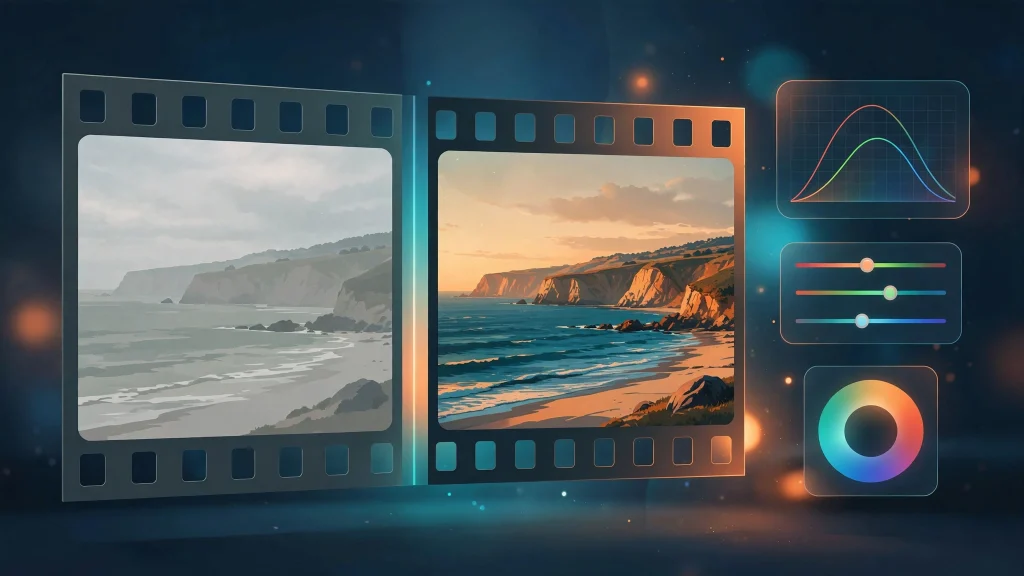
Color grading has two jobs. The first is correction: making the footage look natural by fixing exposure, contrast, and white balance. The second is stylization: giving the footage a deliberate mood, whether that is a warm golden glow, a cold blue thriller tone, or the teal-and-orange contrast you see in blockbuster movies.
CapCut gives you the tools for both jobs in the same place. On mobile, everything lives under the Color menu after you select a clip: Filters for presets, Adjust for sliders, HSL for per-color control, Curves, and the Color wheel. On desktop, you get the same family of tools inside the Adjustment panel, plus one big bonus: support for custom LUT files in .cube and .3DL formats. CapCut Web even offers a one-click AI color correction under Basic > Color adjustment for a fast starting point.
How to Color Grade in CapCut on Mobile
The mobile app is where most creators grade, so let us start here. Import your clip, tap it on the timeline to select it, then tap Color in the bottom toolbar. Everything in the steps below branches off from this menu.
Step 1: Pick a Cinematic Filter as Your Base
Tap Color > Filters and browse the categories. CapCut’s filter library includes cinematic packs such as Film, Movie, and Memory styles. Filters in these packs come and go as the library updates, so pick whichever cinematic preset matches the mood you want.
The key move here is the intensity slider. A filter at full strength almost always looks overdone. Drag it down to somewhere between 40 and 70 percent so the preset shapes the mood without crushing your footage. You will fine-tune everything else manually in the next steps.
Step 2: Fix Exposure and White Balance in the Adjust Panel
Go to Color > Adjust. This is your correction layer, so work through it before any creative moves:
- Brightness and Contrast: Nudge brightness until your subject is clearly visible, then raise contrast slightly to add depth. If your footage already looks punchy, skip this.
- Highlights and Shadows: Pull highlights down a touch to recover detail in bright skies, and lift shadows slightly to reveal dark areas. Cinematic footage rarely has pitch-black shadows or blown-out whites.
- Temperature and Tint: Temperature controls warmth (toward yellow) versus coolness (toward blue). Tint shifts the green-magenta balance. A very slight move toward blue or green can make footage feel colder and more cinematic.
- Saturation and Sharpen: Lower saturation slightly for a filmic, muted base, or raise it a touch for a vivid travel look. A small amount of Sharpen or Clarity adds crispness, but keep it subtle.
Step 3: Shape the Look with HSL, Curves, and the Color Wheel
This is where grading stops being a preset and becomes your own style. These three tools give you precise control over the palette.
Use HSL for targeted color control
Tap Color > HSL to adjust hue, saturation, and luminance for individual colors. For the classic cinematic look, try pushing the blue and green hues slightly toward teal, then desaturating the greens a little. If skin tones look off, drop the saturation of reds and oranges slightly while keeping their luminance balanced.
Use Curves for film-style contrast
Tap Color > Curves to open the RGB and luma curves. A gentle S-curve (lift the top right slightly, dip the bottom left slightly) adds rich contrast. The famous faded-film look comes from a small tweak: lift the bottom-left point of the luma curve just a hair so pure black becomes dark gray, which softens shadows like real film grain stock.
Use the Color wheel for cinematic tinting
The Color wheel lets you tint shadows, midtones, and highlights independently. A beloved movie trick: push a whisper of teal into the shadows and a hint of warm orange into the highlights. Skin tones stay natural because the warmth lives in the highlights, while the cool shadows give the frame that blockbuster contrast.
Step 4: Add Cinematic Finishing Touches
Two small moves sell the film illusion more than any big slider push.
Add a subtle vignette
A vignette gently darkens the frame edges, drawing the viewer’s eye to the center of the shot. Find it under Color > Adjust and keep it light: a value around 10 to 20 percent is plenty. Anything heavier starts to look like a photo app gimmick.
Add film grain with the Fade effect
The Fade slider slightly lifts the blacks and adds a soft film-like wash to the image. Combined with a touch of grain from the effects library, it removes the harsh digital edge that screams “shot on a phone.” Search CapCut’s effects for Film grain or Film dust and apply at low intensity so it feels like texture, not noise.
How to Color Grade in CapCut on Desktop
The desktop app works on the same principles but gives you more room to work and one powerful exclusive: custom LUTs. The main tools live in the right-side Adjustment panel once a clip is selected on the timeline.
Step 1: Apply and Refine LUTs
CapCut Desktop supports imported LUT (.cube and .3DL) files. Open the Adjustment panel, choose LUT, and click Import to load your file. Drag the LUT onto your footage, then, exactly like filters on mobile, bring the intensity slider down to 40 to 70 percent. A LUT at 100 percent will often crush shadows and oversaturate skin tones, so treat intensity as just another adjustment.
CapCut also ships with built-in filters in the Filter panel for a zero-import option. After applying your base look, refine it with the same brightness, contrast, and saturation controls from the Adjustment tab, just as you would on mobile.
Step 2: Refine with Curves, HSL, and Relight
Desktop adds a Curve tool and Relight inside the Adjustment panel. Use the curves exactly as on mobile to shape contrast, and the HSL controls to isolate problem colors. Relight is worth a look when one side of your subject is too dark: it lets you rebalance the lighting without touching the color grade you have built.
Two Cinematic Presets to Try Today
Use these as starting points, not rules. Every clip is different, so adjust the numbers to fit your footage.
The Teal-and-Orange Blockbuster Look
This is the high-contrast Hollywood staple: cool blue-green shadows against warm skin tones. Raise contrast, push temperature slightly cool, and use HSL to shift blues and greens toward teal while nudging orange luminance up. On the color wheel, tint shadows teal and highlights warm orange. Keep saturation moderate so it feels like a movie, not a cartoon.
The Moody Desaturated Look
Perfect for vlogs, documentaries, and emotional edits. Lower contrast by 10 to 20 points, drop saturation by 10 to 20 points, lift shadows slightly, and add a small amount of Fade. Cool the temperature a touch and add a light vignette. The result is soft, nostalgic, and very forgiving of imperfect lighting.
Common Color Grading Mistakes to Avoid
Grading is easy to overdo, so watch out for these traps. Overcooking saturation is the biggest one: extremely saturated blues and orange skin are usually signs the grade has been pushed too far. Grading each clip in isolation is another: when your clips are cut together, mismatched tones break the flow instantly. Use CapCut’s Copy Style / Paste Style (tap the three dots on a graded clip, copy its style, then paste it onto the next clip) or the AI Match tool under Color to keep scenes consistent. Finally, grade on a dim, color-neutral screen: editing under harsh yellow room light will fool your eyes into over-correcting.
Once your grade is locked in, protect it at the export stage. A beautiful grade is wasted if compression eats it, so follow a clean export routine like the one in our guide to exporting videos in CapCut without losing quality. And if you want to pair your cinematic look with cinematic motion, our velocity edit tutorial shows how to time speed ramps to your graded footage.
FAQs
Can CapCut color grade like professional software?
For the vast majority of creators, yes. CapCut’s Adjust panel, HSL, curves, color wheels, and desktop LUT support cover everything from basic correction to stylized cinematic looks. Professional colorists using dedicated tools will squeeze out finer detail, but for YouTube, TikTok, and Instagram content, CapCut is more than capable.
What is the best CapCut filter for a cinematic look?
There is no single best filter because the right one depends on your footage. Start with the Movie or Film categories and try options like Oppenheimer, Film Noir, or Golden Hour at reduced intensity. The filter is only the base: the cinematic quality comes from your manual contrast, curves, and color-wheel tweaks on top of it.
Why do my videos look different after exporting from CapCut?
This usually comes down to export compression or a color-space mismatch between your editor preview and the exported file. Export at the highest resolution and bitrate your footage supports, and view the final file on the same device where you graded it to judge the grade accurately.
Does CapCut support custom LUTs on mobile?
Custom LUT import (.cube and .3DL) is supported in CapCut Desktop, where you can load files through the Adjustment panel. On mobile, CapCut no longer allows direct LUT imports, so use the built-in filters, HSL, curves, and color wheel to recreate similar looks on your phone.
Should I color grade before or after adding effects?
Grade before adding effects in most cases. Grading changes the color values that effects like overlays, transitions, and text backgrounds interact with, so a stable grade keeps those elements looking consistent. A good rule of thumb: edit, correct color, grade, then effects, then export.
Conclusion
Color grading in CapCut is a simple chain: correct first with the Adjust sliders, build your mood with a filter or LUT at moderate intensity, shape it with HSL, curves, and the color wheel, and finish with a vignette and a touch of fade. Mobile and desktop share the same logic, with desktop offering custom LUT imports for creators who want to start from a precise look.
The fastest way to improve is repetition. Take one clip, grade it twice with two different moods, and compare them side by side. Save the looks you love by copying styles between clips, and within a few projects you will have a signature cinematic grade that makes every video unmistakably yours.