How to Add Auto Captions in CapCut: The Complete Guide (2026)
If you have watched any viral video on TikTok, Instagram Reels, or YouTube Shorts lately, you have probably noticed one thing: almost every video has captions. They are not there just for looks. Captions keep people watching, make videos accessible to viewers who watch on mute, and help your content get understood even in noisy places.
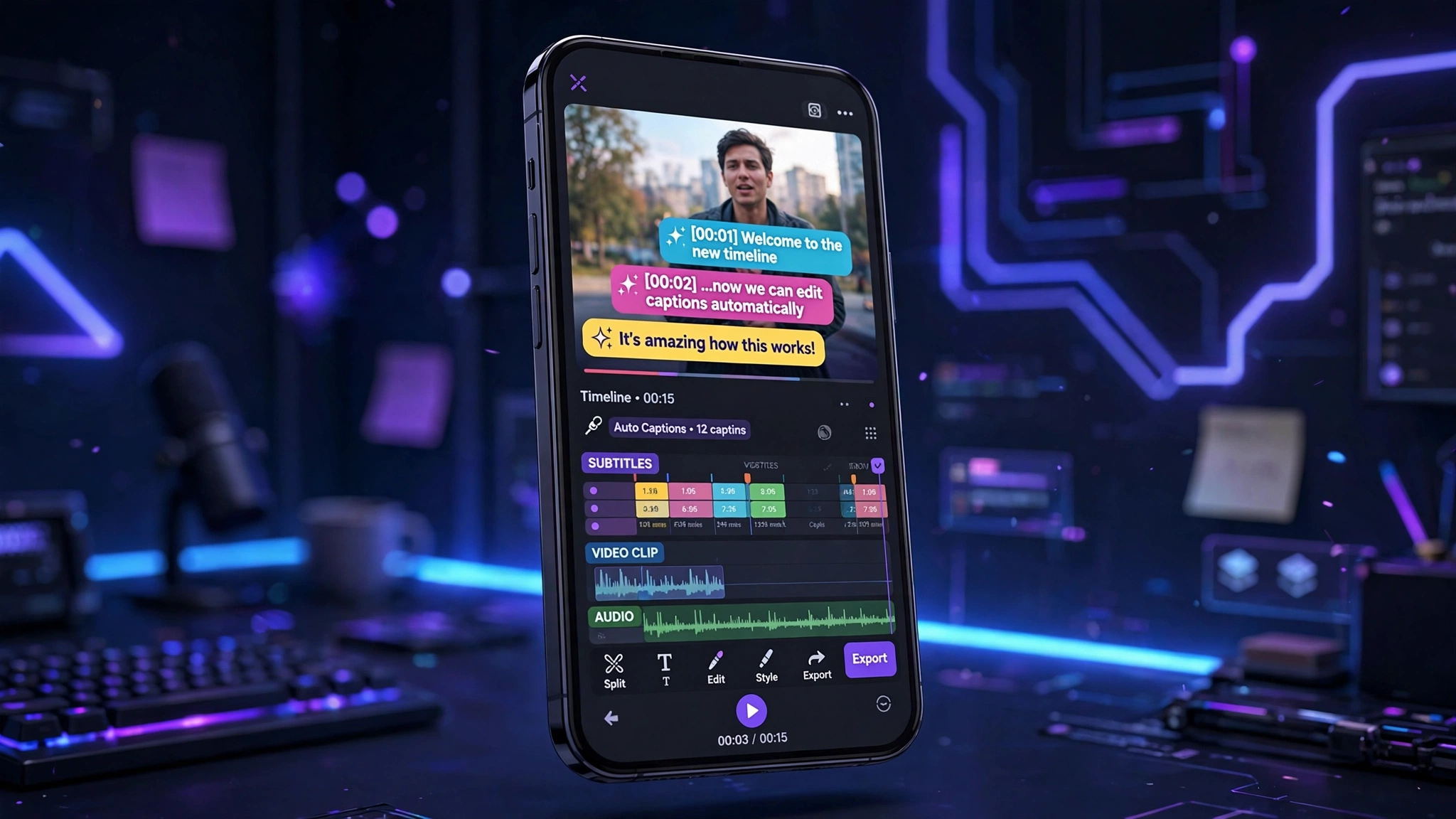
The good news is that CapCut makes adding captions ridiculously easy. Its Auto Captions feature listens to your video’s audio and turns your speech into styled subtitles in seconds. You do not need to type anything manually, and the results are surprisingly accurate.
In this guide, I will walk you through exactly how to add auto captions in CapCut in 2026, how to style them so they look professional, and a few pro tricks to fix the mistakes that almost always creep in.
Why Auto Captions Are Worth Your Time
Before we jump into the steps, let us talk about why captions matter so much. Studies have consistently shown that a large share of social media users watch videos with the sound off, especially when scrolling in public. If your video has no captions, those viewers swipe away in seconds.
Captions also do three other things for you:
- They boost watch time. People who can follow along silently stay longer.
- They make your content accessible. Viewers who are hard of hearing, or who speak a different language, can still follow your video.
- They add style. Bold, animated captions are part of the modern short-form video look. Think of captions as a design element, not just a utility.
How to Add Auto Captions in CapCut (Mobile)
CapCut’s auto caption tool works on both mobile and desktop. Here is the step-by-step process on the mobile app, which is where most creators do this work.
Step 1: Open Your Project
Open CapCut and tap New project, then select the video clip you want to caption. Add it to the timeline so you can see it in the preview window.
Step 2: Go to the Text Menu
Tap Text in the bottom toolbar. You will see several options: Add text, Text templates, Auto captions, and more. Tap Auto captions.
Step 3: Choose Your Language
CapCut will ask you to pick the spoken language in your video. Pick the correct one – this matters a lot for accuracy. If your video mixes languages, pick the one that dominates.
Step 4: Generate the Captions
Tap Create or Generate. CapCut will now process the audio track and convert your speech into caption clips on the timeline. For a one-minute video, this usually takes just a few seconds.
Step 5: Review and Fix Mistakes
No AI caption tool is perfect. Watch through your video once and read the captions as they appear. Tap any caption clip on the timeline to edit its text. Fix names, slang, or any words the AI misunderstood.
Step 6: Style Your Captions
Open the Style Tab
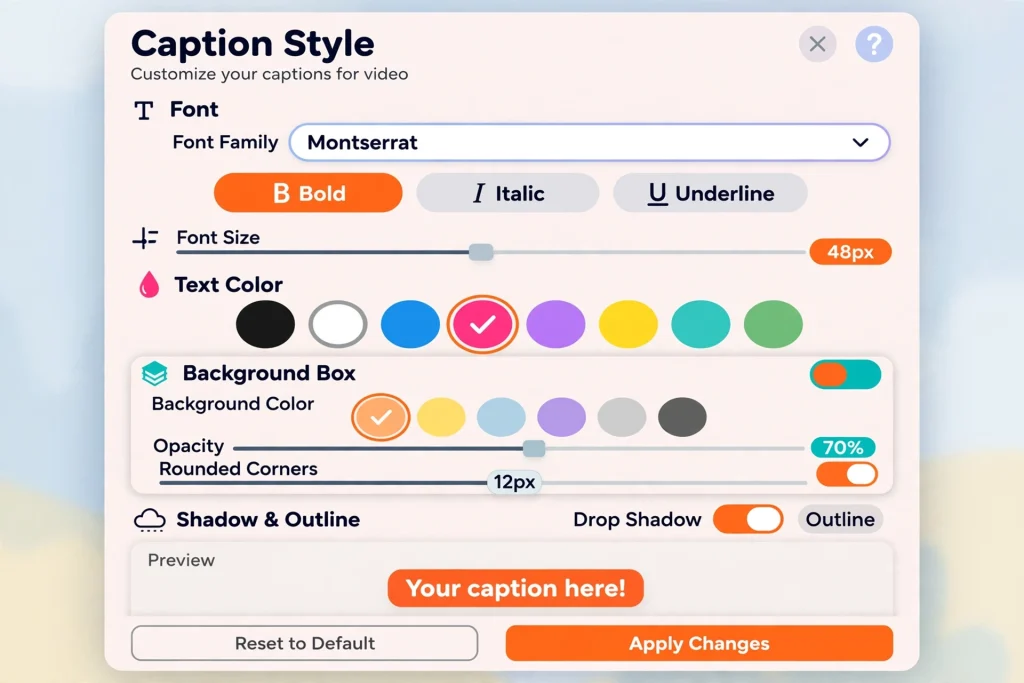
Now the fun part. Select all your caption clips (or tap one and look for batch options), then open the Style tab. Here you can change:
Caption Style Options
- Font: Pick something bold and readable like Montserrat, Anton, or the classic CapCut caption fonts.
- Color: White text with a black background box is the standard high-contrast combo.
- Size: Big enough to read on a phone screen, but not so big it covers your face.
- Animation: CapCut lets you animate captions word by word, which looks modern and keeps eyes moving.
Step 7: Export
Tap the Export button in the top right, choose 1080p and 30fps, and share your video. Your captions are baked into the video.
How to Add Auto Captions in CapCut (Desktop)
The desktop workflow is nearly identical:
- Open your project on CapCut desktop.
- Click Text in the top-left media panel.
- Choose Auto captions and select your language.
- Click Generate and wait for the captions to appear on the timeline.
- Select the caption layer, open the Properties panel on the right, and restyle fonts, colors, and animations.
- Export at 1080p or higher.
Desktop is honestly nicer for longer videos because it is easier to scan through caption text on a bigger screen and fix typos quickly.
Pro Tips for Better Auto Captions
After editing hundreds of captioned videos, here are the small things that make a big difference:
1. Clean Up Your Audio First
Why Audio Quality Matters
Auto captions are only as good as your audio. If there is background noise, music bleeding in, or heavy echo, the transcription gets worse.
Use the Reduce Noise Option
CapCut has a Reduce noise option under the audio settings – use it before generating captions.
2. Keep Captions Short
Long caption blocks are hard to read. A good rule of thumb: 1-2 lines per caption, 3-7 words each. If CapCut merged a whole sentence into one caption, split it into two shorter ones for better readability.
3. Use Keyword Highlighting
Pick 1-2 important words per caption and change their color (yellow or red works well on dark backgrounds). This draws the eye to the punchline and looks exactly like the captions on viral videos.
4. Time the Captions to the Beat
For high-energy edits, sync caption appearances to the music beat or to your vocal emphasis. CapCut lets you drag the edges of caption clips to fine-tune timing.
5. Save Your Style as a Preset
Once you have a caption style you love, you can reuse it. On mobile, after styling a caption, you can copy the text style to other caption clips instead of redoing it every time. This keeps your whole channel’s captions consistent.
Common Auto Caption Mistakes (and How to Fix Them)
Mistake 1: Wrong language selected. If half your captions are gibberish, you probably picked the wrong language. Delete the caption layer and regenerate with the right one.
Mistake 2: Overlapping text and subject. Captions that cover the speaker’s face look amateur. Move captions slightly up or down, or shrink them a touch.
Mistake 3: No contrast. White text on a bright sky is invisible. Always use a background box, a stroke (outline), or a shadow behind your caption text.
Mistake 4: Auto captions on music-only sections. If your video has an instrumental break, delete the captions for that part or CapCut might transcribe the music as nonsense words.
FAQs
Are CapCut auto captions free?
Yes. Auto captions are part of CapCut’s free toolkit on both mobile and desktop. Some advanced caption animations and premium fonts may require CapCut Pro, but the core captioning is free.
How accurate are CapCut’s auto captions?
Very good for clear speech in a quiet room – usually around 90% or better. Accuracy drops with background noise, heavy accents, or fast overlapping speech. Always do one review pass.
Can I translate my captions to another language?
CapCut’s basic auto captions transcribe in one language. For translations, you would transcribe first, then edit the text manually (or use a translation tool and paste the text in). There is no one-tap translate feature in the standard workflow.
How do I remove the caption background box?
Select your caption clips, go to Style, and turn off the background or set its opacity to zero. You can also add a text stroke instead to keep readability without the box.
Why are my captions out of sync?
This usually happens when the timeline was trimmed after generating captions. Regenerate captions after you finish all your trimming, or manually drag the caption clips to match the new timing.
Final Thoughts
Auto captions are one of those features that take two minutes to use but make your videos look ten times more professional. They are also one of the simplest things you can do to grow: more watch time, more accessibility, more shareability, all from a feature that does the heavy lifting for you.
So next time you edit in CapCut, hit that Auto captions button before you export. New to the app? Start with our complete CapCut tutorial for beginners first. Your viewers – the ones on the bus, in bed at midnight, and everywhere else they cannot turn the sound up – will thank you.