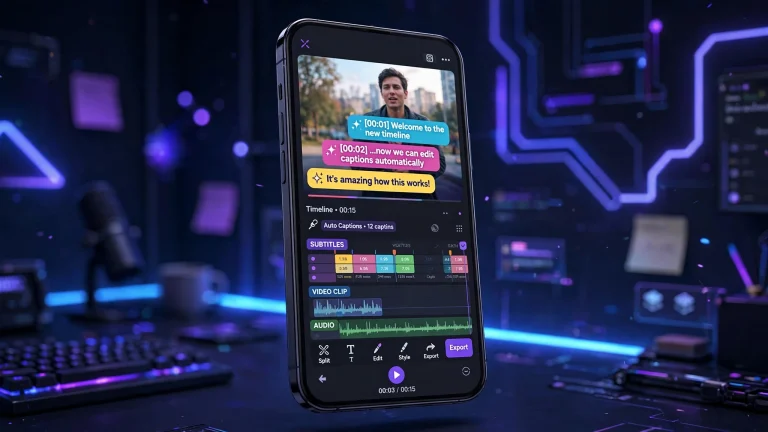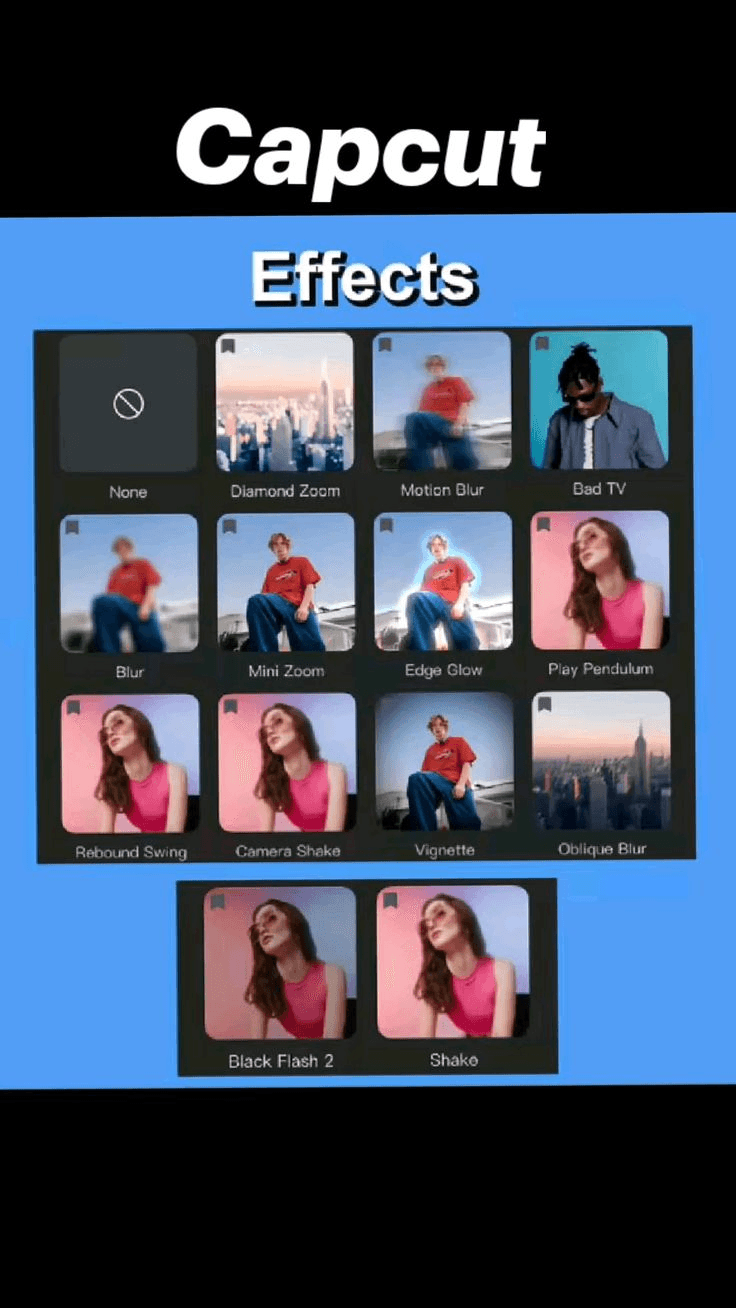
Video editing has become an important part of creating content for social media. Whether you want to post entertaining TikTok videos, create Instagram Reels, publish YouTube Shorts, or make attractive videos for your business, having the right editing tools can make a big difference. However, editing every video from scratch can take a lot of time, especially if you are new to video editing.
This is where CapCut templates become useful.
CapCut templates allow you to create videos using pre-designed editing styles. Instead of manually arranging every clip, adding transitions, adjusting timing, and creating effects yourself, you can start with a template and replace the sample media with your own photos or videos.
The result is a faster and often easier way to create content that looks polished and engaging.
One reason CapCut has become so popular is that its templates make video creation accessible to beginners. You do not need to be a professional editor to produce an attractive video. With the right template, a few good photos, and a little creativity, you can create content that looks much more complicated than it actually is.
In this guide, you will learn what CapCut templates are, how they work, how to find and use them, whether they are free, and how to troubleshoot common problems.
What Are CapCut Templates?
CapCut templates are pre-designed video editing projects that allow users to create videos without building the entire edit from scratch.
A template may include a combination of transitions, visual effects, filters, text animations, timing, music, and other editing elements. Some templates are designed for a specific number of photos or video clips, while others focus on a particular visual style.
For example, you might find a template that turns ten photos into a fast-paced slideshow with transitions timed to music. Another template might combine short video clips with cinematic effects, animated text, and beat-synchronised cuts.
Instead of manually recreating all those elements, you select the template, add your own media, and let CapCut arrange the content according to the template’s design.
CapCut templates are especially popular among people who create short-form videos for platforms such as TikTok, Instagram Reels, and YouTube Shorts.
However, they can also be useful for personal videos, birthday celebrations, travel memories, product promotions, and other creative projects.
How Do CapCut Templates Work?
The basic process is straightforward.
First, you choose a template that matches the type of video you want to create. Next, you select the photos or clips you want to include. CapCut then places your media into the template’s predefined structure.
Depending on the template, the application may automatically apply transitions, effects, animations, and timing adjustments.
After that, you can preview the result and make any changes the template and your version of CapCut allow.
When you are satisfied with the video, you can export it and share it on your preferred platform.
The exact process can vary depending on whether you are using CapCut on a phone, tablet, computer, or through a supported web experience.
What Can You Create With CapCut Templates?
One of the biggest advantages of CapCut templates is their versatility. They can be used for many different types of videos, from simple photo collections to social media advertisements.
Here are some popular examples.
1. TikTok Videos
TikTok is one of the main platforms where CapCut templates are widely shared and used.
Many trending videos use quick transitions, animated text, music synchronisation, and visual effects. Templates make it easier to reproduce these styles without manually editing every detail.
For example, you could use a template to combine several short clips into a fast-paced video that follows a popular editing trend.
Some templates are shared through links that open directly in CapCut, making it easier to recreate a particular style.
2. Instagram Reels
CapCut templates can also help you create attractive Instagram Reels.
You might use them for fashion videos, fitness content, travel highlights, daily routines, or short educational clips.
A well-designed template can give your Reel a consistent appearance and help you present your content in a visually appealing way.
When creating Reels, choose a template that suits vertical video and keeps important text away from the edges of the screen.
3. YouTube Shorts
YouTube Shorts are short vertical videos, and templates can make it easier to produce them regularly.
For example, a creator might use a template to introduce a topic, display several images, add captions, and finish with a short call to action.
Templates can be particularly helpful when you publish similar videos frequently because they reduce the amount of repetitive editing required.
4. Birthday and Celebration Videos
You can use CapCut templates to create birthday videos, anniversary slideshows, wedding highlights, and other special memories.
Many templates combine photos with music, animated text, transitions, and decorative effects.
You can personalise the video by adding your own photographs, names, dates, and messages.
5. Travel Videos
Travel creators often need to combine footage from different locations into a short, engaging video.
A travel template can help organise clips of beaches, cities, restaurants, landscapes, and memorable experiences into a single edit.
You can also use a template to create a before-and-after comparison, a holiday recap, or a short video highlighting the best moments of a trip.
6. Business and Promotional Videos
Small businesses can use CapCut templates to create product demonstrations, advertisements, promotional announcements, and social media content.
For example, an online store could use a template to display product images, highlight important benefits, and finish with a message encouraging customers to learn more.
However, businesses should check the usage rights for any music, stock footage, fonts, or other assets included in a template before using the finished video commercially.
Are CapCut Templates Free to Use?
CapCut provides both free and premium templates. This means you can create videos without paying for a subscription, but some templates and features may require CapCut Pro.
The availability of a template can depend on your region, device, application version, account, and the features included in the template.
Free CapCut Templates
Free templates allow you to create videos using designs available to your account without purchasing a Pro subscription.
They may include transitions, effects, text animations, and other editing elements, depending on the template.
If you are a beginner or only create videos occasionally, free templates may be enough for your needs.
Premium CapCut Templates
Some templates include premium effects or other features that require a paid subscription.
If you select one of these templates, CapCut may display a Pro label or ask you to upgrade before using certain elements or completing the export.
You should check a template’s requirements before spending time editing your video.
Do You Need CapCut Pro to Use Templates?
No. You do not necessarily need CapCut Pro to use templates.
The free version can be sufficient for many personal videos and social media projects. If a particular template is restricted, you can look for another one or recreate a similar design using the editing tools available to you.
You can also read more about finding free options in our guide to finding CapCut templates without a Pro subscription.
How to Find CapCut Templates
Before you can use a template, you need to find one that matches your project.
Fortunately, there are several ways to discover CapCut templates.
1. Search Inside the CapCut App
The easiest place to start is the official CapCut application.
Follow these steps:
- Open CapCut on your phone.
- Look for the Templates section, if it is available in your version.
- Browse the recommended designs and available categories.
- Select a template that matches your idea.
- Preview the template and check its requirements.
- Tap the available option to use the template if it is supported by your account.
The names and locations of these options may vary between app versions and devices.
2. Find Templates on TikTok
TikTok is another popular place to discover CapCut templates.
Creators frequently share videos made with particular templates. Some videos include a link or button that allows viewers to open the template in CapCut.
You can search for terms such as:
- Free CapCut templates
- Trending CapCut templates
- CapCut photo slideshow templates
- CapCut templates for TikTok
- CapCut birthday video templates
- CapCut cinematic templates
When you find a video you like, check whether the creator has shared an official template link.
Remember that a template linked from TikTok may still require Pro or may not be available in every region.
3. Explore the Official CapCut Website
You can also visit the official CapCut website at https://www.capcut.com/ to explore its available editing resources.
Depending on your region and the website’s current features, you may find templates, editing tools, tutorials, or other resources that help you create videos.
Using official resources is generally safer than downloading unknown files from websites that claim to offer unlocked premium templates.
4. Learn From YouTube Tutorials
YouTube creators often demonstrate how to use specific CapCut templates or recreate popular editing styles.
A tutorial can be useful when you want to understand how a template works before using it.
Some creators also share supported template links in their video descriptions.
If a template link is unavailable, you may still be able to follow the tutorial and create a similar video manually.
How Do You Use CapCut Templates? A Step-by-Step Guide
Now that you understand what CapCut templates are and where to find them, let’s look at how to use one.
The following instructions describe a common workflow on the mobile application. The exact buttons and options may differ depending on your version of CapCut.
Step 1: Open CapCut
First, install CapCut from an official app store if you do not already have it.
Open the application and sign in if required for the template or feature you want to use.
Make sure you are using a compatible version of the app.
Step 2: Choose a Template
Look for the Templates section and browse the available options.
Choose a design that matches the video you want to create.
For example, if you want to make a slideshow of your holiday photos, choose a photo-based template rather than one designed for fast action clips.
Before proceeding, check whether the template is available to your account.
Step 3: Select Your Photos or Videos
After opening the template, CapCut may ask you to select the photos or video clips you want to use.
Choose media that fits the template’s structure.
If the template requires eight clips, selecting eight suitable clips may give you the intended result. Some templates allow different numbers of media items, while others require a specific number.
For the best results, choose clear images and clips that fit the timing and style of the template.
Step 4: Arrange Your Media
Depending on the template, you may be able to change the order of your photos or clips.
Arrange them so that the video tells a clear story.
For example, a travel video could begin with the journey, show the main destinations in the middle, and finish with a memorable final scene.
If the template automatically fixes the order or timing, you may have fewer customisation options.
Step 5: Preview the Video
Before exporting, preview the complete video.
Check that the photos are displayed correctly, the clips fit the transitions, and the text is readable.
Look for any images that appear too briefly or any transitions that feel awkward.
If the template allows editing, make the necessary adjustments.
Step 6: Customise the Video
Some templates let you change text, adjust certain clips, or modify other elements.
Use the available options to personalise the result.
You might add a name, replace a title, change a clip, or adjust the timing.
However, template-based editing does not always provide the same flexibility as starting a project from scratch.
If you need extensive control over the timeline, consider using CapCut’s standard editing interface.
Step 7: Export Your Video
Once you are happy with the result, select the available export option.
Choose a suitable resolution and frame rate from the options supported by your device and version of CapCut.
Higher export settings may produce larger files and require more processing power.
If CapCut displays a Pro prompt during export, check whether the template contains a premium feature or whether the selected export setting is restricted. Replace the restricted element or choose an available setting if you do not want to upgrade.
Step 8: Share Your Video
After exporting, you can share the video on TikTok, Instagram, YouTube, or another platform.
Before publishing, make sure the video fits the platform’s format and that you have permission to use any included music or other copyrighted material.
You can also save the exported file to your device so that you have a copy of the finished video.
How to Use a CapCut Template From TikTok
Using a template discovered on TikTok is slightly different from choosing one directly inside the CapCut app.
Many creators share links that allow viewers to open a template associated with their video.
Here is the usual process:
- Open TikTok and find a video that uses the template you want.
- Look for an official CapCut template link or supported template button.
- Tap the link if it is available.
- Follow the prompt to open the template in CapCut.
- Select your photos or clips.
- Preview the result.
- Export the video if the template and your account allow it.
If the link does not work, it may have expired, become unavailable, or be unsupported in your region or app version.
You can search for the template by name or look for a similar design inside CapCut.
Avoid downloading unknown applications or entering your account password on unofficial websites just to access a template.
Can You Edit a CapCut Template After Using It?
Yes, but the amount of editing you can do depends on how the template is designed and which workflow you use.
Some templates allow you to change photos, replace clips, edit text, or adjust certain settings. Others restrict many of the original effects and timing choices.
If you want more control, you can try opening the result in CapCut’s editing interface when that option is available.
You may also recreate the video as a standard project using the template as a reference.
This gives you more freedom to change the order of clips, adjust transitions, add captions, and customise other elements.
Keep in mind that not every template can be converted into a fully editable project with all its original components.
Why Is My CapCut Template Not Working?
Sometimes you may find a template you like but discover that it does not open or work as expected.
Several issues can cause this problem.
1. The Template Is No Longer Available
Some templates may be removed, expire, or become unavailable over time.
If a link no longer works, search for the template again or find a similar design.
2. Your CapCut App Is Outdated
An older version of CapCut may not support certain templates or features.
Check whether an update is available through the official app store or the appropriate official download source for your device.
3. The Template Is Not Available in Your Region
Template availability may vary by location.
If a template does not appear in your app, it may not be supported in your region or account.
Try another template with a similar design.
4. Your Internet Connection Is Unstable
Some templates and cloud-based resources require an internet connection.
If a template fails to load, check your connection and try again.
5. The Template Requires CapCut Pro
A template may contain premium effects or other restricted elements.
If CapCut asks you to upgrade, check whether you can replace those elements or choose a free alternative.
6. Your Device Has Limited Storage
Video editing can require a considerable amount of storage space, particularly when working with high-resolution footage.
If CapCut crashes or fails to export, check that your device has sufficient free storage and close unnecessary applications.
If the problem continues, restart CapCut and try again.
Tips for Getting Better Results With CapCut Templates
Using a template is simple, but a few small improvements can make your videos look much better.
Choose the Right Template for Your Content
Do not choose a template just because it is popular.
A template designed for a fast music edit may not be suitable for an educational video or a business announcement.
Choose a style that supports your message.
Use High-Quality Photos and Clips
Good source material makes a noticeable difference.
Use clear photos, well-lit footage, and clips that are suitable for the template’s timing.
If the template uses quick transitions, select images that remain easy to recognise even when displayed briefly.
Keep Your Video Focused
Avoid adding too many unrelated clips or messages.
A video with a clear purpose is often more engaging than one filled with unnecessary effects.
Pay Attention to Text
Make sure text is large enough to read on a phone screen.
Avoid placing important information too close to the edges, where platform interface elements may cover it.
Check the Audio
Music can make a template more engaging, but the audio should fit the video.
For commercial projects, verify that the music is licensed for your intended use.
Avoid Overusing the Same Template
Templates can save time, but using the same design for every video may make your content feel repetitive.
Experiment with different layouts, colours, transitions, and editing styles.
You can also customise templates where possible to make them feel more personal.
CapCut Templates vs. Manual Editing: Which Is Better?
Both approaches have advantages, and the best option depends on your needs.
| Feature | CapCut templates | Manual editing |
|---|---|---|
| Ease of use | Usually easier for beginners | Requires more practice |
| Editing speed | Often faster | Can take longer |
| Creative control | Depends on the template | Generally greater |
| Consistency | Easy to repeat a style | Depends on your editing process |
| Learning experience | Helps you understand editing styles | Builds editing skills directly |
| Customisation | May be limited | Usually more flexible |
If you are new to video editing, templates are a great place to start.
They allow you to create content quickly while learning how transitions, timing, text, and music work together.
If you want to develop a distinctive style or produce more complex projects, learning manual editing will give you greater flexibility.
You do not have to choose only one method. Many creators use templates for quick social media videos and manual editing for projects that require more control.
Frequently Asked Questions About CapCut Templates
1. What is a CapCut template used for?
A CapCut template is used to create videos quickly with a pre-designed editing structure. It can include transitions, effects, text animations, music timing, and other elements that reduce the amount of manual editing required.
2. Are CapCut templates free?
Some CapCut templates are free, while others require a Pro subscription or access to premium features. Availability depends on the template, account, region, device, and app version.
3. Do I need an account to use CapCut templates?
Some features may be available without signing in, while others may require a CapCut account. Requirements can vary by template, device, and application version.
4. Can I use CapCut templates on my computer?
CapCut offers desktop editing software, but template availability and the way templates are used may differ from the mobile application. Check the options supported by your desktop version.
5. Can I make my own CapCut template?
You can create your own video projects and develop reusable editing styles. Whether you can publish a project as a public template depends on the template-creation and sharing features available to your account and region.
6. Why does CapCut ask me to pay when I use a template?
The template may contain a premium effect, asset, or other feature. You can check the restriction, replace the premium element if possible, or choose a free template.
7. Can I use CapCut templates for YouTube videos?
Yes. Templates can be useful for YouTube Shorts, intros, promotional clips, and other video content. Check the format, quality, and usage rights for any music or assets included in the template.
8. Can I remove the watermark from a CapCut template?
The result depends on the template and the export workflow. Check the export screen and available editing options. Do not assume every template adds a watermark or that every watermark can be removed through the same method.
9. Are CapCut templates safe to use?
Templates accessed through official CapCut features or supported links are generally the safest starting point. Be cautious of unofficial websites that ask you to download modified apps, provide passwords, or bypass premium restrictions.