How to Make Seamless Looping Videos in CapCut for TikTok and Reels (2026)
Have you ever watched a short video and only realized it was on its third loop when the counter jumped? That is the whole game. Perfectly looped videos do not ask for your attention again — they just keep it. And the best part is you do not need fancy gear or years of editing experience to pull one off. CapCut gives you every tool you need to build a clean, seamless loop right on your phone or desktop.
Here is why loops are worth learning: both TikTok and Instagram Reels run on watch time and replays. A viewer who watches your 20-second video three times without noticing has just given you 60 seconds of watch time, and replay rate sits among the top three signals the TikTok algorithm tracks. Reels rewards rewatches in a similar way. A well-built loop turns one casual view into two, three, or five — and that multiplier compounds fast in discovery feeds.
In this guide you will learn four proven ways to create looping videos in CapCut in 2026: simple duplication, the reverse ping-pong trick, the match-cut “last-piece” technique, and freeze frames. You will also get platform-specific tips for TikTok and Reels, fixes for the most common loop problems, and answers to the questions creators ask most. Every step below is based on verified current CapCut UI and menu labels.
Method 1: Duplicate or Copy-Paste the Clip
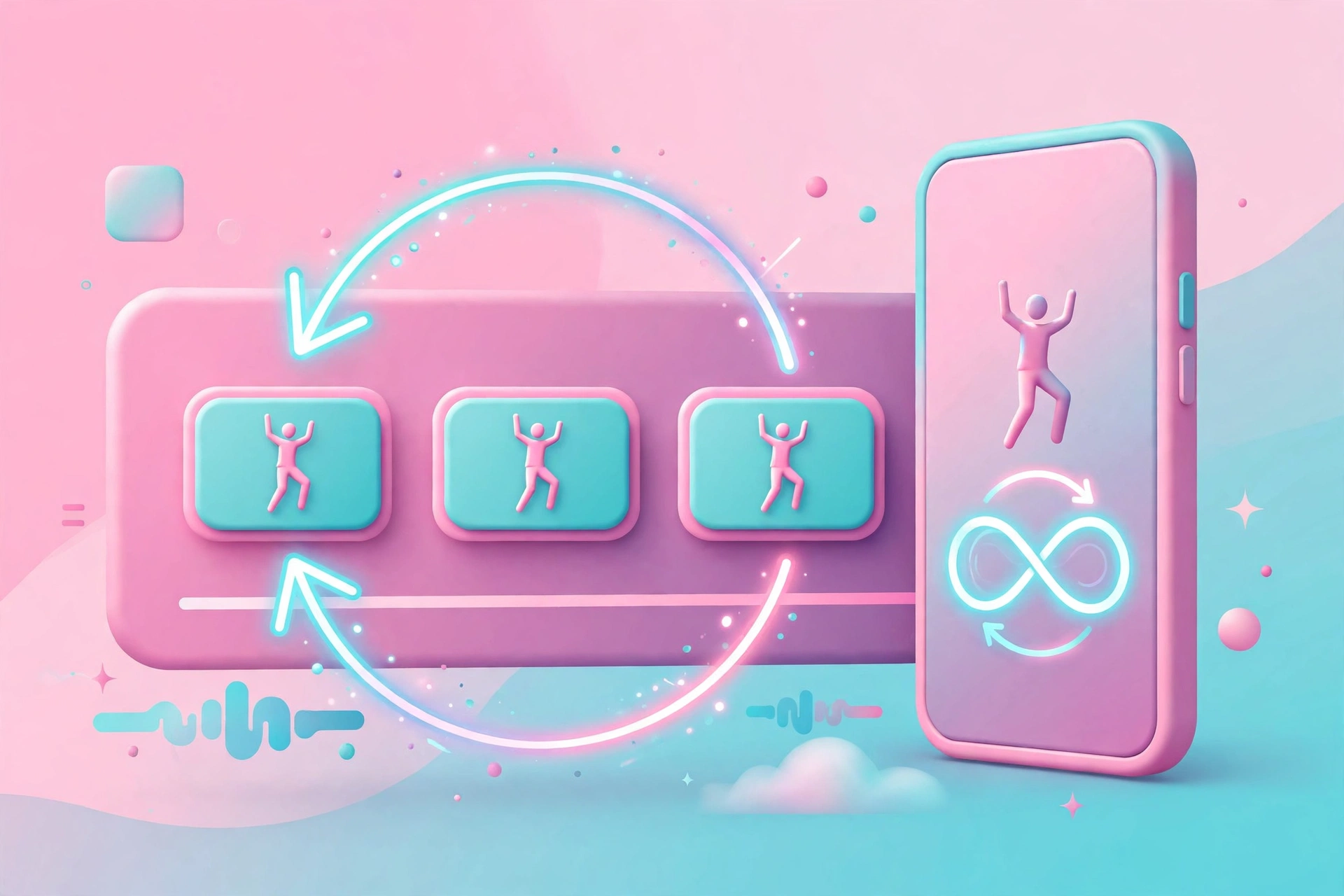
The simplest loop is just repetition: take one clip and place copies of it back to back on the timeline. It is the digital equivalent of a boomerang — the action plays, then plays again. On its own, this method leaves a visible seam unless your clip’s start and end frames already look alike, but for the right footage it is fast and effective.
Best for This Method
Duplication shines with ambient or repetitive footage: a spinning product on a turntable, ocean waves, flickering fairy lights, a neon sign glowing, clouds drifting, or any short repetitive motion where the first and last frames are naturally similar. If your clip ends roughly where it begins, repetition is almost invisible.
Step-by-Step on Mobile
- Open CapCut and start a New Project, then add the clip you want to loop.
- Tap the clip on the timeline to select it.
- Tap Copy in the bottom toolbar — its icon looks like two overlapping squares. If you cannot see it, swipe the toolbar left to reveal more buttons; button placement varies slightly by app version.
- The duplicate appears directly after the original. Tap Copy again to extend the loop as long as you want.
Step-by-Step on Desktop
- Select the clip on the timeline.
- Right-click and choose Duplicate, or use the keyboard shortcuts Ctrl+C / Cmd+C followed by Ctrl+V / Cmd+V — Ctrl+D duplicates even faster. These shortcuts are confirmed on CapCut’s official resource pages.
- Drag the duplicates into place right after the original clip.
Tips for a Cleaner Repeat
Zoom into the timeline and trim the junction between copies frame by frame so the transition lands on a matching pose or frame. If a small jump remains, add a Cross Dissolve transition (found in the Transitions tab, usually under Basic/General) of 0.5 to 1 second over the seam — that is usually enough to soften it completely.
Method 2: The Reverse Ping-Pong Loop
This is the classic boomerang effect: your clip plays forward, then immediately plays backward, then forward again. The beauty of the ping-pong loop is that it has no seam by construction — the end of the forward play is exactly the start of the reverse play, so the junction is mathematically smooth.
Best for This Method
Ping-pong loops work best for actions that look natural in reverse: dance moves, splashes, camera drifts, tossing objects, spins, hair flips, and flowing fabric. It fails for anything with dialogue, readable text, or gestures that look obviously backward — for those, use the match-cut trick in Method 3 instead.
Step-by-Step
- Trim your clip to just the key moment before you do anything else. Reversing long clips takes longer to process, and a tight moment loops better anyway.
- Mobile: select the clip (or split out just the segment you want reversed first), then scroll the bottom toolbar and tap Reverse — it has a backward-arrow icon and usually sits somewhere near Freeze and Mask, though the exact position varies between app versions, so swipe through the toolbar if you do not see it right away. CapCut will process the clip and show a progress percentage while it creates a temporary reversed file. On some versions you will find Reverse under the Edit tab instead.
- Desktop: select the clip, open the right-side Inspector, go to Speed, and toggle Reverse.
- Place the reversed copy directly after the original on the timeline. Forward then backward plays as one continuous boomerang.
Want a deeper walkthrough of the reverse tool itself? Check our full guide on how to reverse a video in CapCut for every setting, speed option, and workaround.
Tips for a Smoother Ping-Pong
Two things trip creators up here. First, reversing strips the clip’s original audio — plan to add music or sound effects afterward, or use Extract Audio first if you want to preserve the sound separately. Second, if the reverse looks choppy, try slowing the reversed clip slightly and enabling optical flow (smooth slow-motion) where CapCut offers it — slow motion plus reverse is one of the easiest ways to get an instantly cinematic feel.
Method 3: The Match-Cut “Last-Piece” Trick
For talking-head videos and narrative clips, you want something more invisible: a loop where viewers genuinely cannot tell where the video starts and ends. The “last-piece” trick achieves that by making the ending and the beginning complete each other.
Fair note: this is a creator technique popularized by a CapCut tutorial short, not an official CapCut workflow — but creators swear by it because it reliably drives rewatches on story-style content.
Best for This Method
Use it for talking-head videos, storytelling, tutorials, and any clip where you want the loop to feel like one continuous take. It is especially powerful when your script is written with the loop in mind.
Step-by-Step
- Finish editing your video on the timeline first.
- Select the very last segment of your video and use Split to cut it into two parts.
- Drag the second part to the very beginning of the timeline.
- For talking videos, script your lines so the last spoken phrase flows into the first. For example, the video opens with “…how you can make” and ends with “…and this is how you can make” — the audio bridge hides the cut completely, and the viewer’s brain stitches the sentence together on every replay.
Tips for a Convincing Match-Cut
The trick lives or dies on your script. Write your closing line first, then cut it in half: the second half goes to the front. Keep your on-camera position, lighting, and background identical between the opening and closing segments, and record in one session so nothing shifts. A gentle 0.5-second Cross Dissolve at the seam adds insurance without being visible.
Method 4: Freeze Frames as Loop Punctuation
Freeze frames are not a loop by themselves, but they are excellent loop punctuation: they hold a pose or a key moment while text explains it, then release the action back into the loop. Comedy edits hold 0.5 to 1.5 seconds for punchlines; dramatic holds of 2 to 3 seconds work with a caption on screen.
Best for This Method
Use freeze holds inside tutorial and commentary loops — holding the exact frame where the result appears while your text overlay explains it. They also work as breathing beats inside fast-paced loops so the viewer can register what just happened.
Step-by-Step
- Mobile: move the white playhead to the exact frame you want to hold, tap the clip to select it, tap Edit in the bottom toolbar, swipe left, and tap Freeze.
- Desktop: place the playhead on the frame, select the clip, right-click and choose Freeze — on newer versions there is also a snowflake icon in the toolbar above the timeline.
- CapCut inserts a still-frame block at the playhead. Drag its white edge handles to extend or shorten the hold duration.
Tips for Freeze Holds
Do not drag freeze holds past their beat — a hold that overstays kills pacing, and pacing is what keeps people watching loops. Stack a text overlay or sticker over the frozen frame so the pause feels intentional, then let the action snap back into motion. One or two holds per loop is plenty.
TikTok and Reels Tips for Loop Videos
The loop itself is only half the battle. These platform-specific settings and habits decide whether your perfectly looped edit actually performs.
Format and Export Settings
Shoot and edit vertical: 9:16, 1080 x 1920, 30fps. Export from CapCut at 1080p or 4K — both platforms compress uploads, so starting from the highest quality keeps your final video crisp. We have also broken down a full short-form setup in our viral-ready YouTube Shorts workflow in CapCut, and most of the pacing and export advice applies directly to TikTok and Reels.
Duration Sweet Spots
Shorter loops drive more repeat views. Creator consensus — these are widely observed sweet spots, not official platform documentation — lands at 15 to 45 seconds for TikTok (many creators aim for the 21 to 34 second range) and 15 to 30 seconds for Reels. The shorter the loop, the less friction each replay has, so err on the tight side.
Hooks and On-Screen Text
Land a visual hook, a verbal hook, and an on-screen text overlay within the first 1 to 2 seconds — show the payoff first, then explain. Because many people watch with sound off, captions should live on screen as text overlays too; subtitles can lift watch time by roughly 25 to 40 percent. Also keep your essential text and the loop’s focal point inside the middle ~70 percent of the frame: TikTok puts captions bottom-left and action buttons on the right, while Reels places captions and audio info along the bottom and right, so the safe zones differ slightly between the two.
Audio Choices
Use short, loopable audio tracks so the music resets cleanly with the video. Trending sounds help TikTok discovery, but remember that a track cleared on TikTok is not automatically cleared on Instagram — it can be muted or flagged on Reels. When in doubt, pick an equivalent track from Instagram’s built-in library for your Reels version.
Common Loop Pitfalls and How to Fix Them
Loops fail for predictable reasons. Here are the five most common ones, each with a concrete fix.
The Loop Has a Visible Jump
This happens when the last frame does not match the first — the eye catches the instant reset and the illusion breaks.
The Fix
Shoot with a locked-off camera (a tripod, or at least minimal camera movement) so the background stays identical at both ends. In the edit, zoom into the timeline and trim the cut frame by frame until the junction lands on matching frames. If a tiny jump survives, lay a 0.5 to 1 second Cross Dissolve over the seam, or switch to the forward-then-reverse ping-pong method, which cannot jump because its junction is seamless by construction. For talking videos, the last-piece match-cut trick is the reliable fallback.
Audio Glitch at the Loop Point
A tiny pause or click where the loop restarts. Common causes: compressed audio (MP3 or AAC) pads block boundaries with silence, reversed clips lose their original audio, or the audio and video loop boundaries do not line up.
The Fix
Choose short audio tracks that loop cleanly, strip any silence from the start and end of the track, and trim the audio separately on its own track so its boundaries match the video loop exactly. A short crossfade on the audio tail helps if CapCut offers it, or simply lay fresh music or sound effects over the whole loop.
The Reverse Looks Choppy
Reversed motion can stutter, especially when the original clip is slow or the footage is low-frame-rate.
The Fix
Slow the reversed clip down slightly and enable optical flow or smooth slow-motion where CapCut offers it. Slow motion plus reverse consistently produces the smoothest, most cinematic ping-pong results — it is the closest thing to a free quality upgrade this technique has.
Motion That Reverses Unnaturally
Ping-pong works for water, smoke, drifts, and spins — but it fails for dialogue, hand gestures, or anything with text, because backward text and speech are instantly obvious.
The Fix
Audit your footage before committing: if anything readable or spoken is on screen, skip the ping-pong and use the match-cut last-piece trick (Method 3) instead. Save reverse loops for purely visual motion with no language cues.
Overlong Loops That Drag
A loop that is too long stops looping — viewers swipe away before the repeat even begins, and the whole point is lost.
The Fix
Balance your pacing ruthlessly. Cut freeze holds to their beat (0.5 to 1.5 seconds for comedy, 2 to 3 seconds max for dramatic caption moments) and trim every dead second from the action. If a loop feels long, it probably is: re-export a tighter version and compare retention.
Frequently Asked Questions
How do I loop a video in CapCut?
Duplicate the clip and place copies back to back — tap Copy in the mobile toolbar, or right-click and choose Duplicate (or press Ctrl+D) on desktop. For a smoother, seam-free version, pair the forward clip with a reversed copy to create a ping-pong boomerang.
Where is the Reverse button in CapCut?
On mobile, it is in the bottom toolbar — scroll or swipe the toolbar left, since its position varies between app versions (it usually sits near Freeze and Mask, and on some versions it is under the Edit tab). On desktop, select the clip, open the right-side Inspector, go to Speed, and toggle Reverse.
Why does my loop have a visible jump?
Because the last frame does not match the first. Fix it by trimming the cut frame by frame, shooting with a locked-off camera so both ends match, or switching to the forward-plus-reverse ping-pong trick, whose junction is smooth by construction.
Does reversing a clip in CapCut remove the audio?
Yes — reversed clips lose their original audio. Use Extract Audio first if you need to preserve the sound separately, or simply add new music or sound effects over the reversed segment afterward.
What is the best video length and format for TikTok and Reels loops?
Edit vertical at 9:16 (1080 x 1920), and keep loops tight: 15 to 45 seconds for TikTok and 15 to 30 seconds for Reels are the widely cited creator-consensus sweet spots. Put your hook in the first 1 to 2 seconds.
Conclusion
Seamless loops are one of the highest-leverage skills in short-form video: they multiply your watch time without asking viewers to do anything extra. Start with duplication for simple footage, reach for the reverse ping-pong trick when motion flows both ways, use the last-piece match-cut for talking-head stories, and sprinkle freeze frames where a beat needs to land. Keep your loops short, hook fast, and fix your seams before posting.
Export one loop today, post it, and watch the replay metrics — once you see a video loop three times without viewers noticing, you will never edit short-form content the old way again.