How to Edit YouTube Shorts in CapCut: A Viral-Ready Workflow (2026)
YouTube Shorts are one of the fastest ways to grow a channel in 2026. The algorithm pushes Shorts aggressively, the format rewards consistency, and a single viral Short can add thousands of subscribers overnight.
But here is what most beginners get wrong: they treat a Short like a shrunken long-form video. Shorts have their own rules – the hook has to land in the first two seconds, the pacing never slows down, and everything is built for a vertical phone screen.
CapCut is arguably the best free tool for editing Shorts. (We have also covered how to make TikTok videos go viral with CapCut if you create for both platforms.) In this guide, I will give you a complete, repeatable workflow for editing YouTube Shorts in CapCut: from project setup to the export settings that keep your Shorts crisp.
Step 1: Set Up Your Project Correctly
Before you import anything, get the canvas right:
- If you do not have the app yet, download and install CapCut first. Then open CapCut and tap New project.
- The default canvas for a new project adapts to your first clip, but to be safe, set the aspect ratio to 9:16 (tap Format or Canvas in the toolbar and choose 9:16).
- Set your project resolution to 1080×1920. This is the native Shorts resolution and keeps everything sharp.
If you are editing footage shot horizontally (16:9), CapCut’s Auto reframe feature can track your subject and crop to vertical automatically. It is not perfect, but it saves a lot of manual keyframing.
Step 2: Build a Hook in the First 2 Seconds
The YouTube Shorts algorithm measures one thing above all: what percentage of viewers keep watching. If people swipe away in the first two seconds, your Short dies.
Your opening needs to do one of three things instantly:
- State the payoff: “Here is how I fixed my blurry photos in 30 seconds.”
- Create curiosity: “Nobody believes this trick actually works…”
- Show the most exciting moment: Start with the climax, then rewind and explain.
In CapCut, build your hook as the very first clip. Trim ruthlessly – no logos, no “hey guys welcome back,” no slow fades. The first frame should already be interesting.
Step 3: Edit for Relentless Pacing
Shorts reward speed. Here is the pacing formula that works:
Cut the Dead Air
Remove Pauses and Fillers
Use CapCut’s Split tool to remove every pause, “um,” and breath between sentences.
Aim for Zero Dead Air
A 60-second talking-head video should have zero dead air. This single habit makes the biggest difference in retention.
Change the Visual Every 2-3 Seconds
Viewer attention resets with each visual change. Alternate between:
- Your face (talking head)
- B-roll or screen recordings
- Text overlays emphasizing key points
- Zooms (CapCut’s keyframe zoom: set a keyframe, move forward, scale up slightly)
If nothing on screen changes for more than 3 seconds, you are losing people.
Use Jump Cuts Deliberately
What Jump Cuts Are
Jump cuts (cutting between two similar framings of yourself) are the native language of Shorts.
How to Do Them
They feel energetic, not jarring, when the pacing is tight. CapCut makes them easy: split, delete the gap, done.
Step 4: Add Captions and Text Overlays
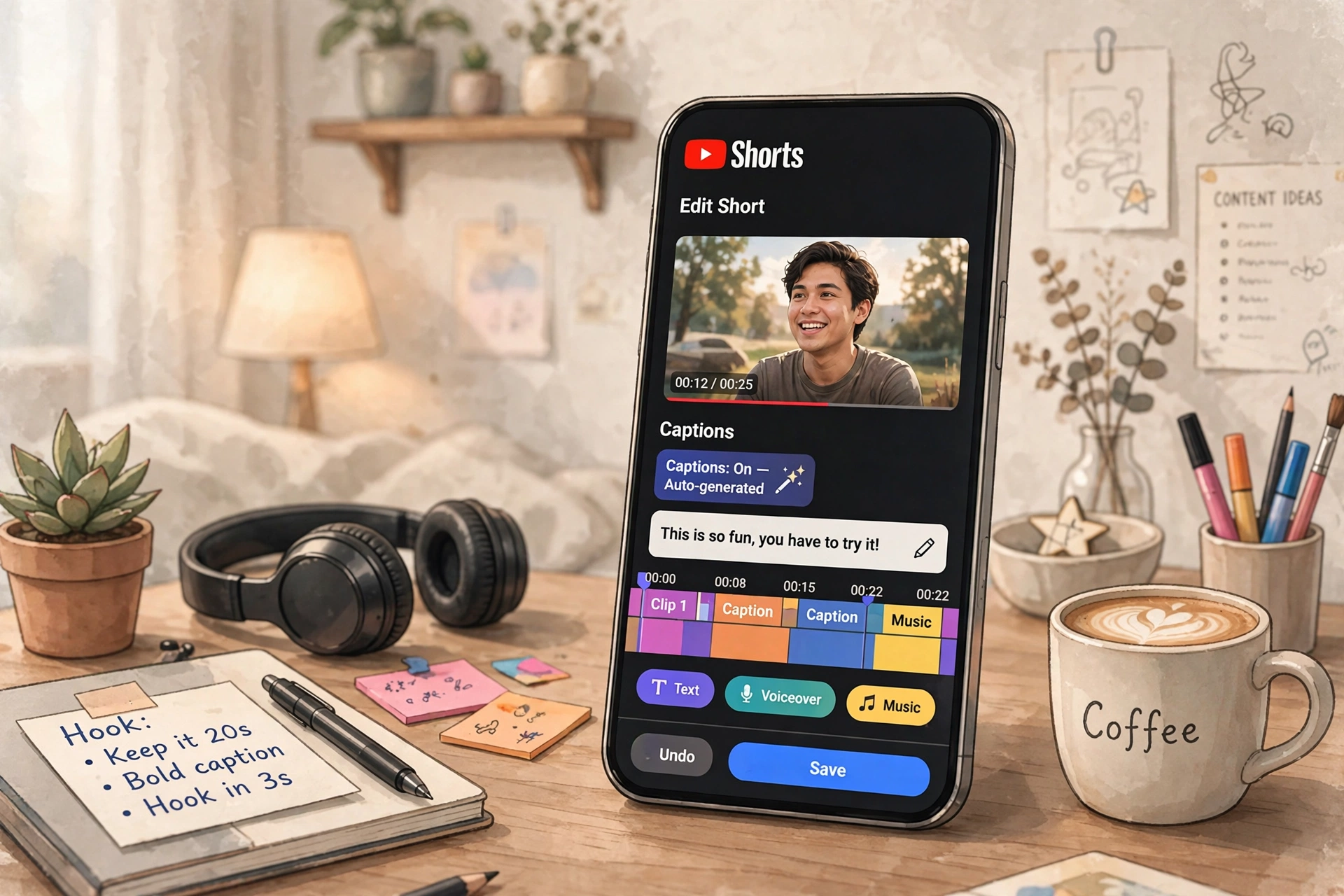
Captions are non-negotiable for Shorts. Many viewers watch with sound off, and YouTube’s algorithm can read on-screen text to understand your content.
- Use CapCut’s Auto captions to generate subtitles from your audio.
- Style them bold: large font, high contrast (white text, black background box), positioned in the lower third but above YouTube’s UI overlay zone.
- Highlight 1-2 keywords per caption in a contrasting color.
- Keep captions to 1-2 short lines each.
Also add a title text overlay in the first second that summarizes the video (“Fix Blurry Photos in 30s”). This works as a visual hook for muted viewers.
Important: Keep text away from the edges. YouTube overlays its Shorts UI (title, buttons, progress bar) on the sides and bottom. Keep critical text in the safe middle zone of the frame.
Step 5: Sound Design and Music
Audio is half the video in Shorts:
- Voice: Use CapCut’s Reduce noise and Loudness normalization so your voice is clear and consistent.
- Music: Add trending or fitting background music at low volume (10-20% of your voice level). It fills silence and adds energy without drowning you out.
- Sound effects: Whooshes on transitions, pops on text appearances, a subtle riser before the payoff. CapCut’s audio library has all of these built in.
One caution: YouTube’s music policies for Shorts are generous, but if you plan to reuse the Short on other platforms, stick to royalty-free tracks or CapCut’s licensed library to avoid claims.
Step 6: Color and Polish
You do not need heavy color grading for Shorts, but a quick polish helps:
- Apply a light Filter (the “Clear” or “Memory” filters work well) at 40-60% intensity.
- Bump Saturation slightly (+5 to +10) and Sharpen (+5). Phone screens love punchy color.
- Keep skin tones natural – if faces look orange, dial the filter back.
Consistency matters more than perfection. Use the same filter and adjustments across your Shorts so your channel develops a recognizable look.
Step 7: Export Settings for YouTube Shorts
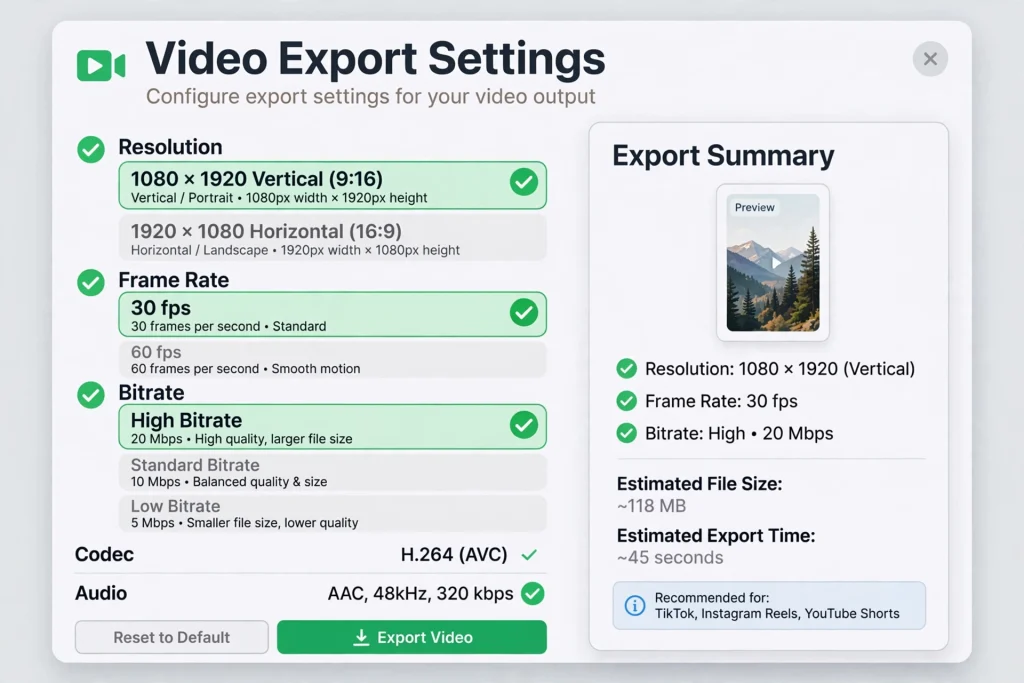
This is where many creators unknowingly sabotage their quality:
- Resolution: 1080×1920 (1080p vertical)
- Frame rate: 30fps (match your footage; 60fps only if you shot 60fps)
- Bitrate: Higher / Recommended+. YouTube recompresses everything, so give it the cleanest file possible.
- Format: MP4
After exporting, upload the file directly to YouTube (not via a screen recording or a re-download from another app). Every re-encode loses quality.
The Repeatable Shorts Checklist
Save this and run through it before every upload:
- ☐ 9:16 vertical, 1080×1920
- ☐ Hook in the first 2 seconds (payoff, curiosity, or best moment)
- ☐ Visual change every 2-3 seconds
- ☐ Auto captions styled and keyword-highlighted
- ☐ Text clear of YouTube’s UI overlay zones
- ☐ Voice clear, music at 10-20%, sound effects on key moments
- ☐ Light color polish, consistent with your channel
- ☐ Exported at 1080p, high bitrate, MP4
FAQs
What is the best CapCut setting for YouTube Shorts?
9:16 aspect ratio, 1080×1920 resolution, 30fps, high bitrate MP4 export. This matches YouTube’s native Shorts format exactly.
How long should a YouTube Short be?
YouTube allows up to 3 minutes, but the sweet spot for growth is 25-45 seconds. Short enough to get full watch-throughs, long enough to deliver value. Only go longer if the content genuinely needs it.
Can I edit a horizontal video into a Short in CapCut?
Yes. Import your 16:9 footage, set the canvas to 9:16, and use Auto reframe or manual keyframes to keep your subject in frame. It works best when your subject stays centered.
Why do my Shorts look blurry after uploading?
Usually one of three causes: you exported at low bitrate, you re-uploaded a file that was already compressed (e.g., downloaded from TikTok), or YouTube is still processing the HD version (wait an hour and check again).
Should I add hashtags to my Shorts?
A few relevant hashtags in the description help YouTube categorize your Short. 2-4 targeted hashtags beat 15 generic ones. #Shorts is optional – YouTube detects Shorts automatically from the format.
Final Thoughts
Editing YouTube Shorts in CapCut is a skill you build through repetition, not a secret you unlock once. The creators blowing up with Shorts are not using magic effects – they are running a tight workflow: brutal hook, relentless pacing, captions, clean audio, sharp export. Every single time.
Set up this workflow once, save it as your personal checklist, and your tenth Short will be dramatically better than your first. The algorithm rewards the creators who keep showing up with watchable videos. Now you know exactly how to make them watchable.